Bienvenido! - Willkommen! - Welcome!

Bitácora Técnica de Tux&Cía., Santa Cruz de la Sierra, BO
Bitácora Central: Tux&Cía.
Bitácora de Información Avanzada: Tux&Cía.-Información
May the source be with you!
Showing posts with label WOL. Show all posts

Monday, June 3, 2013

Power Management for Network Devices in Windows 7

http://technet.microsoft.com/en-us/library/ee617165%28v=ws.10%29.aspx
Applies To: Windows 7

Networking Power Management
Networking power management refers to the set of features that you can configure to allow the computers in your network to save energy. For example, the most common networking power management feature is Wake on LAN (sometimes referred to as WoL). Wake on LAN allows the computer to be woken up from sleep by desired network traffic. This paper describes the networking power management capabilities of Windows 7, how to use them, and what controls you can use to customize their behavior.

What’s new in the Networking Power Management?

Enhancements in Windows 7 have been made in the areas of Wake on LAN, Wake on Wireless LAN and Low Power on Media Disconnect (sometimes referred to as D3 on disconnect).
  • Wake on LAN and Wake on Wireless LAN . The Wake on LAN patterns in Windows 7 were designed to ensure that the computer wakes when accessed by the network while minimizing spurious wakes. Windows 7 does not wake on directed packets (for example, ping) which have been known to cause frequent and unnecessary wakes.
    In addition to more targeted wake patterns, Windows 7 adds support for Address Resolution Protocol (ARP) and Neighbor Solicitation (NS) offloads. ARP and NS protocols map Internet Protocol (IP) addresses to a MAC address. ARP and NS protocols are commonly used to verify whether a computer is still present on the network, often without actually needing to access the computer. By offloading ARP and NS responses to the network adapter, the computer is no longer woken up merely to maintain network presence. Support for these offloads depends on the network adapter and driver (NDIS 6.20) and may not be available on older hardware.
  • Low Power on Media Disconnect . This is a new Windows 7 feature that enables the computer to save energy by placing the network adapter in the low power state when the LAN cable is unplugged and the computer is running. This feature is only available when supported by the network adapter.
These enhancements in Windows 7 improve the ability of the operating system to stay asleep while still maintaining a network presence. This helps enterprise and home computers to save energy by entering into sleep mode when they are not in use.

Who should use this guide?

Users, IT Professionals, and OEMs that are interested in understanding and configuring the networking power management enhancements in Windows 7.

In this guide

  • Overview of Features
  • Prerequisites
  • Configuring power management using the user interface
  • Configuring Wake on LAN using the command line
  • Configuring power management using keywords
  • Configuring power management using the WMI API
  • Summary

Overview of Features

This section outlines the technical details of the power .management features in Windows 7.
  • Wake Patterns . Wake patterns refer to network packet filters that determine if incoming network traffic should wake the computer. You can enable these patterns on the network adapter. The following wake patterns may be supported by a network adapter:
    • Wake on new incoming TCP connection for IPv4 and IPv6 (TCP SYN IPv4 and TCP SYN IPv6).
    • 802.1x re-authentication packets
  • Bitmapped Patterns . Most network adapters can be programmed with bitmapped pattern filters. Bitmapped patterns are defined by a bitmap mask and a pattern filter. As network packets are received, they are masked using the bitmap mask and then compared to the pattern filter. If there is a match, the network adapter wakes the computer.
  • Magic packet . The magic packet is always supported and does not need or use a pattern. Magic packet is used by some applications including most media sharing applications.
    The patterns that are chosen by default are based on the network adapter’s capabilities and whether the computer is joined to a domain as follows:
    Capabilities supported by the network adapterDefault for a computer that is joined to a domainDefault for a computer that is not joined to a domain
    ARP & ND offloadMagic Packet
    NETBIOS name query
    TCP SYN v4
    TCP SYN v6
    Magic Packet
    NETBIOS name query
    TCP SYN v4
    TCP SYN v6
    ARP offload onlyMagic Packet
    NETBIOS name query
    TCP SYN v4
    TCP SYN v6
    Magic Packet
    NETBIOS name query
    TCP SYN v4
    TCP SYN v6
    NS
    No offloadMagic packetMagic Packet
  • Network Presence . Windows 7 adds support for ARP and NS network presence offloads.
    • ARP offload . ARP offload is the ability of the network adapter to respond to an IPv4 ARP request without waking the computer. Both the hardware and the driver must support ARP offload to enable this feature.
    • NS offload . NS offload is the ability of the network adapter to respond to a Neighbor Discovery Neighbor Solicitation request with a Neighbor Advertisement without waking the computer. Both the hardware and the driver must support NS offload to enable this feature.
  • Low Power on Media Disconnect . Lower Power on Media Disconnect is the ability of the network adapter to go to sleep when it is not in use. When Windows detects that media has been disconnected (for example, a cable is unplugged), Windows will put the device into the low power state and disable the LAN. The computer will automatically detect when the cable is plugged in again and return the network adapter to full power. Low Power on Media Disconnect is disabled when the computer goes to sleep.
  • Wake On Wireless LAN . The Wake on Wireless LAN implementation in Windows 7 represents a superset of Wake on LAN. In addition to the features defined for a wired LAN, devices that support Wake on Wireless LAN must be able to maintain a connection to the access point while the computer is in sleep mode. In addition to receiving packets from the wireless access point and filtering them, the wireless network adapter must be able to handle security key updates. GroupWise Transient Key updates are handled by the wireless network adapter while the computer is in sleep state. For Pairwise Transient Key updates or user authentication, the network adapter must wake the computer and allow Windows to handle the request.
    As with wired WoL, while the computer is in the sleep state, the network adapter will apply the packet filters and respond using power management offloads (if applicable). If the connection is lost, the network adapter may re-establish the connection to the same access point. To roam or connect to another access point, the network adapter must wake the computer.
Power management settings are controlled by standard registry keywords. You can modify the standard keywords using the device properties user interface, the netsh command, or Windows Management Instrumentation (WMI). Networking power management is controlled on a per network adapter basis.

Prerequisites

Update hardware and drivers to NDIS 6.20 . Wake on LAN, Wake on Wireless LAN, power management offloads and Low Power on Media Disconnect must be supported by both the network adapter and the driver. Wake on LAN pattern enhancements will function with both Windows 7 and previous driver versions. For previous driver versions, Windows 7 will translate Wake on LAN patterns to match the older power management capabilities of the driver. Support for power management offloads must be enabled by both the hardware and a Windows 7 version of the driver (NDIS 6.20).

Configuring power management using the user interface

To turn power management features on or off

  1. Open Network and Sharing Center (click the Start button, type Network and Sharing in the Start Search box, and press Enter).
  2. Click the Change adapter settings link in the upper left of the navigation pane.
  3. Right click the network connection you want to enable/disable power management support on and click Properties .
  4. Click Configure .
  5. On the Power Management tab, check or clear the Allow the computer to turn off this device to save power check box.
    • When checked, power management is enabled on the network adapter.
    • When cleared, power management is disabled on the network adapter.
  6. You can enable Wake on LAN for all wake methods or just enable magic packet WoL:
    • To enable Wake on LAN for all methods, check the Allow this device to wake the computer check box.
    • To enable Wake on LAN for magic packet only, check the Allow this device to wake the computer check box and then check Only allow a magic packet to wake the computer check box.
    noteNote
    For devices that do not support ARP and NS offloads, Windows will default to wake only on magic packet.

  7. Click OK .

Configuring Wake on LAN settings using the command line

You can use the netsh command to force the operating system to wake on ARPs, and NS on a per network adapter basis—but only for computers that are joined to a domain.

To force a network adapter to wake on ARP and NS

  1. Open a command prompt with administrator privileges. (click the Start button, type Command Prompt in the Start Search box, right click Command Prompt , and click Run as Administrator .)
  2. Type netsh interface ipv4 show interfaces . This will list all of the available network interfaces; note the index (labeled Idx ) of the network adapter you want to modify.
    noteNote
    You can replace ipv4 with ipv6 for Internet Protocol version 6.

  3. To force the network adapter to wake on ARP and NS type netsh interface ipv4 set interface [index] forcearpndwolpattern=enabled . If successful, OK will be returned.
  4. To revert to system default type netsh interface ipv4 set interface [index] forcearpndwolpattern=disabled . If successful, OK will be returned.

Configuring power management using keywords

You can use keywords to configure which power management features are enabled or disabled. Keyword settings may be modified using either WMI scripts or the advanced properties page of the device properties. Keyword settings influence which patters are programmed on the network adapter. The keywords that a network adapter must support along with their default settings are shown in the following table.
SubkeyName Explanation Default Setting
*WakeOnPattern
Defines if a network adapter is enabled to wake the computer on pattern matches.
0 - Disabled
1 (Default) - Enabled
*WakeOnMagicPacket
Defines if a network adapter is enabled to wake a computer on the magic packet.
0 - Disabled
1 (Default) - Enabled
*DeviceSleepOnDisconnect
Defines if a network adapter is allowed to go to low power when media is disconnected and wake when media is connected again.
0 - Disabled
1 (Default) - Enabled
*PMARPOffload
Defines if a network adapter is enabled to offload ARP when the computer goes to sleep state.
0- Disabled
1 (Default) - Enabled
*PMNSOffload
Defines if a network adapter is enabled to offload NS when the computer goes to sleep state.
0 - Disabled
1 (Default) - Enabled
*PMWiFiRekeyOffload
Defines if a network adapter is enabled to offload GTK rekeying for WoWLAN when the computer goes to sleep state.
0- Disabled
1 (Default) - Enabled

Configuring Power Management using the WMI API

WMI is a programmatic means by which an application or administrator can control power management settings. Example scenarios for controlling power management capabilities using WMI scripting include:
  • Applications may not allow a computer to sleep unless specific Wake on LAN capabilities are supported and enabled. For example, Media Center or Media Center extenders.
  • An OEM, shipping computers with multiple network adapter cards, can enable WoL for selected network adapters. Management utilities can display and allow you to modify the power management capabilities for a network adapter using WMI scripts. These utilities will be able to read hardware capabilities and allow custom configuration.
The following WMI methods allow you to query and control Wake on LAN:
  • GUID_NDIS_PM_ADMIN_CONFIG is used to query and set keyword switches.
  • GUID_NDIS_PM_CAPABILITIES is used to query both the hardware capabilities and the state of current capabilities.

GUID_NDIS_PM_ADMIN_CONFIG

The GUID_NDIS_PM_ADMIN_CONFIG method is called to query or to set keyword values and parameters. Each keyword may be one is the following three values:
  • Unspecified . In a query, it means the keyword does not exist. In a set, it means the user does not want to change the keyword’s current value.
  • Disabled . In a query, it means the keyword is currently disabled. In a set, it means to disable the keyword.
    Enabled . In a query, it means the keyword is currently disabled. In a set, it means to enable the keyword.
    The keywords used in GUID_NDIS_PM_ADMIN_CONFIG are composed in the following struct:
    struct _NDIS_WMI_PM_ADMIN_CONFIG
    { NDIS_PM_ADMIN_CONFIG_STATE WakeOnPattern;
     NDIS_PM_ADMIN_CONFIG_STATE WakeOnMagicPacket;
     NDIS_PM_ADMIN_CONFIG_STATE DeviceSleepOnDisconnect;
     NDIS_PM_ADMIN_CONFIG_STATE PMARPOffload;
     NDIS_PM_ADMIN_CONFIG_STATE PMNSOffload;
     NDIS_PM_ADMIN_CONFIG_STATE PMWiFiRekeyOffload; 
    }
    

GUID_NDIS_PM_ACTIVE_CAPABILITIES

The GUID_NDIS_PM_ACTIVE_CAPABILITIES method will query and return the current capabilities. Each capability will be reported in one of three enumerated values as follows:
  • Unsupported . Means the hardware does not support this capability.
  • Inactive . Means the hardware supports the capability, but a keyword or other logic has this capability disabled.
  • Active . Means the hardware supports the capability and it is actively enabled.
The capabilities returned in GUID_NDIS_PM_ACTIVE_CAPABILITIES are composed in the following struct:
struct _NDIS_WMI_PM_ACTIVE_CAPABILITIES
{ NDIS_PM_CAPABILITY_STATE WakeOnPattern;
 NDIS_PM_CAPABILITY_STATE WakeOnMagicPacket;
 NDIS_PM_CAPABILITY_STATE DeviceSleepOnDisconnect;
 NDIS_PM_CAPABILITY_STATE PMARPOffload;
 NDIS_PM_CAPABILITY_STATE PMNSOffload;
 NDIS_PM_CAPABILITY_STATE PMWiFiRekeyOffload; 
}

Summary

The enhancements made to Windows 7 for managing power settings for network adapters greatly reduces the number of spurious wakes, allowing computers to sleep for longer periods of time when idle. Furthermore, you can configure the power management settings to meet the needs of your users through device properties, standard registry keywords, or WMI. The result is energy savings and a more environment friendly computer.

Did you find this helpful?

Community Additions

ADD

*PMNDOffload Typo

Shouldn't that be *PMNSOffload?
amirpoorani
4/22/2012

WOL tools

There are a number of free tools that can send WOL magic packets. Here is a very simple GUI-based tool that works well (Win7 Ult x64). swb_mct also references this site in the comments above. Weestro
1/4/2012

ARP and WiFi rekey offloads in PM capabilities became inactive in WMI query result

My adapter is capable of wake on magic packet, ARP offload and WiFi rekey offloads, however one day I found ARP offload and WiFi rekey offload did not work any more although magic packet is still working until today.
I used wbemtest to query PM Capabilities of my adapter, it turned out that all the protocol offloads became "1" (inactive), however I'm 100% sure that they're enabled in "Advanced" tab in the adapter's properties. According to this article, "Inactive" means "the hardware supports the capability, but a keyword or other logic has this capability disabled". Now that "keywords" in the "Advanced" tab look correct, there should be some kind of "other logic" disabled them.
Re-installing the driver or using an older driver did not help.
Can someone tell me what "other logic" means or what happened to my Windows?
I guess there must be some settings of my Windows were changed accidentally, but I still don't know what it is after searching throughout the internet.
12/31/2011

Wake up

Eric, you are correct. I found nothing in my extensive searches that would allow an Enterprise to wake up machines reliably. We at one time tried to use Altiris, but even that had it's issues with server hangs and other users messing with the collections and configuration of the Altiris Servers. Currently I am waking up 50,000 workstations using Powershell. I have scripts that read in the dhcp info into SQL every night, and then using Active Directory, I get the list of machines, query the database for a match and that gives me the MAC address and the IP address to send the broadcast. Using magic packet, I have been getting consistent results for over 6 months now. I have not messed with any of these other methods for WOL, but will be looking into it as soon as I can find someone else that is waking machines with something other than magic packets.
12/7/2011

Wake from Remote Desktop

TCP SYN is a way you can wake from RDP. If that pattern is enabled then a system in Standby/Hibernate will wake from the remote desktop connection attempt.

You should enable PME in windows 7 to make Wake on lan work

If NIC drivers upgrade, BIOS upgrade are not helping and you are on windows 7, then probably enabling PME is the solution. See http://techibee.com/windows-7/wake-on-lan-is-not-working-in-windows-7-found-the-solution/980 for more details.
5/3/2011

Answering the question below

Through testing on a Windows 7 Thinkpad notebook used for remote access to systems at vacation home, there are two ways to Wake Up the computer using Wake on LAN. The second, more reliable method described below was a surprise, because my understanding was that normal http or remote desktop requests are not supposed to trigger WoL.
-
If you use this on the internet make sure to configure UDP ports on your port forwarding rules. TCP is default on many router/firewalls.
-
1. If you configure the Windows 7 network adaptor to "Only Allow Magic Packets to wake up the computer" you can send Magic Packets using the free WolCmd.exe command line utility. Since this method was not not 100% reliable I created a batch file that sends the command 4 times as follows using 4 different inbound UDP ports forwarded to the LAN ip address of the Thinkpad. Using 4 different ports was an attempt to improve 'wake-up' and delivery reliability. Sending the command 4 times definitely helped reliabilty. I don't know if using 4 different UDP ports through the firewall made any difference.
-
Batch file commands below inlcludes mac address of Thinkpad, internet address, mask, UDP port
-
C:\wolcmd.exe 001125184f95 echobay.domainname.net 255.255.255.255 35700
C:\wolcmd.exe 001125184f95 echobay.domainname.net 255.255.255.255 35701
C:\wolcmd.exe 001125184f95 echobay.domainname.net 255.255.255.255 35702
C:\wolcmd.exe 001125184f95 echobay.domainname.net 255.255.255.255 35703
-
2. This method is more reliable than above.
I turned off "Only Allow Magic Packets to wake up the computer" and now any connection attempt forwarded to the Thinkpad on the LAN wakes up the notebook. This computer hosts remote desktop on tcp port 35701 and http on tcp port 35700. A Remote Desktop connection attempt or an http connection attempt now wakes up the computer and opens the session about 5 seconds later.
-
I don't care if someone else wakes up the computer because my WoL arrangement is only to wake up the computer from following an AC Power Outage. It only goes to sleep when there is an AC power outage but there is no Power Managmenet method to wake it up upon AC power resumption.
You can get wolcmd.exe here:
http://www.depicus.com/wake-on-lan/wake-on-lan-cmd.aspx
3/29/2011

Missing the Obvious

This article is missing the most obvious information - how to you actually wake up the computer remotely? What tools or utilities are there. What do you actually have to do to send any of
  1. Magic Packet
  2. NETBIOS name query
  3. TCP SYN v4
  4. TCP SYN v6
I have tried Google and Bing, and all I can find are web pages that can send a magic packet, but when I try them they do not work even though I have my target system configured for WOL. Microsoft seem to deliberately be avoiding to implement the most obvious feature of all - WOL from Remote Desktop - as that seems to be the most requested feature on the web.

Thursday, February 14, 2013

Wake On Local Area Network (LAN)

Wakeup is an utility that can wake up a computer within the same subnet as the initiator of this command. All what is needed is the mac address of the computer that you want to start up. A second requirment is that the destionation computer needs hardware that support wakeuplan.
download here
Changelog:
1.01: Added the notation with :
Example usage:
Both example below wake up a computer with a network card that has the mac address 00508BCC0983. Notice that in both examples the mac address is the same only the last one has the notation with :
       wakeup 00508BCC0983
       wakeup 00:50:8B:CC:09:83
=====================
Wake-on-LAN (WOL) is an ethernet computer networking standard that allows a computer to be turned on or woken up by a network message.
The message is usually sent by a program executed on another computer on the same local area network. It is also possible to initiate the message from another network by using subnet directed broadcasts or a WOL gateway service. Equivalent terms include wake on WAN, remote wake-up, power on by LAN, power up by LAN, resume by LAN, resume on LAN and wake up on LAN. In case the computer being woken is communicating via Wi-Fi, a supplementary standard called Wake on Wireless LAN (WoWLAN) must be employed.[1]
The WOL and WoWLAN standards are often supplemented by vendors to provide protocol-transparent on-demand services, for example in the Apple Bonjour wake-on-demand (Sleep Proxy) feature.[2]
---------------
Wake on LAN (WoL) support is implemented in the motherboard of the computer. Most modern motherboards with an embedded Ethernet controller support WoL without the need for an external cable. Older motherboards must have a WAKEUP-LINK header onboard and connected to the network card via a special 3-pin cable; however, systems supporting the PCI 2.2 standard coupled with a PCI 2.2 compliant network adapter typically do not require a WoL cable as the required standby power is relayed through the PCI bus.
Wake on LAN must be enabled in the Power Management section of the motherboard's BIOS. It may also be necessary to configure the computer to reserve power for the network card when the system is shut down.
In addition, in order to get WoL to work it is sometimes required to enable this feature on the card. This can be done in Windows from the properties of the network card in the device manager, on the "Power Management" tab. Check "Allow this device to bring the computer out of standby" and then "Only allow management stations to bring the computer out of standby" to make sure it does not wake up on every single network activity that occurs.
=========================
Wake On LAN (WOL) "How to"
Configuring Wake-on-LAN
http://www.energystar.gov/index.cfm?c=power_mgt.pr_power_mgt_wol
Another way to ensure that sleep settings do not interfere with the distribution of administrative software updates (such as Windows security patches and antivirus definitions) is to utilize Wake-on-LAN features. With Wake-on-LAN activated, a network administrator can wake up sleeping machines at any time in order to perform on-demand software patches or updates.

Overview

Wake-on-LAN (WOL) allows a computer to be powered on or awakened from standby, hibernate or shutdown from another device on a network. The process of WOL is the following:
  • The target computer is in standby, hibernate or shutdown, with power reserved for the network card.
  • The network card listens for a specific packet, called the "Magic Packet."
  • The Magic Packet is broadcast on the broadcast address for that particular subnet (or an entire LAN, though this requires special hardware and/or configuration).
  • The listening computer receives this packet, checks it for the correct information, and then boots if the Magic Packet is valid and if contains the network card's MAC address.

Enabling WOL on Computers

WOL must be enabled in the both the basic input/output system (BIOS) and the network card. In order to enable WOL in the BIOs quickly and easily, some manufacturers provide methods for managing BIOS settings remotely or through scripts. For example, BIOS settings can be configured remotely on Dell computers using Dell Open Manage and on HP/Compaq computers using Insight Manager. To see if this is available for you computer, please contact your manufacturer. In order to enable on the network card, please take the following steps:
  • Click on "Network Connection" (in Control Panel) and then click on "Properties."
  • Click on "Configure" next to the network card the connection is using.
    Wake-on-LAN Local Area Connection Properties
  • Click on the "Advanced" tab. (The settings in this example are specific to the Marvell Yucon card but should be similar for other network cards.)
  • Enable "Wake From Shutdown" (may be different depending on the model of network card) by setting the Value to "On".
    Wake-on-LAN Marvell Yukon network adapter settings
  • Enable "Wake Up Capabilities" (may be different depending on the model of network card) by setting the Value to "Magic Packet".
    Wake-on-LAN Marvell Yukon network adapter settings
  • Click on "Power Management" tab. (The settings in this example are specific to the Marvell Yucon card but should be similar for other network cards.)
  • Enable "Allow this device to bring the computer out of standby" by checking the box.
  • Enable "Only allow management stations to bring the computer out of standby" by checking the box. This will require a Magic Packet to wake up your computer. Not selecting this will allow any traffic directed to your computer to wake it up.
Wake-on-LAN Marvell Yukon network adapter settings

Waking Up a Computer

Once WOL is enabled, the computer can be awakened by sending a Magic Packet. A Magic Packet is a broadcast sent on port 0, 7, or 9 that contains the destination computer's MAC address. All computers on the subnet get the packet. If the MAC Address matches the network card, the computer will wake up.
For use in an enterprise, WOL is usually used in conjunction with a management system that already stores this subnet and MAC address information. If using a management system such as Microsoft Systems Management Server (SMS), Altiris, or LANDesk, WOL capabilities may be built in or add-ons may be available. A few free applications available for waking up computers using WOL are provided below. (Inclusion in this list does not constitute EPA ENERGY STAR program endorsement, approval, or certification of these software packages.)
Other Notes:
  • For waking up computers on other subnets, the MAC address and subnet for each computer will be needed and must be updated if a computer is moved to another subnet.
  • Since WOL uses Directed Broadcasts to send Magic Packets to the destination computer, some network configuration may be to necessary wake up computers on a different subnet. On most routers Directed Broadcasts are disabled by default due to vulnerabilities associated with them. To securely enable Directed Broadcasts, access lists should be created or modified to allow them from one or more IP address or subnets and deny them from all others. This allows Magic Packets to be sent from management computers but keeps the rest of the network secure from Directed Broadcast vulnerabilities. This access list would have to be added to all routers between the source of the WOL Magic Packet and the destination computers that will be woken up.
=========================
Wake-computer-from-sleep-standby-without-bios-support-for-wol
You can use Task Scheduler to wake the computer.
  1. Click Start, type Task Scheduler in the Start Search box, and then click Task Scheduler in the Programs list.
If you are prompted for an administrator password or for confirmation, type your password, or click Continue.
  1. In the Actions pane of the Task Scheduler dialog box, click Create Task.
  2. In the Create Task dialog box, click the Conditions tab.
  3. Click to select the Wake the computer to run this task check box.
  4. In the Create Task dialog box, configure the options on the other tabs as appropriate for your needs, and then click OK.
 --------------------------
I've been able to rig up a solution using my router with DD-WRT installed.
The computer will wake up from standby if it receives a "magic packet" from the LAN, so I've configured SSH on the router, and I just run a script that will SSH into the router and then execute the wake-on-lan script from the router interface.
I created a variation of this script: DD-WRT Useful Scripts
=========================
http://en.community.dell.com/support-forums/network-internet-wireless/..19437693.aspx
the power options on our ethernet controler
WakeUpMode    
= "None"
= "Magic Packet"
= "Wake Up Frame"
= "Both"
 default is both what ever that is..i am assuming it magic packet and frame...
--------------------------------------
  My system is a dell xps 720 (A06 Bios) running XP and i had a problem very similar to what wickpica wrote. More specifically i was trying unsuccessfuly  to get Logmein on a client computer  to wake up my remote host computer the dell xps 720. The client computer just could not wake up the host computer. I believe i have solved the problem and wish to share it.
On the power management tab of the 57xx gigabit controller (nic card?) settings, i had to unclick the box beside "only allow management stations to bring the computer out of standby".  (the other 2 boxes above that stayed clicked on). 
This solved the problem. I am now able to remotely access the dell xps 720 via "wake on lan" WOL.  However, a new problem arose and luckily i figured that out also.
The new problem was that under this new setting, the computer kept coming out of standby on it own without me touching the mouse or keyboard.  I made a guess  that logmein was causing the computer to come out of standy (based on the packets i could see thru viewing the network activity of comodo firewall).  Also I read a very good post at http://en.community.dell.com/forums/p/19301828/19601275.aspx and figured out that under the Advanced tab of  the 57xx gigabit controller settings --wake on lan capabilities,  i should choose --magic packet
.....not  --both
.....where both would include "wake up frame" and "magic packet".
By choosing .--magic packet on the drop down menu, the annoying wakeup from standby problem caused by logmein was solved.  (on the other dell forum above, it was suggested to disable wake on directed packets, this must be a similar function as "wake on frame" ...it seems that disabling them prevents random wakeups form standby )
The last comment is about the following quote from wickpika above:
"The worst part...
After attempting to "wake on LAN", I cannot get the PC to resume from standby, even at the console. My only option is to power down the PC by holding the power button"
i experienced this same real hassle although in my case it was a slightly different change in the behaviour of standby mode (related to the time it took to come out of standby and how deeply it went into standby). It was almost a bit of a nightmare because it was permanently doing this.  I realize that the only change i had made was switching from S3 default setting to the S1 setting (in the bios) under power management (i think).  I know (or i'm pretty sure) that this bios change caused the annoying change in standby - probably a registry change corruption (?). It shouldn't have caused it but that is the nature of random events.   Going back to an earlier restore point (3 hours earlier) solved this problem for me.
=============================
http://communities.intel.com/thread/29566?start=30&tstart=0
I think I FINALLY found the answer. I'll document it in case some other poor soul has this problem and googles it.

In the BIOS menu there's an option to display the Intel ME prompt during boot. It's together with the options to display F2 to enter setup, F10 to enter boot menu, and so on. I enabled it just to see what it was. Upon restart, sure enough, right at the end of the POST there's a prompt to press CTRL+P to enter Intel ME. I did. Apparently it's kind of an extension to the BIOS menus. Among the few items inside, there was a "remote wake up" thing which was set to Enabled. I set it to Disabled. Now the computer doesn't reply to pings when it's sleeping. As I said, it will be a couple of days until I can be sure that I've solved the problem, but it does look promising.

I have to say, this Intel ME thing (I think it's Management Engine) is not documented anywhere, nobody seems to know about it, and why Intel put those options there instead of in the BIOS menus with the rest, is beyond me. Even the prompt to enter Intel ME is disabled by default, I was lucky to stumble upon it after trying everything.

Anyway, I hope it works permanently. I would like to thank everyone for your suggestions, especially rseiler. I may have ended solving the problem by myself (hopefully!), but I appreciate the time you took to contribute.
=============================
Windows Shutdown and Wake On LAN Primer
 Shutdown
Almost all modern PCs support Advanced Configuration and Power Interface (ACPI), which offers several methods of removing power to components within the PC, while allowing for the PC to quickly resumed when needed. Additionally, over the years several methods of waking a PC remotely over a network have been developed. Using a combination of these two features allows you to conserve power by powering down a PC when not in use, but have it quickly (and remotely) available when needed. 
ACPI defines the following levels of shutdown.    
    S1: The CPU is paused but power to CPU and RAM is maintained. Devices that do not indicate they must remain on may be powered down.
    S2/S3: Standby. CPU is stopped and whilst RAM is still powered it refreshes slower. The difference between S2 and S3 is the ram refresh speed. PC power is still required and may not be removed.
    S4: Hibernation. All content of main memory is saved to non-volatile memory such as a hard drive, and the PC is then powered down. If power is removed, the PC is able to resume from it's hibernated state once it has power again. Resuming from hibernation returns the PC to the state it was in when the hibernation was performed rather than "booting" the PC. Only devices able to wake the PC are powered (e.g. keyboard, clock, modem, LAN, or USB device).
     S5: Shutdown / Soft Off. This is what most people regard as Shutdown and power can safely be removed. When the machine is woken it will perform the normal bootup sequence. Only devices able to wake the PC are powered. 
    G3/S6*: Mechanical Off. Power is removed from all devices (except the real time clock, which has it's own on-board battery). This is the state the PC is in when the power cord is removed. It is not normally possible to achieve this state from software. 

CPU Paused.
Hard disks and other non-S1 compliant devices are powered off
CPU powered off RAM Powered off Wake Devices Powered Off PC can resume Power can safely be removed PC can be woken remotely
S0 (Running) No No No No N/A No N/A
S1 Yes No No No Yes No Yes
S2 / S3 (Standby) Yes Yes No No Yes No Yes
S4 (Hibernation) Yes Yes Yes No Yes Yes Yes
S5 (Shutdown) Yes Yes Yes No No Yes Yes
G3/S6
(Mechanical Off)
Yes Yes Yes Yes No Yes No

S1 and/or S2 are not supported many PCs claiming to be ACPI  compliant as they are not used by Windows.
S3 is sometimes referred to as Sleep Mode.
When woken from S4, most PCs will perform a faster "warm boot" (also known as a soft boot) assuming it has maintained power.
S5 is sometimes referred to as Soft-Off. When woken from S5, most PCs will perform a slower "cold boot".
S6 is not an official ACPI state, but is a term occasionally used.

Windows Vista expands on the ACPI states by introducing "Hybrid Sleep", this saves the contents of memory to hard disks (as it would in S4) but only drops the hardware to an S3 (Standby) state. This means the PC can be woken as quickly as it would from S2 (almost instantaneous), assuming power is maintained, but should power be removed it can perform an S4 style resume. Obviously putting a PC into "Hybrid Sleep" is much slower than standby. This option is very useful on laptops where limited battery life means keeping it on standby indefinitely is not possible, although it can be useful on desktop PCs too.

Hibernate (s4)

Hibernate stands out from the other ACPI states as it requires considerable interaction from the operating system to operate and in Windows is only offered as an option if your hardware fully supports it.
Once hibernation is enabled and a request to hibernate is made, the operating system dumps all of memory to a file (hiberfile.sys in the case of Windows) which may be compressed and/or encrypted, but the file is typically the size of your memory before powering down the PC (effectively to the s5 state). When the PC is awoken the data from this file is loaded back into memory and the PC is effectively carried on from the point it was hibernated in (although, in the case of Windows, it can optionally "lock" the PC on return from hibernation, prevent unauthorized resumption from hibernation).
In Windows XP, you can check if your PC supports hibernation and if it is currently enabled by navigating to the Power Options applet in control panel and checking the Hibernate tab. On Vista, hibernate is enabled automatically if your hardware supports it (it can be disabled and re-enabled from the command prompt). 
  

Wake On LAN

If a PC has been shutdown to an ACPI state from S1 to S5, it may be possible for it to be remote woken over a network and either resumed (S1 to S4) or booted (S5). For this to be possible it requires both a motherboard and network adapter that supports Wake on LAN and in some cases for that support to be enabled in the BIOS. Thankfully most modern motherboards with built in network adapters support this by default. PCs without on-board network adapters will need a motherboard that supports PCI 2.2 or has on board WoL connector, along with an appropriate network adapter.
When supported by the hardware (and configured if required) the "link" light on your network card should still be on, even when the PC is powered down (s1-s5), if not the card has most likely been powered down by the motherboard and will therefore not be able to look for remote wake up messages.
Most modern network cards support two types of remote wake up: "Magic Packet" and "Wakeup Frame". When the PC is in states S1-S5, it maintains power to any "wake devices" which would normally include any network adapters. The network adapter then listens on the local network for the wakeup message and once the adapter sees the wakeup (and determines that it is the intended recipient) it signals to the motherboard that the motherboard should wake. The motherboard will then either boot (from S5) or resume (S1-S4). 
External Hardware
It should be noted that whilst S4 and S5 reinitialise all the hardware, remote wakes from S1-S3 may not issue wake signals to external devices (such as monitors), so while your PC may wake up, your monitor might remain off.  
BIOS Passwords
It's also worth noting that wakes from S4 and S5 will reinitialise the BIOS and therefore if you have configured the BIOS to request a password before booting, the PC may not boot past the point until one is supplied. 
"Wakeup Frames" 
Wakeup Frames are not supported by all network card vendors (and are supported in different ways by different vendors).  Where they are supported, they can range from a simple ICMP echo (ping) to the PC or simply any traffic at all directed to that PC. On a network where one PC may check for the presence of another at regular intervals it is inadvisable to use wake up frames as PCs will often repeatedly wake for short periods and then sleep again.
"Magic Packets" 
Magic Packets are specially crafted ethernet packets solely used as a wakeup call. They have the advantage over wakeup frames that a PC will only wake when specifically instructed, but do require specialised software to generate them.
As any PC on the LAN is capable of sending a magic packet, some cards support a feature called SecureON which requires an additional password to be encoded into the magic packet, preventing unauthorized users waking the PC.
At the time the wake up packet is sent, there is no operating system running to decode the network traffic, it is therefore directed to an individual ethernet address rather the a TCP/IP address. As the PC you wish to wake may not be on the same subnet  as the PC you are waking from, the packet must first be encapsulated in a UDP packet, which is then translated into an ethernet broadcast when it reaches to desired subnet. The packet is traditionally sent to port 7, however as the port is not used, it can in fact be sent on any port (which may aid it passing through firewalls).
Wide area Networks
Normally these packets are allowed to pass freely between LAN routers, but WAN > LAN routers (especially consumer grade ones) are known to block IP directed broadcasts, which means that performing WoL from the internet to a PC on a private subnet my require reconfiguration of the router, or may simply not be possible at all. Given that Wake on LAN was only ever intended for LAN use, it seems a reasonable limitation.
Configuring Network adapters
It varies from network adapter to network adapter how to change which type of wake up message it responds to. In Windows you can often do using by editing the advanced settings whilst configuring the network adapter in device manager.


However it is often easier to achieve by using the Power Management tab (only present for adapters that support it).


This tab presents you with three options relevant to Wake on LAN
"Allow the computer to turn off this device to save power." 
This has a very misleading description, as it is required for the PC to wake using the device (and therefore obviously won't turn it off it that circumstance). "Allow the computer to control the power state of this device" would be more fitting.
"Allow this device to bring the computer out of standby" 
Checking this will turn on both type of wakes for a network adapter (Magic Packet and WakeUp Frame).
"Only allow management stations to bring the computer out of standby" 
This also has a misleading description.  It actually means PCs will only be woken using the Magic Packet and not by whatever "Wakeup Frame" that network adapter supports.
Once a PC has been configured with the options, any tool capable of sending the appropriate wake up message to the PC, should wake it, assuming your PC hardware and network infrastructure support it.

Monday, August 13, 2012

Wake On LAN -logmein

Source
How to Wake a Computer in Sleep Mode or Powered Off Using Wake On LAN
When all requirements are met, you will be able to use Wake On LAN to switch on a computer that is in sleep mode (PC and Mac) or powered off (PC).
Review this checklist to ensure that you will be able to use the Wake On LAN feature.
  •  Is there at least one other computer on the same network that is both powered on and running LogMeIn Free or Pro?
  •  Is Wake On LAN enabled on the host?
    • From the host, open LogMeIn and follow this path: Options > Preferences > Advanced Settings. Under Wake On LAN, make sure that Enable 'Wake On LAN' from sleep and power off is selected.

    Can't access this feature? If LogMeIn was installed by an administrator or via an Installation Link from LogMeIn Central, your administrator may have restricted your access to this feature. Contact your administrator for more information.
  •  Do you want to wake a PC that is powered off?
    • For a Windows host that is powered off (but still plugged in), confirm that Wake On LAN is enabled in the computer's BIOS.
      Tip: Consult the user guide of your computer or motherboard to locate the appropriate BIOS switch, usuallyWake On LAN from S5.
  •  Do you want to wake a Mac?
    • Enable the following setting: System preferences > Energy saver > Options tab > Wake for Ethernet network administrator access.
    • Confirm that the computer is on a wired network. Wake On LAN is not supported for Mac hosts on a wireless network.
    • Confirm that the Mac is in sleep mode and not powered off. You cannot wake a Mac that is powered off.
  •  Is the host in a supported sleep mode?
    • Stand-by, sleep, or hibernation (ACPI specification S3 or S4).
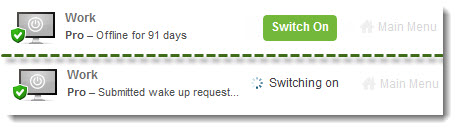
All set? Any computer in your account that is ready for Wake On LAN will show the Switch on this computer button. Click the button to wake the computer. It may take several minutes for the computer to wake.
Wake On LAN in Tile view