Bienvenido! - Willkommen! - Welcome!

Bitácora Técnica de Tux&Cía., Santa Cruz de la Sierra, BO
Bitácora Central: Tux&Cía.
Bitácora de Información Avanzada: Tux&Cía.-Información
May the source be with you!
Showing posts with label network. Show all posts

Monday, June 3, 2013

Power Management for Network Devices in Windows 7

http://technet.microsoft.com/en-us/library/ee617165%28v=ws.10%29.aspx
Applies To: Windows 7

Networking Power Management
Networking power management refers to the set of features that you can configure to allow the computers in your network to save energy. For example, the most common networking power management feature is Wake on LAN (sometimes referred to as WoL). Wake on LAN allows the computer to be woken up from sleep by desired network traffic. This paper describes the networking power management capabilities of Windows 7, how to use them, and what controls you can use to customize their behavior.

What’s new in the Networking Power Management?

Enhancements in Windows 7 have been made in the areas of Wake on LAN, Wake on Wireless LAN and Low Power on Media Disconnect (sometimes referred to as D3 on disconnect).
  • Wake on LAN and Wake on Wireless LAN . The Wake on LAN patterns in Windows 7 were designed to ensure that the computer wakes when accessed by the network while minimizing spurious wakes. Windows 7 does not wake on directed packets (for example, ping) which have been known to cause frequent and unnecessary wakes.
    In addition to more targeted wake patterns, Windows 7 adds support for Address Resolution Protocol (ARP) and Neighbor Solicitation (NS) offloads. ARP and NS protocols map Internet Protocol (IP) addresses to a MAC address. ARP and NS protocols are commonly used to verify whether a computer is still present on the network, often without actually needing to access the computer. By offloading ARP and NS responses to the network adapter, the computer is no longer woken up merely to maintain network presence. Support for these offloads depends on the network adapter and driver (NDIS 6.20) and may not be available on older hardware.
  • Low Power on Media Disconnect . This is a new Windows 7 feature that enables the computer to save energy by placing the network adapter in the low power state when the LAN cable is unplugged and the computer is running. This feature is only available when supported by the network adapter.
These enhancements in Windows 7 improve the ability of the operating system to stay asleep while still maintaining a network presence. This helps enterprise and home computers to save energy by entering into sleep mode when they are not in use.

Who should use this guide?

Users, IT Professionals, and OEMs that are interested in understanding and configuring the networking power management enhancements in Windows 7.

In this guide

  • Overview of Features
  • Prerequisites
  • Configuring power management using the user interface
  • Configuring Wake on LAN using the command line
  • Configuring power management using keywords
  • Configuring power management using the WMI API
  • Summary

Overview of Features

This section outlines the technical details of the power .management features in Windows 7.
  • Wake Patterns . Wake patterns refer to network packet filters that determine if incoming network traffic should wake the computer. You can enable these patterns on the network adapter. The following wake patterns may be supported by a network adapter:
    • Wake on new incoming TCP connection for IPv4 and IPv6 (TCP SYN IPv4 and TCP SYN IPv6).
    • 802.1x re-authentication packets
  • Bitmapped Patterns . Most network adapters can be programmed with bitmapped pattern filters. Bitmapped patterns are defined by a bitmap mask and a pattern filter. As network packets are received, they are masked using the bitmap mask and then compared to the pattern filter. If there is a match, the network adapter wakes the computer.
  • Magic packet . The magic packet is always supported and does not need or use a pattern. Magic packet is used by some applications including most media sharing applications.
    The patterns that are chosen by default are based on the network adapter’s capabilities and whether the computer is joined to a domain as follows:
    Capabilities supported by the network adapterDefault for a computer that is joined to a domainDefault for a computer that is not joined to a domain
    ARP & ND offloadMagic Packet
    NETBIOS name query
    TCP SYN v4
    TCP SYN v6
    Magic Packet
    NETBIOS name query
    TCP SYN v4
    TCP SYN v6
    ARP offload onlyMagic Packet
    NETBIOS name query
    TCP SYN v4
    TCP SYN v6
    Magic Packet
    NETBIOS name query
    TCP SYN v4
    TCP SYN v6
    NS
    No offloadMagic packetMagic Packet
  • Network Presence . Windows 7 adds support for ARP and NS network presence offloads.
    • ARP offload . ARP offload is the ability of the network adapter to respond to an IPv4 ARP request without waking the computer. Both the hardware and the driver must support ARP offload to enable this feature.
    • NS offload . NS offload is the ability of the network adapter to respond to a Neighbor Discovery Neighbor Solicitation request with a Neighbor Advertisement without waking the computer. Both the hardware and the driver must support NS offload to enable this feature.
  • Low Power on Media Disconnect . Lower Power on Media Disconnect is the ability of the network adapter to go to sleep when it is not in use. When Windows detects that media has been disconnected (for example, a cable is unplugged), Windows will put the device into the low power state and disable the LAN. The computer will automatically detect when the cable is plugged in again and return the network adapter to full power. Low Power on Media Disconnect is disabled when the computer goes to sleep.
  • Wake On Wireless LAN . The Wake on Wireless LAN implementation in Windows 7 represents a superset of Wake on LAN. In addition to the features defined for a wired LAN, devices that support Wake on Wireless LAN must be able to maintain a connection to the access point while the computer is in sleep mode. In addition to receiving packets from the wireless access point and filtering them, the wireless network adapter must be able to handle security key updates. GroupWise Transient Key updates are handled by the wireless network adapter while the computer is in sleep state. For Pairwise Transient Key updates or user authentication, the network adapter must wake the computer and allow Windows to handle the request.
    As with wired WoL, while the computer is in the sleep state, the network adapter will apply the packet filters and respond using power management offloads (if applicable). If the connection is lost, the network adapter may re-establish the connection to the same access point. To roam or connect to another access point, the network adapter must wake the computer.
Power management settings are controlled by standard registry keywords. You can modify the standard keywords using the device properties user interface, the netsh command, or Windows Management Instrumentation (WMI). Networking power management is controlled on a per network adapter basis.

Prerequisites

Update hardware and drivers to NDIS 6.20 . Wake on LAN, Wake on Wireless LAN, power management offloads and Low Power on Media Disconnect must be supported by both the network adapter and the driver. Wake on LAN pattern enhancements will function with both Windows 7 and previous driver versions. For previous driver versions, Windows 7 will translate Wake on LAN patterns to match the older power management capabilities of the driver. Support for power management offloads must be enabled by both the hardware and a Windows 7 version of the driver (NDIS 6.20).

Configuring power management using the user interface

To turn power management features on or off

  1. Open Network and Sharing Center (click the Start button, type Network and Sharing in the Start Search box, and press Enter).
  2. Click the Change adapter settings link in the upper left of the navigation pane.
  3. Right click the network connection you want to enable/disable power management support on and click Properties .
  4. Click Configure .
  5. On the Power Management tab, check or clear the Allow the computer to turn off this device to save power check box.
    • When checked, power management is enabled on the network adapter.
    • When cleared, power management is disabled on the network adapter.
  6. You can enable Wake on LAN for all wake methods or just enable magic packet WoL:
    • To enable Wake on LAN for all methods, check the Allow this device to wake the computer check box.
    • To enable Wake on LAN for magic packet only, check the Allow this device to wake the computer check box and then check Only allow a magic packet to wake the computer check box.
    noteNote
    For devices that do not support ARP and NS offloads, Windows will default to wake only on magic packet.

  7. Click OK .

Configuring Wake on LAN settings using the command line

You can use the netsh command to force the operating system to wake on ARPs, and NS on a per network adapter basis—but only for computers that are joined to a domain.

To force a network adapter to wake on ARP and NS

  1. Open a command prompt with administrator privileges. (click the Start button, type Command Prompt in the Start Search box, right click Command Prompt , and click Run as Administrator .)
  2. Type netsh interface ipv4 show interfaces . This will list all of the available network interfaces; note the index (labeled Idx ) of the network adapter you want to modify.
    noteNote
    You can replace ipv4 with ipv6 for Internet Protocol version 6.

  3. To force the network adapter to wake on ARP and NS type netsh interface ipv4 set interface [index] forcearpndwolpattern=enabled . If successful, OK will be returned.
  4. To revert to system default type netsh interface ipv4 set interface [index] forcearpndwolpattern=disabled . If successful, OK will be returned.

Configuring power management using keywords

You can use keywords to configure which power management features are enabled or disabled. Keyword settings may be modified using either WMI scripts or the advanced properties page of the device properties. Keyword settings influence which patters are programmed on the network adapter. The keywords that a network adapter must support along with their default settings are shown in the following table.
SubkeyName Explanation Default Setting
*WakeOnPattern
Defines if a network adapter is enabled to wake the computer on pattern matches.
0 - Disabled
1 (Default) - Enabled
*WakeOnMagicPacket
Defines if a network adapter is enabled to wake a computer on the magic packet.
0 - Disabled
1 (Default) - Enabled
*DeviceSleepOnDisconnect
Defines if a network adapter is allowed to go to low power when media is disconnected and wake when media is connected again.
0 - Disabled
1 (Default) - Enabled
*PMARPOffload
Defines if a network adapter is enabled to offload ARP when the computer goes to sleep state.
0- Disabled
1 (Default) - Enabled
*PMNSOffload
Defines if a network adapter is enabled to offload NS when the computer goes to sleep state.
0 - Disabled
1 (Default) - Enabled
*PMWiFiRekeyOffload
Defines if a network adapter is enabled to offload GTK rekeying for WoWLAN when the computer goes to sleep state.
0- Disabled
1 (Default) - Enabled

Configuring Power Management using the WMI API

WMI is a programmatic means by which an application or administrator can control power management settings. Example scenarios for controlling power management capabilities using WMI scripting include:
  • Applications may not allow a computer to sleep unless specific Wake on LAN capabilities are supported and enabled. For example, Media Center or Media Center extenders.
  • An OEM, shipping computers with multiple network adapter cards, can enable WoL for selected network adapters. Management utilities can display and allow you to modify the power management capabilities for a network adapter using WMI scripts. These utilities will be able to read hardware capabilities and allow custom configuration.
The following WMI methods allow you to query and control Wake on LAN:
  • GUID_NDIS_PM_ADMIN_CONFIG is used to query and set keyword switches.
  • GUID_NDIS_PM_CAPABILITIES is used to query both the hardware capabilities and the state of current capabilities.

GUID_NDIS_PM_ADMIN_CONFIG

The GUID_NDIS_PM_ADMIN_CONFIG method is called to query or to set keyword values and parameters. Each keyword may be one is the following three values:
  • Unspecified . In a query, it means the keyword does not exist. In a set, it means the user does not want to change the keyword’s current value.
  • Disabled . In a query, it means the keyword is currently disabled. In a set, it means to disable the keyword.
    Enabled . In a query, it means the keyword is currently disabled. In a set, it means to enable the keyword.
    The keywords used in GUID_NDIS_PM_ADMIN_CONFIG are composed in the following struct:
    struct _NDIS_WMI_PM_ADMIN_CONFIG
    { NDIS_PM_ADMIN_CONFIG_STATE WakeOnPattern;
     NDIS_PM_ADMIN_CONFIG_STATE WakeOnMagicPacket;
     NDIS_PM_ADMIN_CONFIG_STATE DeviceSleepOnDisconnect;
     NDIS_PM_ADMIN_CONFIG_STATE PMARPOffload;
     NDIS_PM_ADMIN_CONFIG_STATE PMNSOffload;
     NDIS_PM_ADMIN_CONFIG_STATE PMWiFiRekeyOffload; 
    }
    

GUID_NDIS_PM_ACTIVE_CAPABILITIES

The GUID_NDIS_PM_ACTIVE_CAPABILITIES method will query and return the current capabilities. Each capability will be reported in one of three enumerated values as follows:
  • Unsupported . Means the hardware does not support this capability.
  • Inactive . Means the hardware supports the capability, but a keyword or other logic has this capability disabled.
  • Active . Means the hardware supports the capability and it is actively enabled.
The capabilities returned in GUID_NDIS_PM_ACTIVE_CAPABILITIES are composed in the following struct:
struct _NDIS_WMI_PM_ACTIVE_CAPABILITIES
{ NDIS_PM_CAPABILITY_STATE WakeOnPattern;
 NDIS_PM_CAPABILITY_STATE WakeOnMagicPacket;
 NDIS_PM_CAPABILITY_STATE DeviceSleepOnDisconnect;
 NDIS_PM_CAPABILITY_STATE PMARPOffload;
 NDIS_PM_CAPABILITY_STATE PMNSOffload;
 NDIS_PM_CAPABILITY_STATE PMWiFiRekeyOffload; 
}

Summary

The enhancements made to Windows 7 for managing power settings for network adapters greatly reduces the number of spurious wakes, allowing computers to sleep for longer periods of time when idle. Furthermore, you can configure the power management settings to meet the needs of your users through device properties, standard registry keywords, or WMI. The result is energy savings and a more environment friendly computer.

Did you find this helpful?

Community Additions

ADD

*PMNDOffload Typo

Shouldn't that be *PMNSOffload?
amirpoorani
4/22/2012

WOL tools

There are a number of free tools that can send WOL magic packets. Here is a very simple GUI-based tool that works well (Win7 Ult x64). swb_mct also references this site in the comments above. Weestro
1/4/2012

ARP and WiFi rekey offloads in PM capabilities became inactive in WMI query result

My adapter is capable of wake on magic packet, ARP offload and WiFi rekey offloads, however one day I found ARP offload and WiFi rekey offload did not work any more although magic packet is still working until today.
I used wbemtest to query PM Capabilities of my adapter, it turned out that all the protocol offloads became "1" (inactive), however I'm 100% sure that they're enabled in "Advanced" tab in the adapter's properties. According to this article, "Inactive" means "the hardware supports the capability, but a keyword or other logic has this capability disabled". Now that "keywords" in the "Advanced" tab look correct, there should be some kind of "other logic" disabled them.
Re-installing the driver or using an older driver did not help.
Can someone tell me what "other logic" means or what happened to my Windows?
I guess there must be some settings of my Windows were changed accidentally, but I still don't know what it is after searching throughout the internet.
12/31/2011

Wake up

Eric, you are correct. I found nothing in my extensive searches that would allow an Enterprise to wake up machines reliably. We at one time tried to use Altiris, but even that had it's issues with server hangs and other users messing with the collections and configuration of the Altiris Servers. Currently I am waking up 50,000 workstations using Powershell. I have scripts that read in the dhcp info into SQL every night, and then using Active Directory, I get the list of machines, query the database for a match and that gives me the MAC address and the IP address to send the broadcast. Using magic packet, I have been getting consistent results for over 6 months now. I have not messed with any of these other methods for WOL, but will be looking into it as soon as I can find someone else that is waking machines with something other than magic packets.
12/7/2011

Wake from Remote Desktop

TCP SYN is a way you can wake from RDP. If that pattern is enabled then a system in Standby/Hibernate will wake from the remote desktop connection attempt.

You should enable PME in windows 7 to make Wake on lan work

If NIC drivers upgrade, BIOS upgrade are not helping and you are on windows 7, then probably enabling PME is the solution. See http://techibee.com/windows-7/wake-on-lan-is-not-working-in-windows-7-found-the-solution/980 for more details.
5/3/2011

Answering the question below

Through testing on a Windows 7 Thinkpad notebook used for remote access to systems at vacation home, there are two ways to Wake Up the computer using Wake on LAN. The second, more reliable method described below was a surprise, because my understanding was that normal http or remote desktop requests are not supposed to trigger WoL.
-
If you use this on the internet make sure to configure UDP ports on your port forwarding rules. TCP is default on many router/firewalls.
-
1. If you configure the Windows 7 network adaptor to "Only Allow Magic Packets to wake up the computer" you can send Magic Packets using the free WolCmd.exe command line utility. Since this method was not not 100% reliable I created a batch file that sends the command 4 times as follows using 4 different inbound UDP ports forwarded to the LAN ip address of the Thinkpad. Using 4 different ports was an attempt to improve 'wake-up' and delivery reliability. Sending the command 4 times definitely helped reliabilty. I don't know if using 4 different UDP ports through the firewall made any difference.
-
Batch file commands below inlcludes mac address of Thinkpad, internet address, mask, UDP port
-
C:\wolcmd.exe 001125184f95 echobay.domainname.net 255.255.255.255 35700
C:\wolcmd.exe 001125184f95 echobay.domainname.net 255.255.255.255 35701
C:\wolcmd.exe 001125184f95 echobay.domainname.net 255.255.255.255 35702
C:\wolcmd.exe 001125184f95 echobay.domainname.net 255.255.255.255 35703
-
2. This method is more reliable than above.
I turned off "Only Allow Magic Packets to wake up the computer" and now any connection attempt forwarded to the Thinkpad on the LAN wakes up the notebook. This computer hosts remote desktop on tcp port 35701 and http on tcp port 35700. A Remote Desktop connection attempt or an http connection attempt now wakes up the computer and opens the session about 5 seconds later.
-
I don't care if someone else wakes up the computer because my WoL arrangement is only to wake up the computer from following an AC Power Outage. It only goes to sleep when there is an AC power outage but there is no Power Managmenet method to wake it up upon AC power resumption.
You can get wolcmd.exe here:
http://www.depicus.com/wake-on-lan/wake-on-lan-cmd.aspx
3/29/2011

Missing the Obvious

This article is missing the most obvious information - how to you actually wake up the computer remotely? What tools or utilities are there. What do you actually have to do to send any of
  1. Magic Packet
  2. NETBIOS name query
  3. TCP SYN v4
  4. TCP SYN v6
I have tried Google and Bing, and all I can find are web pages that can send a magic packet, but when I try them they do not work even though I have my target system configured for WOL. Microsoft seem to deliberately be avoiding to implement the most obvious feature of all - WOL from Remote Desktop - as that seems to be the most requested feature on the web.

Thursday, May 9, 2013

Mensajes en la red


http://www.evolucionvirtual.net/msg-net-send-windows7
Windows XP
comando CMD Net Send DIR IP LOCAL Mensaje
Para mandar un mensaje a 192.168.0.10 equipo perteneciente a la misma red, solo tenía que colocar Net Send 192.168.0.10 Hola, a lo que la máquina recibía el mensaje en una ventana de windows, pero muchas veces para que ésto funcionara como debía ser se debía habilitar un servicio llamado messenger (No confundir con MSN) en la opción de administrador de servicios de Windows, el cual por lo general siempre venía deshabilitado, éste servicio debía ser habilitado en aquellas máquinas que fueran tanto a recibir como a enviar mensajes.
Windows 7comando MSG disponible en versiones Corporate y ultimate de Windows 7, el uso del comando MSG es muy similar a como se solía utilizar en Windows XP con Net Send, pero tiene algunas propiedades adicionales y además corrigieron algunas fallos que comprometían la seguridad del sistema operativo.
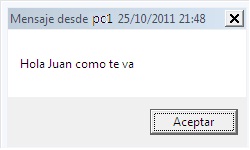
MSG /server:DIRIP LOCAL usuario Mensajepara enviar un mensaje a la IP de antes 192.168.0.10 y en esa estación hay un usuariojuanperez debemos escribir en la ventana de comandos MSG /server:192.168.0.10 juanperez Hola Juan como te va.
Una vez enviado el mensaje al computador que recibe le aparecerá en una ventana de windows con dicho mensaje.
msg Windows 7
Ahora podría suceder que al intentar enviar el mensaje te sale un mensaje de error del tipo "No se encuentra el usuario" o "El usuario no existe o está desconectado", ok, aquí sucede algo similar a lo que en Windows XP y es por lo del problema de las sesiones y autenticaciones de seguridad que encontramos en Windows 7, pero afortunadamente existe una solución muy sencilla, simplemente abrimos el editor de registro (Inicio y escribimos regedit en la caja de texto de entrada y presionamos enter) una vez allí, buscamos la siguiente cadena, HKLM/System/CurrentControlSet/Terminal Server y allí veremos una cadena de registro que se llama AllowRemoteRPC, dicha cadena está configurada con 0 debemos modificarla para que sea 1, para lo cual damos doble Click sobre dicha cadena y escribimos el número 1, lo demás lo dejamos como está y aceptamos, cerramos el Regedit, eso es todo, debemos hacer éste procedimiento en todos los computadores que necesitamos que reciban los mensajes.

Thursday, February 14, 2013

Firewall, VPN, vrtualization and multiple NICs

Multiple NIC, Configure Windows Advanced Firewall
For our Small Business customers moving to Windows Server 2008, I needed some type of Plain English in-depth guide to using and configuring Microsoft's Windows Firewall with Advanced Security, especially in a Hyper-V dual NIC scenario. Since I could not find such a write-up, here is my attempt.

If you find any mistakes, have any suggestions, or just want to let me know this was useful, please use the email link on our Home Page to contact me.

As with any Microsoft technology, there are usually numerous ways to manipulate settings. Since I ended up investing a lot of time investigating just about any method I could think of to manipulate Windows Advanced Firewall settings, I have included my entire process below in the hope that others will benefit for the different approaches I experimented with.

See our Multiple NIC, Configuring WFAS, Quick Guide page to skip the background info.

Background, environment
Our Typical scenario: the Small Business Customer (SMB) has for their Operations Server (Op-Server) a Windows 2000/2003 Standard or Small Business Server (SBS) Standard edition with dual NIC's. Using the RRAS service, it was quite easy to accomplish several tasks:
- create a Virtual Private Network (VPN) from our office to the customer site, for easy remote control and administration of the workstations.
- block all inbound public traffic except: PPTP port 1723 (MS VPN) and Remote Desktop (RDP) port 3389.

The external NIC was typically behind an inexpensive router, which allowed for a DMZ and reduced attack surface of the Operating System (OS) by pin-hole forwarding just ports 1723 and 3389. For the SMB, this solution to the desired goals was reasonably affordable. It is also possible (although undesirable) to just attach the internet connection directly to the external NIC, and configure the external NIC with the public address.

The introduction of Hyper-V in Windows Server 2008 has made possible for the SMB the many advantages moving the Op-Server to a Virtual Machine (VM). With the Op-Server in a VM, remote console access to the Host OS is highly desired in case normal network access through the Op-Server becomes unavailable either because of router or cabling problems, or problems with the Op-Server.

It would also make sense that if adding the RRAS service can be avoided on a minimal Role 2008 server, we can take advantage of keeping the Host OS as a minimal install, with only the Hyper-V Role installed.

In my thinking, since most of our SMBs have a block of 5 static IP's, this should be easy:
- Connect the extra NIC on the physical server directly to the internet device (cable/DSL modem, etc.)
- In the Host OS, configure the extra NIC by assigning one of the unused static IP's and configure the firewall profile "Ultra Secure Everything Blocked Except RDP"
- Then setup the LAN NIC with a private IP and the "Private Network" firewall profile.

Bada-bing, good-to-go, nice affordable solution for the SMB!
I hear you lauging! Hey, an SMB Admin can dream, can't I?!
Silly me, trying to keep it affordable for the customer.

Microsoft does not make this easy
I am usually fine with wizards and suggestions, but the forced Network Location Awareness (NLA) feature makes locking down and administering networks a nightmare. It would seem that Microsoft's decision to make indentifying a network based on that connection's gateway is a poor choice in a multi-homed server configuration. Knowledgable IT administrators should be able to define the network profile ("Set Network Location") regardless of whether a gateway exists or not. When we are not allowed to configure our systems, I think most IT administrators chafe that Microsoft has forced settings, especially when the gaping holes created are obvious.

To make matters worse, the initial version of Server 2008 (pre-R2) does NOT allow assigning of network profiles on a per adapter basis! If the machine is a domain member, all adapters are assigned 'Domain Network' profile and all the firewall ports for domain communication are open on all adapters, no choice in the matter!! In my humble opinion, this is pathetic.


Investigating options for configuring 'Location Type' on a multi-homed server.

Keep in mind, this is for configuring a dual-homed server.

It would seem the only way to be able to define the network type is to assign a gateway to the LAN connection. The irony here is that this configuration can lead to problems, and we are even warned as such! (See the pop-up warning at right).

Now that the LAN network is no longer considered "unidentified", we can assign a network type.


Note: to assist with keeping track of the multiple network adapters, in the "Network Connections" list I rename the "Local Area Connection" name to "LAN" and "WAN" accordingly.

Clicking on the "Public Network" that now appears below for the LAN connection will now let us assign the "Work Network" profile, which appears as "Private network" in the Network and Sharing Center. The icon will also change.
Changing the Group Policy for unidentified networks
The alternative way for defining the network type is by using Group Policy to specify that an "Unidentifed Network" should be assigned "Private Network". If the server is joined to a domain, you will probably want to do this with a Domain GPO.

For a stand-alone server, the procedure is:
1. Start -- run -- gpedit.msc
2. Browse: Computer configration -- Windows Settings
-- Security Settings -- Network List Manager Policies -- Unidentified Networks
3. Change 'Location type' to: Private, click 'Ok'.


As you can see in the image at right, with the Gateway removed from the LAN configuration, the "Unidentifed Network" is now assigned the "Private Network" profile.

This is the solution I decided to go with.
Now that I had the Network Type(s) as I needed them, I set about the task of defining the Windows Firewall and Advanced Security (WFAS) profiles the way I wanted them. I wanted all traffic on the WAN interface to be blocked except RDP (port 3389). In WFAS terminology, what I wanted was: "any enabled inbound rule with Profile of 'All' change to Profile of 'Domain,Private'".
What I was NOT going to do was edit every rule individually! That would be crazy!
It is rather alarming that the 'Default' WFAS policy is to allow on a Public connection such activity as Hyper-V managment, DHCP, File and Printer share, and (judging from the portscan) netbios and RPC (I may be mis-judging here). Still, on a server, I can't imagine why by default any public ports would be open.
Important Tips:
I strongly recommend you export your current WFAS policy before making any changes!! In the WFAS snap-in, in the left pane right-click the top node "Windows Firewall and Advanced Security" > "Export Policy..." This saved my bacon for writing this up.

Also, I did not have a good experience with using the "Restore Default Policy..." option, in that there were numerous rules that disappeared as compared to the original set of rules. Apparently, "Default Policy" does not take into account if you have enabled any Roles, Features, or File sharing.

netsh Command
My first try was to attempt changing the configuration with the netsh command. What I had been able to do in the past with netsh is dump the current firewall configuration to a text file, make any tweaks using notepad giving me a chance to review carefully, then re-import the rules.

Unfortunately, with WFAS, there seems to be no way to dump the rules to a text file. I am forced to work on the rules 'live'. Using the TechNet page 'Netsh AdvFirewall Firewall Commands' as a reference, it would seem I could change rules according to certain filters. Perfect! I attempted the following commands:
----------------------------------------------------------------------------------
C:\>netsh
netsh>advfirewall
netsh advfirewall>set rule name=all enable=yes profile=any dir=in new profile=domain,private
'enable' is not a valid argument for this command.
----------------------------------------------------------------------------------
Error? Upon closer review of the article, 'enable' is indeed not listed before the 'new' keyword. That's a problem, I only want to change the rules that are enabled, so that rules out the netsh command as an option. Just to see if the command would work anyway, I tried to make "all inbound rules with profile of public not enabled":
----------------------------------------------------------------------------------
netsh advfirewall>set rule name=all profile=public dir=in new enable=no
Updated 19 rule(s).
Ok.
----------------------------------------------------------------------------------
That worked. But considering all of the default rules with profile of just public are already disabled, this does not do me much good (after reviewing the default rules, I purposely chose this command in that nothing would actually change). I could maybe try to change all profile=all rules to just profile=Domain,Private, but that would also change the not enabled rules, which I would rather not do. Clearly, better filtering is needed.

Changing WFAS with VBScript
One of the most annoying features of the WFAS management snap-in, is the left-right scrolling required to see all of the columns of information (it sure would be nice if the Actions Pane was stacked on the left under the WFAS pane, to gain a little more screen real estate). Additionally, I am typically Remote Desktop into the server. So despite my having dual monitors, I usually use a desktop size of 1152 x 864, which is not wide enough to display all the columns of information in WFAS (another nice touch would be for Remote Desktop to be dual monitor aware, and let me use the screen size slider to span both my monitors, say about 2000 or 2500 pixels wide with the slider, it's a bit of a pain to make an RDP file then go edit the screen width manually in the RDP file).

I decided exporting all the WFAS settings to Excel would be nice for opening on my local workstation, so that I could easily span both monitors and thus see all columns at once. Microsoft has a nice sample VBScript for displaying all WFAS properties, it didn't take much to create a tweaked Script for enumerating all the current rules to a tab-delimited file.

Example:
----------------------------------------------------------------------------------
C:\>cscript //Nologo C:\TestScripts\JEnumFWRules.vbs > C:\TestScripts\EnumFW.txt
----------------------------------------------------------------------------------
I copied the text file to my local network, then dropped the file into Excel. Now I had the ability to "Freeze Panes", sort, and span two monitors with all the WFAS rule information.

Note: I saved all sample scripts here as ".txt" files, you will need to save them as ".vbs".
Disclaimer: Use sample scripts at your own risk! You should export current WFAS settings first!

Going back to my original goal, "allow RDP only" on external interface, I was now able to use VBScript to quickly make the desired changes. There were two stategies I could use to block all public traffic using the existing rules:
- Change all "enabled" rules with "Profile=All" to "Profile=Domain,Private" (my preference).
- Optionally, first copy all "enabled" rules with "Profile=All" to "enabled=no & Profile=Public"
(I was thinking the second option would be nice for retaining which rules were originally "Profile=All", but I have since decided too many rules are created).

For setup purposes, I also prefer to allow ICMPv4 response to Ping (there does not appear to be a rule for ICMPv4 ping, so I needed to add a rule). I made a VBScript that "enables existing Remote Desktop rule, and adds rule to allow ICMPv4 ping".

With careful review of the rules using the WFAS tool, these changes were made perfectly! I also performed a port scan on the reconfigured interface, and now the only port responding was RDP (3389), happy day!.

Summary
I fully recognize that with powerful features, the complexity increases. There are enough failings of WFAS that it would seem improvement is needed. In my humble opinion, properly managed security should NOT involve resorting to hacks and scripts to get a multi-homed server configured. The chance for unintended consequences and mis-configuration elevates when resorting to these non-interface methods. Hopefully, Microsoft will recognize these shortcomings and improve WFAS through an update or Service Pack.

Needed Changes to Network and Sharing Center, Windows Firewall with Advanced Security, and related tools
(in my humble opinion, of course)
- Allow pre-R2 machines to define the network profile on a per adapter basis. urgent!
- Allow manual setting of Network Location, without a gateway assigned.
- Align terms!
(very annoying when searching for an option, and the option is worded different in another window)
- Profile = Set Network Location
- Work Network = Private Network
- (on Windows Firewall window) Advanced Settings = Windows Firewall with Advanced Security - Adapter Settings = Network Connections
- In netsh advfirewall mode, allow filtering by: "enable=yes"
- When exporting the Inbound Rules to CSV, change any commas to another character.
- Allow dump of all netsh advfirewall rules in text format for importing, like we can for netsh.
- With "add rule", allow "group="
- When drag/dropping one rule on to another, allow "Undo"!! (what is this functionality, anyway?)
- Allow assigning/changing of Group to new/changed rules.
- Fix the COM object: 'INetFwRule::LocalPorts Property' to allow value of 'IPHTTPS'.
- Create a "Network List" API, to allow manipulation of "Network Category" from VBScript.

Mildly related suggested tweaks:
- When navigating within the Network and Sharing Center window, allow right-click "Open in new window"
- When using Avanced Sharing on a server, the default permissions should be for group "Administrators", not "Everyone".
- When many columns of information appear in an MMC snap-in, allow the first column to be "frozen" from the left-right scrolling (Excel style).
- Remote Desktop could be dual-monitor aware, to allow easy connection with a window that spans both monitors.

Friday, September 28, 2012

Problemas de descarga con Emule (low ID)

Emule ID Baja - LowID : Soluciones , abrir puertos y configurar router
Soluciones a la ID baja en el eMule

La id baja es por puertos cerrados en router o firewall que obtaculiza la función del descargador eMule
Hay distintas maneras de comprobar si tienes ID baja, a continuación las cito:
- Para saberlo de una manera fácil y sencilla, al minimizar tu emule y se quede en la barrita de abajo, mira si tiene puesto la venda, si la tienes tendrás ID baja.
- Al abrir tu eMule mira en la parte de abajo, veras una bola del mundo y dos flechas, una en la parte superior de la bola del mundo (red Kad) y otra en la parte inferior (red ed2k). Si tienes ID baja en una de estas dos redes, la flecha hacia correspondiente tendrá un color amarillo.
- En la pestaña de servidores, mira en la parte de abajo a la derecha, verás un recuadro con información. Ahora mira en el apartado de información propia, allí te indicará la ID que tienes :

Image 
===================
- Aumenta el rendimiento de los P2P en Windows Vista
- Solución a la caída de los servidores: red KAD
- ID alta en eMule con windows 7
- Servidores eMule falsos 
===================
DNS de telefónicas
Cuestionario
Fuente (Contenido corregido, simplificado y mejorado) [muchas páginas]
Cómo configurar la tarjeta de red para que Emule no de ID baja cuando utilizamos un router con el DHCP activado.
DHCP son las siglas de Protocolo de configuración dinámica de servidores.
Este protocolo de red es el usado por el router, en este caso, para asignar los datos de configuración de los PC´s conectados a una red privada como
la máscara de subred,
puerta de enlace,
DNS y el redireccionamiento de IPs de la subred.
Al ser esta asignación dinámica las direcciones IP varían(cuando apagamos y encendemos el pc por ejemplo) y están dentro de un rango específico que lo determina el router.
Este es el principal problema de las ID bajas en el emule ya que un dia puedes haber abierto los puertos necesarios hacia la IP asignada por el DHCP en ese momento y al día siguiente no servir de nada ya que estás con otra IP privada asignada por el DHCP en tu red.
Pues vamos a evitar esto:
Inicio - Panel de control - Conexiones de red
En esta ventana nos vamos a encontrar con dos iconos, con el botón secundario marcar Conexión de área local y en el menú desplegado elegimos Propiedades
Nos saldrá la siguiente ventana.
Pues hacemos doble click en Protocolo Internet (TCP/IP)
Image

Hecho esto vemos algo así:
Image

Debemos marcar Usar la siguiente IP en lugar de Obtener una dirección IP automáticamente y lo completamos nosotros.
Flecha Dirección IP :Poneis una dirección del estilo 192.168.2.2 hasta 192.168.2.253 de modo que no coincidan nunca varios PCs con la misma y con la puerta de enlace del router.
Ejemplo: 192.168.2.4 
Tened en cuenta la puerta de enlace del router ya que si la puerta de enlace es 192.168.2.1 la IP para tu PC podría ser 192.168.2.2 por ejemplo.
En cambio si la puerta de enlace del router es 192.168.1.1 la IP debería ser del estilo 192.168.1.2
O sea con el octeto 1 para quedar dentro del mismo segmento.
Flecha Máscara de la (sub) red : Saldrá directamente 255.255.255.0
Flecha Puerta de enlace :Aquí teneis que poner la dirección IP para acceder al router
Si no sabeis cúal es vuestra puerta de enlace id a:
Inicio -- ejecutar 
cmd
ipconfig /all
y lees lo que fue asignado como puerta de enlace... que es la dirección IP del router o pasarela
En Usar las siguientes direcciones DNS de servidor ponemos los DNS correspondientes a nuestro ISP o bien las de uso internacional como las de comodo.com o opendns.com o google.com
Google
  • 8.8.8.8
  • 8.8.4.4
Opendns
  • 208.67.222.222
  • 208.67.220.220
Las definidas por ISP más comunes:
http://www.adslzone.net/dns.html
Una vez realizadas estas operaciones aceptamos todo y listo
Tenemos configurada nuestra tarjeta de red.

Abrir los puertos con los que tengas configurado tu P2P hacia la IP que hayas elegido: 
Ir a la página de configuración del router correspondiente a la apertura de puertos y permites acceso a los puertos TCP y UDP que tengas puestos en tu eMule hacia la IP privada que hayas escogido [del tipo C: 192.168.x.x]
Con esto la ID baja seguramente desaparecerá.
------------------------------
Para que puedas acceder al router y no quedarte sin Internet debes configurar primero la tarjeta de red y después desactivar el DHCP ya que si no no habrá manera y te tocará reajustar el router de nuevo a su función de fábrica.
Expresado de otro modo:
Para no quedarte sin acceso a Internet debes configurar la tarjeta de red antes para después desactivar el DHCP del router.
======================
- tarjeta de red configurada. IP 192.168.1.4
- puertos abiertos: 85, y 4662 TCP; 1985, 4672, UDP
- DHCP inhabilitado
- Firewall de Windows desactivado (de otro modo configurar en ese firewall las aplicaciones que acceden a internet como excepciones que no deben ser  filtradas)
------------------------------
http://www.emule-project.net/h...id=524#bar
http://www.emule-project.net/h...pic_id=528
no tener los mismos puertos abiertos para cada ordenador
Deber abrir dos puertos para cada pc diferentes , redireccionados a la ip local de cada pc ej.
Pc1_____TCP85______192.168.1.2
Pc1_____UDP1985____192.168.1.2

Pc2_____TCP8888____192.168.1.6
Pc2_____UDP8898____192.168.1.6  
------------------------------
http://www.adslzone.net/emule_id.html
router thomson 585 v6 y eMule
- Meteros en la direccion de vuestro router: 192.168.x.x
- Una vez que teneis la pantalla de configuracion, teneis que ir a Compartición de juegos & aplicaciones.
- Ahora le dais a --> Crear un nuevo juego o aplicacion.
- En el nombre poner por ejemplo: *emule*
- Seleccionais donde pone: Entrada manual de mapas de puertos y le dais a SIGUIENTE.
- Entonces ahora donde pone protocolo pones: TCP; en las dos casillas que estan una encima de la otra pones: 85 a 85 (es decir, pones 85 en cada una de ellas). Le das a AGREGAR.
- Ahora en vez de TCP, tienes que poner UDP, y en las casillas pones 1985 y 1985, y no pones nada mas, y le das a agregar.
- Vamos a la tarea donde pone: Asignar un juego o aplicación a un dispositivo de red local
- Donde pone juego o aplicacion: selecciona el que hayas creado, en nuestro caso es *emule*
- En la casilla dispositivo deberas poner el ip, que se mira de la siguiente manera: Vas a Inicio --> Ejecutar --> cmd --> y escribes tal cual: ipconfig
Entonces te saldran varias cosas, pues apunta el que pone: Direccion IP.
Entonces en la casilla dispositivo deberas poner: Definido por el usuario. Entonces la pagina cargara y ahora tendras un recuadro para poner tu direccion Ip que has apuntado.
- Introduces esa direccion y seleccionas la casilla donde pone: registro.
- Pulsas agregar.
Ahora tenemos configurado el router!!! Lo que tenemos que hacer es ir al emule (si le tenias encendido cierralo y vuelve a iniciarlo sin conectarte). Vas a preferencias --> Conexion --> Y pones en el puerto TPC --> 85 y en el puerto UDP --> 1985.
Le das a aplicar, cierras el emule, lo vuelves a iniciar y ya tendras el emule al maximo!!!
Puedes comprobarlo mirando que no te sale la mula vendada, y dandole a comprobar puertos.
Bueno, ahora la cuestion es asignar una ip fija a nuestro ordenador... que eso todavia no he sido capaz de hacerlo!! Porque en teoria, cada vez que apagamos el router, y volvemos a encenderle, tendremos otra ip diferente.. entonces tendriamos que volver a configurarlo...
Aviso importante: en este router no es necesario aplicar una ip fija¡!! Porque en el momento que ponemos la direccion en un inicio, nos lo detecta como "ordenador del salon", es decir, con el nombre del equipo 

Tuesday, June 19, 2012

Classless Inter-Domain Routing


Classless Inter-Domain Routing (CIDR) is a method for allocating IP addresses and routing Internet Protocolpackets. The Internet Engineering Task Force introduced CIDR in 1993 to replace the previous addressing architecture of classful network design in the Internet. Their goal was to slow the growth of routing tables on routers across the Internet, and to help slow the rapid exhaustion of IPv4 addresses.[1][2]
IP addresses are described as consisting of two groups of bits in the address: the more significant part is thenetwork address, which identifies a whole network or subnet, and the less significant portion is the host identifier, which specifies a particular interface of a host on that network. This division is used as the basis of traffic routing between IP networks and for address allocation policies. Classful network design for IPv4 sized the network address as one or more 8-bit groups, resulting in the blocks of Class A, B, or C addresses. Classless Inter-Domain Routing allocates address space to Internet service providers and end users on any address bitboundary, instead of on 8-bit segments. In IPv6, however, the interface identifier has a fixed size of 64 bits by convention, and smaller subnets are never allocated to end users.
CIDR notation is a syntax of specifying IP addresses and their associated routing prefix. It appends to the address a slash character and the decimal number of leading bits of the routing prefix, e.g., 192.0.2.0/24 for IPv4, and 2001:db8::/32 for IPv6.

Contents

  [hide

Wednesday, June 1, 2011

HP network printers knowledge

Intro to the concepts
        There are several TLAs (Three letter acronyms) I will be using though out this article so I best get them out of the way now. PCL stands for Printer Control Language, which was developed by HP and has become one of the most common printer protocols. Another page description language you should be aware of is PostScript (PS) which was designed by Adobe to allow for more complicated things to be printed from a plotter/printer. PJL (Printer Job Language) is an extension of PCL that can tell a printer what to do, from changing device settings to transferring files. There are also three major network printing protocols you should be aware of. Here's a table with some of the pertinent information about each protocol:
Name Meaning Port
LPD Line Printer Daemon protocol 515/tcp
IPP
aka
Berkeley printing system
Internet Printing Protocol 631/tcp
JetDirect
aka
AppSocket
aka
Raw
aka
PDL-datastream
9100/tcp
        Since my focus is on JetDirects I will mostly be talking about and using AppSocket/PDL-datastream, but since many JetDirects can also work with IPP and LPD, and many non HP made network printers also use AppSocket, you should be aware of the existence of all three. There's are also network printers that use the IPX, Appletalk and SMB (some Savins for example) protocols to communicate. I'll not cover IPX and Appletalk because of my lack of experience with them, maybe someone else who reads this page will submit some info on them for me to post (credit will be given). SMB I may try to cover at a later time. Now that the formalities are out of the way, lets start playing with printers.
Diagnostics page
        The pictures above are of a external JetDirect 170x box. Notice the picture on the right; on the far right hand side you will notice a little button labeled "test". Pressing this button on most JetDirect boxes will print out a diagnostic page listing statistics and the IP setting for the JetDirect box. If your printer has an internal JetDirect card you will have to negotiate the menus to find out how to print this diagnostics page. Once you hit the test button the printer should print out a page or two that lists information like host name, MAC address,  IP Address, subnet mask, default gateway, firmware revision and some general statistics. The IP/host name will be especially  useful if you want to bypass print quota software by setting up direct IP printing on your Windows or Linux box. If you don't have physical access to the JetDirect box you can still find its IP or host name by seeing what its port is listed as if that network printer has been setup on a Windows box you have access to.
        As you can see by the graphic on the left, the host name for this JetDirect box is npib1002c. Sometimes you will see a port listed as something like IP_192.168.1.102, where obviously 192.168.1.102 is the JetDirect's IP. You can pretty much use a host name or an IP interchangeably on your LAN, and if the host name has a fully qualified domain name you should be able to address it from the Internet as well.
        If you don't have access to a JetDirect box, or if your PC is not connected to one, don't despair. In next few sections I will describe how to find these printers on the LAN/Internet using Nmap and JetAdmin.
    

Stupid Printer Tricks
    I called this section Stupid Printer Tricks because while these activities aren't very technical, they do illustrate the simplicity of the RAW/AppSock protocol that listens on port 9100/tcp on JetDirects and most other network printers. Try this, find your printers IP using the Diagnostics page then web surf to:
   http://your-printers-ip:9100
The ":9100" at the end is there to tell your browser to connect on port 9100/tcp. When you try to establish the connection you should notice that the browser does not go anywhere, this is because what's running on port 9100/tcp is not a web server. Click the stop button on your browser to tell it to stop trying to connect then go take a look at the printer. Depending on what browser you use you should see a print out something like one of the following:
Firefox Internet Exploiter
GET / HTTP/1.1
Host: tux:9100
User-Agent: Mozilla/5.0 (Windows; U; Windows NT 5.1; en-US; rv:1.8.0.1) Gecko/20060111 Firefox/1.5.0.1
Accept: text/xml,application/xml,application/xhtml+xml,text/html;q=0.9,text/plain;q=0.8,image/png,*/*;q=0.5
Accept-Language: en-us,en;q=0.5
Accept-Encoding: gzip,deflate
Accept-Charset: ISO-8859-1,utf-8;q=0.7,*;q=0.7
Keep-Alive: 300
Connection: keep-alive
GET / HTTP/1.1
Accept: image/gif, image/x-xbitmap, image/jpeg, image/pjpeg, application/x-shockwave-flash, application/vnd.ms-excel, application/vnd.ms-powerpoint, application/msword, */*
Accept-Language: en-us
Accept-Encoding: gzip, deflate
User-Agent: Mozilla/4.0 (compatible; MSIE 6.0; Windows NT 5.1; SV1; .NET CLR 1.1.4322; .NET CLR 2.0.50727)
Host: test:9100
Connection: Keep-Alive
        You see, anything that the printer sees coming in on port 9100/tcp it tries to read as a print job. The two texts you see above are HTTP get requests for the root document of the server. The network printer does not understand this and just tries to print the request out as text. Another thing you can try is telneting to port 9100 (we will assume your printer's IP is 192.168.1.2), typing in some text, and seeing it print:
Irongeek:~# telnet 192.168.1.2 9100
Trying 192.168.1.2...
Connected to 192.168.1.2.
Escape character is '^]'.

hello printer
^]

telnet> quit
Connection closed.
Irongeek:~#
        You should now see a print out that just has the words "hello printer" on it. The "^]" represents the pressing of the Control key and the ] bracket at the same time. The above example was done in *nix, but the same commands should work in Windows. Keep in mind you may not see all of what you type in (the parts in red) unless you have local echo turned on (which seems to be off by default in Windows).
        There are exceptions to network printers just printing out everything sent to port 9100. This trick, for which there will be more details given later, should change LCD display to say what you want. It's not supported on all printers, but If you have an HP it should work. I've got to thank Dipswitch for pointing out that you don't need fancy tools or code to do it (but the tools do make it easier).
With Telnet:
Irongeek:~#$ telnet 192.169.1.2 9100
@PJL RDYMSG DISPLAY="Some Text"
^]quit
Irongeek:#$
Or Netcat:

Irongeek:~#$ echo @PJL RDYMSG DISPLAY=\"Some Text\" | netcat -q 0 192.168.1.2 9100
Irongeek:#$

JetDirect password notes
        Most of the time folks never even turn the JetDirect's password options on, but if they do they quickly find that they don't always work in logical ways.
If you are using a newer JetDirect box like one of the following:
680N (J6058A)
615N (J6057A)
610N (J4169A, J4167A)
380X (J6061A)
310X (J6038A,250M (J6042A)
75X(J6035A
or an HP printer with and internal JetDirect card like:
HP LaserJet 4100 series
HP LaserJet 8150 series
HP LaserJet 9000 series
HP Color LaserJet 4550 series
HP Color LaserJet 4600
HP Designjet 5000 series or HP Business Inkjet 2600
then the telnet and device password used by the Web interface and JetAdmin software are the same. If you telnet in you will be prompted for a user name and password. The user names "root", "admin", "administrator" and "supervisor" are all valid and equivalent.
        If you are using an older JetDirect box like one of the following:
600N (J3110A, J3111A, J3112A, J3113A)
400N (J4100A, J4105A, J4106A)
300X
500X
170X(J3296A, J4101B, J3263A, J3264A, 3265A, J4102B, J3258B)
then things are more confusing. First, if you telnet in you will only be prompted for a password; no user name is asked for. If you setup a password for the telnet service it may not be the same password for the web interface, and vice versa. In other words there are two passwords on at least some JetDirect boxes, one for telneting into it and one for the web interface/JetAdmin software. Telnet password are case sensitive but Web/JetAdmin passwords are not. Telnet passwords are limited to 16 characters,  Web/JetAdmin passwords to 12. Just so you know, Hijetter (discussed later) may report the password as disabled even if both passwords are set, but that's ok since it bypasses passwords anyway.
        The Web interface and JetAdmin use SNMP (Simple Network Management Protocol) to control the JetDirect boxes and require that you know the password, but I've read that other third party SNMP configuration utilities will just ignore the password altogether and can connect and control the JetDirect anyway. It might be a good idea for some to change their SNMP community names to something other than the default public/private, but even if they do they could still be sniffed off of the wire unless they have a more recent JetDirect that supports SNMPv3 and SSL/TLS.
        If you use the JetAdmin for Window 2000 desktop software be aware that it automatically stores passwords in the registry once you use it. For example, if the MAC address of a JetDirect box was 001083A2C913 then JetAdmin would store the password  "password" in  User\Software\Hewlett-Packard\HP JetAdmin\DeviceOptions\001083A2C913 in a value called "Access" as "50 00 41 00 53 00 53 00 57 00 4f 00 52 00 44,00,00,00". In case you don't notice it, this HEX string is the password "password" converted to all uppercase, with each letter turned to it's HEX equivalent, with a null character between each password character, and then null padded.  
        Brute forcing these passwords might be an option since logging on many network printers isn't all that involved. As you already know telnet is unencrypted so sniffing those passwords is trivial. As I found by sniffing with Ethereal, the web interface on older Jetdirects (really a Java applet) and JetAdmin use SNMP to configure the JetDirect  box and also pass their password as plain text. Look for the password just before the string "=108" in the dumps. Some newer Jetdirects don't do this, and can use SSL to encrypt the connection.
        If you set a password on a JetDirect box while you are playing around with it and forget what it is, all you have to do is a hard reset. Unplug the power cord, hold down the test/status button, and while still holding the button plug the power back in. The password and all of the other settings should now be cleared.
Getting a JetDirect password remotely using the SNMP vulnerability
        I was cruising around SecurityFocus.com looking for JetDirect exploits and I came across a dooze:
        Since the link above is rather shy on details I'll show you the exploit step by step. It seems that the device password for many JetDirects is stored in almost plain text and is accessible via SNMP using the read community name. Most folks leave their SNMP community name as "public" but even it has been change it's likely sniffable. Also try "internal" as the community name as this is the default write community name on many JetDirects. Reports are that on some JetDirects , even if you change the community name, "internal" will still work. With the Net-SNMP toolset the password is easy to recover:
Irongeek:~# snmpget -v 1 -c public 192.168.2.46 .1.3.6.1.4.1.11.2.3.9.1.1.13.0
SNMPv2-SMI::enterprises.11.2.3.9.1.1.13.0 = Hex-STRING: 50 41 53 53 57 4F 52 44 3D 31 30 38 3B 00 00 00
00 00 00 00 00 00 00 00 00 00 00 00 00 00 00 00
00 00 00 00 00 00 00 00 00 00 00 00 00 00 00 00
00 00 00 00 00 00 00 00 00 00 00 00 00 00 00 00
00 00 00 00 00 00 00 00 00 00 00 00 00 00 00 00
00 00 00 00 00 00 00 00 00 00 00 00 00 00 00 00
00 00 00 00 00 00 00 00 00 00 00 00 00 00 00 00
00 00 00 00 00 00 00 00 00 00 00 00 00 00 00 00
00 00 00 00 00 00 00 00 00 00 00 00 00 00 00 00
00 00 00 00 00 00 00 00 00 00 00 00 00 00 00 00
00 00 00 00 00 00 00 00 00 00 00 00 00 00 00 00
00 00 00 00 00 00 00 00 00 00 00 00 00 00 00 00
00 00 00 00 00 00 00 00 00 00 00 00 00 00 00 00
00 00 00 00 00 00 00 00 00 00 00 00 00 00 00 00
00 00 00 00 00 00 00 00 00 00 00 00 00 00 00 00
00 00 00 00 00 00 00 00 00 00 00 00 00 00 00 00


Irongeek:~#
        Notice the hex string. In Hex 50=P,41=A,53=S,53=S,57=W,4F=0,52=R,44=D,3D==,31=1,30=0,38=8,3B=;
In other words, "PASSWORD=108;" which means the password is "PASSWORD". I also tried it after changing the password to newpassword, and likewise "50 41 53 53 57 4F 52 44 3D 31 30 38 3B" is "NEWPASSWORD=108;".  Anything before the "=108;" is the password. For those too lazy to do the HEX to ASCII conversion themselves check out:

    http://nickciske.com/tools/hex.php
Also note that I entered my passwords in lowercase, but they were stored in uppercase. These passwords are case insensitive. Some of the vulnerable JetDirects are:
HP JetDirect J3263A
HP JetDirect J3113A
HP JetDirect J3111A

        Other JetDirects may also be v\erle, so it's worth testing. I tried it with my Hewlett Packard HP JetDirect 300X (J3263A) and installing the latest firmware (H.08.49) seems to fix this problem but I imagine there are still a lot of un-patched JetDirects out there. Some print servers like the HP J3258A JetDirect 170X do not have user upgradeable firmware at all so you are stuck with the firmware they were shipped with. The only way to fix the vulnerability on them is to by a new JetDirect.
Controlling the JetDirect box with telnet/web browser
        Most JetDirect boxes can be configured with a web browser or via a telnet session. Below you will see a screen show of the web base configuration tool. Just type the IP or host name of the JetDirect box into the address bar of your favorite Java enable web browser and it should work.
        Here is an example of connecting to a JetDirect box with a telnet session, bringing up the help screen and resetting the host name:
Irongeek:~# telnet 192.168.1.2
Trying 192.168.1.2...
Connected to 192.168.1.2.
Escape character is '^]'.

HP JetDirect

Please type "?" for HELP, or "/" for current settings
>
?

To Change/Configure Parameters Enter:
Parameter-name: value

Parameter-name Type of value
ip: IP-address in dotted notation
subnet-mask: address in dotted notation (enter 0 for default)
default-gw: address in dotted notation (enter 0 for default)
syslog-svr: address in dotted notation (enter 0 for default)
idle-timeout: seconds in integers
set-cmnty-name: alpha-numeric string (32 chars max)
host-name: alpha-numeric string (upper case only, 32 chars max)
dhcp-config: 0 to disable, 1 to enable
allow: [mask] (0 to clear, list to display, 10 max)

addrawport: ( 3000-9000)
deleterawport:
listrawport: (No parameter required)

addstring:
contents - For non-printable characters use
\xx for two digit hex number
deletestring:
liststring: (No parameter required)
addq: [prepend] [append] [processing]
prepend - The prepend string name
append - The append string name
Use NULL for no string
processing - RAW, TEXT, or AUTO
deleteq:
listq: (No parameter required)
defaultq:

ipx/spx: 0 to disable, 1 to enable
dlc/llc: 0 to disable, 1 to enable
ethertalk: 0 to disable, 1 to enable
banner: 0 to disable, 1 to enable

Type passwd to change the password.

Type "?" for HELP, "/" for current settings or "quit" to save-and-exit.
Or type "exit" to exit without saving configuration parameter entries
>
/

===JetDirect Telnet Configuration===
Firmware Rev. : H.08.32
MAC Address : 00:60:b0:6d:47:c6
Config By : DHCP

IP Address : 192.168.1.2
Subnet Mask : 255.255.255.0
Default Gateway : 192.168.1.1
Syslog Server : Not Specified
Idle Timeout : 90 Seconds
Set Cmnty Name : Not Specified
Host Name : NPI6D47C6

DHCP Config : Enabled
Passwd : Disabled
IPX/SPX : Enabled
DLC/LLC : Enabled
Ethertalk : Enabled
Banner page : Enabled
>
host-name:BUTTMONKEY
>
/

===JetDirect Telnet Configuration===
Firmware Rev. : H.08.32
MAC Address : 00:60:b0:6d:47:c6
Config By : DHCP

IP Address : 192.168.1.2
Subnet Mask : 255.255.255.0
Default Gateway : 192.168.1.1
Syslog Server : Not Specified
Idle Timeout : 90 Seconds
Set Cmnty Name : Not Specified
Host Name : BUTTMONKEY

DHCP Config : Enabled
Passwd : Disabled
IPX/SPX : Enabled
DLC/LLC : Enabled
Ethertalk : Enabled
Banner page : Enabled
>
quit

===JetDirect Parameters Configured===

IP Address : 192.168.1.2
Subnet Mask : 255.255.255.0
Default Gateway : 192.168.1.1
Syslog Server : Not Specified
Idle Timeout : 90 Seconds
Set Cmnty Name : Not Specified
Host Name : BUTTMONKEY

DHCP Config : Enabled
Passwd : Disabled
IPX/SPX : Enabled
DLC/LLC : Enabled
Ethertalk : Enabled
Banner page : Enabled
User Quitting
Connection closed by foreign host.

Irongeek:~#
        Important note about using telnet to configure a JetDirect box: You must use the "quit" command to end your session if you want your changes to be saved. If you just kill the telnet terminal all of the changes you made during the session will be lost.
RSH commands and Richo Savin Aficio Printers
        I've got to thank Mslaviero for introducing me to this aspect of Richo Savin printers. Check out his site:
        Normally you might want to login to your Savin with telnet, but it's likely password protected (the default password is "password" on some Savins). Don't fear, there is another way you may be able to execute some commands on the printer. You may have noticed from an Nmap scan that your Richo Savin has port 514/tcp open. Guess what? You can use the rsh *nix utility to execute commands remotely on the box. First you will want to make sure you have the rsh client installed. Rsh has largely been depreciated because of it's unencrypted connections and other security problems. If you try rsh on you Linux box it will likely try to use SSH automatically instead, which won't work.  If you have a Debian based distribution install rsh-client (apt-get install rsh-client) and try out some of these commands to gather more information from your Savin printer:
The Info command will list the printers current configuration and supported options"
root@Irongeek:~# rsh 192.168.1.2 info
(Input Tray)
No. Name Page Size Status
-------------------------------------------------------------------------------
1 Tray 1 11 x 8 1/2" PaperEnd.
2 Tray 2 11 x 8 1/2" Normal.
3 LCT 11 x 8 1/2" Normal.
4 Bypass Tray 11 x 8 1/2" PaperEnd.

(Output Tray)
No. Name Status
------------------------------------------------------------------------
1 Internal Tray 1 Normal.
2 Finisher Upper Tray Normal.
3 Finisher Shift Tray Normal.

(Printer Language)
No. Name Version
--------------------------------------------------------
1 Automatic Language Switching 2.21.5.3
2 Customized PJL 2.21.5.3
3 RPCS 2c.9.5a
4 PCL 5e Emulation 1.01
5 PCL XL Emulation 1.01
6 Adobe PostScript 3 1.02
Stats gives you system stats (duh) :
root@Irongeek:~# rsh 192.168.1.2 stat
Printer status : Printing.(Ready.)
Online/Offline : Online.


Rank Owner Job Files Total Size
active anonymous 2491 (standard input) 126980 bytes


The syslog command will return information such as the version, wins server of the network, what daemons were started and other bits of info:
root@Irongeek:~# rsh 192.168.1.2 syslog
#[ncsd(17)]06/02/24 07:16:18 RICOH Aficio 2045e 2.40 INFO:
#[ncsd(17)]06/02/24 07:16:18 Network Control Service 4.12 INFO:
#[ncsd(17)]06/02/24 07:16:18 Copyright (C) 1994-2002 RICOH CO.,LTD. INFO:
#[ncsd(17)]06/02/24 07:16:19 Ethernet started with IP: 192.168.1.2 INFO:
#[inetd(42)]06/02/24 07:16:19 inetd start. INFO:
#[snmpd(43)]06/02/24 07:16:19 Snmpd Start. INFO:
#[httpd(44)]06/02/24 07:16:19 httpd start. INFO:
#[ncsd(17)]06/02/24 07:16:19 Current Interface Speed : 100Mbps(full-duplex) INFO:
#[nbtd(45)]06/02/24 07:16:19 nbtd start. INFO:
#[nbtd(45)]06/02/24 07:16:19 Name registration success. WINS Server=192.168.30.100 NetBIOS Name=RNP82398B (Ethernet) INFO:
#[nbtd(45)]06/02/24 07:16:19 Name registration success. WINS Server=192.168.30.100 NetBIOS Name=IGPrinter (Ethernet) INFO:
#[nbtd(45)]06/02/24 07:16:19 Name registration success. WINS Server=192.168.30.100 NetBIOS Name=WORKGROUP (Ethernet) INFO:
#[multid(48)]06/02/24 07:16:21 multid start. INFO:
#[diprintd(51)]06/02/24 07:16:21 started. INFO:
#[lpd(52)]06/02/24 07:16:21 restarted INFO:
#[snmpd(43)]06/02/24 07:16:28 Snmp over ip is ready. INFO:
#[httpd(44)]06/02/24 07:16:28 ipp enable. INFO:
#[httpd(44)]06/02/24 07:16:28 nrs disable. INFO:
#[lpd(52)]06/03/06 22:19:28 bad request (71) from WARNING:
#[lpd(52)]06/03/06 22:19:28 Illegal service request ERR:
#[lpd(52)]06/03/06 22:19:28 Lost connection ERR:
#[rshd(2570)]06/03/06 22:19:33 192.168.19.56 can't connect second port: 65360 INFO:
#[rshd(2596)]06/03/06 22:50:32 (192.168.19.56) help: Command not supported. ERR:
Prnlog give you more information on recently print documents:

root@Irongeek:~# rsh 192.168.1.2 prnlog
ID User Page Result Time
--------------------------------------------------------
2472 2 Finished 06/03/06 21:29
2473 10 Finished 06/03/06 21:33
2474 1 Finished 06/03/06 21:58
2475 19 Finished 06/03/06 21:59
2476 3 Finished 06/03/06 22:16
2477 4 Finished 06/03/06 22:16
2478 2 Finished 06/03/06 22:17
2479 4 Finished 06/03/06 22:19
2480 5 Finished 06/03/06 22:22
2481 3 Finished 06/03/06 22:24
2482 2 Finished 06/03/06 22:29
2483 2 Finished 06/03/06 22:35
2484 1 Finished 06/03/06 22:37
2485 2 Finished 06/03/06 22:38
2486 2 Finished 06/03/06 22:38
2487 2 Finished 06/03/06 22:40
2488 6 Finished 06/03/06 22:40
2489 2 Finished 06/03/06 22:45
2490 4 Finished 06/03/06 22:52
2491 30 Finished 06/03/06 22:53

 
Ps will list the currently running processes:
root@Irongeek:~# rsh 192.168.1.2 ps
pid=2605 [rshd]
pid= 57 [pcl]
pid= 55 [rsp]
pid= 52 [lpd]
pid= 51 [diprintd]
pid= 49 [centrod]
pid= 48 [multid]
pid= 47 [gps-web]
pid= 46 [gps-pm]
pid= 45 [nbtd]
pid= 44 [httpd]
pid= 43 [snmpd]
pid= 42 [inetd]
pid= 41 [mcsc]
pid= 40 [meu]
pid= 38 [plotter_sa]
pid= 36 [shmlog]
pid= 35 [copy]
pid= 34 [gps]
pid= 33 [scan]
pid= 32 [nfa]
pid= 31 [wdb]
pid= 30 [pts]
pid= 29 [websys]
pid= 23 [nrs]
pid= 21 [dcs]
pid= 19 [ous]
pid= 18 [ucs]
pid= 17 [ncsd]
pid= 16 [ecs]
pid= 15 [mcs]
pid= 14 [fcuh]
pid= 13 [scs]
pid= 12 [imh]
pid= 3 [checker]
pid= 2 [pagedaemon]
pid= 1 [init]
pid= 0 [swapper]
The the print command prints whatever you tell it to on a sheet of paper (in this case just the word "test"):

root@Irongeek:~# rsh 192.168.1.2 print
test
root@Irongeek:~#
        Also try "rsh ip-address reboot" to see if you can reset the printer remotely (check syslog to see if it worked. Much the same information can be obtain by downloading files from the Savin printer's built in FTP server and reading them in a text editor. See the screen shot below:


Controlling and finding JetDirect boxes with JetAdmin
        A nice tool Hewlett-Packard puts out for controlling JetDirect boxes is JetAdmin. Currently HP only offers a web version of the software, called appropriately enough Web JetAdmin, with versions for both Windows and Linux. Unfortunately you have to register on HP's site to get it, but you can download it without registering from this mirror site:
        Personally I prefer the older HP JetAdmin for Window 2000 (v3.42, the last version to be released before it was discontinued but still works fine with XP) as it seems quicker and less bloated; however it may be missing some of the features of the newer Web JetAdmin. You can download the desktop version from:
        JetAdmin is very fast at finding JetDirect boxes on your subnet since it does an SNMP broadcast to the network to locate them. Just right click and choose "Properties" to find more information about the JetDirect box, or choose "Modify" to bring up a wizard that lets you change the description, IP settings and other variables associated with the printer.
        JetAdmin can also generate reports about the network printers it finds. JetAdmin can do too many things for me to describe them all in details here so go download it and try it out.
         As a side note, if you want to find boxes on a network running Web JetAdmin ,do a ports scan for 8000/tcp (HTTP) and 8443/tcp (HTTPS); if it's password is weak or non-existent it's an easy way to control a network's printers. If you are interested in a JetAdmin like tool for the Ricoh Savin printers look into SmartDeviceMonitor.