Bienvenido! - Willkommen! - Welcome!

Bitácora Técnica de Tux&Cía., Santa Cruz de la Sierra, BO
Bitácora Central: Tux&Cía.
Bitácora de Información Avanzada: Tux&Cía.-Información
May the source be with you!
Showing posts with label network problems. Show all posts

Saturday, February 23, 2013

Realtek RTL81xx drivers -Teaming

Download Realtek RTL810X/RTL811X/RTL816X Driver Auto Installation 7.041 Windows 7(32/64-bit) from RealTek Network. In order to ensure the right driver download, Official driver links from RealTek are listed at first. If the official driver can not be downloaded, a copy of official driver can be provided at local server download.opendrivers.com, download1.opendrivers.com, or dl2.opendrivers.com. Besides, Both the driver developer's home page and driver download and support page be provided as well in my RealTek Driver Downloads page.
Official Driver Download:
-------------
http://www.bing.com/search?q=Win7_7041&form=MOZSBR&pc=MOZI
=======================
As One Teaming NIC for fail-over
You could use Realtek teaming utilize to create one teaming NIC.
Teaming NIC that has fail-over mechanism could keep connection when one NIC lost its connection.
Teaming NIC that has double bandwidth actually is a little help for normal user and sometimes bandwidth double need specific switch/hub.
It is recommended that normal user only uses fail-over for generic purpose. 
=======================
How to Set Up Gigabyte Teaming
Many Gigabyte motherboards include two Ethernet ports, known as dual LAN, with teaming support. When teaming is enabled, the computer can connect to two separate networks and split its traffic between the two, taking advantage of each connection's bandwidth. Teaming also ensures that, if one network goes down or can't access the Internet, the computer automatically uses the other network, preventing any network downtime. Teaming is a feature of the built-in Realtek Ethernet adapter and is configured using Realtek's included utility.
INSTRUCTIONS
Insert the Gigabyte motherboard driver disc into your computer's disc drive.
Click the "Run Setup.exe" option that appears in the Windows AutoPlay pop-up.
Click "Application Software" at the left side of the Gigabyte window that appears, click "Install Application Software" at the top of the window, click the "Install" button under "Realtek Ethernet Diagnostic Utility" and install it by following the instructions on your screen.
Restart your computer by clicking "Start," clicking the arrow to the right of "Shut Down" and clicking "Restart."
Click "Start," "All Programs," "Realtek," "Diagnostic Utility" and "Realtek Ethernet Diagnostic Utility."
Click "Teaming" in the middle of the Realtek Ethernet Diagnostic Utility window and click the "Create Team" button.
Type a name for the team into the "Team Name" box.
Select the teaming mode your hub requires by clicking it in the "Teaming Mode" list. If you don't know, leave this option as the default "Link Aggregation\LACP (802.3ad)."
Click the checkboxes to the left of each Ethernet adapter in the list, and click "OK."
Tips & Warnings
  • The team connection appears in the Windows network adapter list as a third connection using the "Realtek Virtual Miniport" driver.
  • Disable teaming by clicking the name of the team in the Realtek Ethernet Diagnostic Utility window and clicking "Remove."
How Do I Team Two NIC Cards?
-----------------------
http://realtek-ethernet-teaming-and-vlan-utility-for-windows-vista.updatestar.com/es/technical
Título: Realtek Ethernet Teaming and VLAN Utility for Windows Vista
Requisitos: Windows XP/Server 2003/Vista/Server 2008/7
Licencia: Freeware
http://drivers.softpedia.com/downloadTag/Realtek+Teaming+Utility
tomshardware.com/forum/ ep45-realtek-teaming-utility-windows
Link aggregation ('teaming') seems to be supported for some Cisco 2950s; however, beyond that, it becomes complex... There are several kinds of aggregation; there are several kinds of 2950s with at least three kinds of firmware; there are a lot of 'known' problems with RealTek teaming and various switches - to research further I will at least need the actual part number of your particular 2950 (like: "2950G 24EI DC" ), as well as the firmware 'set' installed ("Standard Image", "Enhanced Image"?)..
===================

Saturday, February 16, 2013

Encore ENLGA-1320 y otros

Fix-network-adapter-problems
Para abrir el solucionador de problemas del adaptador de red, haga clic en el botón InicioImagen del botón Inicio y, a continuación, haga clic en Panel de control. En el cuadro de búsqueda, escriba solucionador de problemas y, a continuación, haga clic en Solución de problemas. Haga clic en Ver todo y, a continuación, en Adaptador de red.
Si la ejecución de este solucionador no corrige el problema, intente lo siguiente:
Asegurarse de que el adaptador de red esté habilitado
Restablecer el adaptador de red
Actualizar el controlador del adaptador de red
Si el error persiste, reemplace el adaptador
Deshabilitar o desinstalar un adaptador de red
===================
Configuración avanzada del controlador para los adaptadores Intel
Las configuraciones disponibles:
Control de flujo Cabezal División de los datos
Moderación de interrupciones
Moderación de interrupción Velocidad
Descarga de suma de comprobación IPv4
Las tramas paquetes
Descarga de recepción grande
Descarga de envío grande (IPv4)
Envíos grandes (IPv6)
Dirección administrada localmente
Enlace de registro Evento de estado
Las interrupciones de baja latencia
Descarga de segmentación TCP
Prioridad y VLAN
Los Búferes de recepción
Escalado del lado
Escalado del lado colas
Descarga de la suma(TCP IPv4)
Descarga de la suma(TCP IPv6) Búferes de transmisión
Descarga de la suma UDP (IPv4)
Descarga de la suma UDP (IPv6) 
===============
Realtek-Ethernet-Controller-Drivers (Propiedades avanzadas)
ASUS-Realtek-LAN-Driver info
http://www.encore-usa.com/us/product/ENLGA-1320
ENLGA-1320 cannot work properly in Windows 7?
If you are installing ENLGA-1320 in Windows 7 without the driver that comes with the setup disc, Windows 7 will install a generic driver automatically. In such case, you will not have any problem using ENLGA-1320 with a 10/100 switch. However, you may have trouble using a 10/100/1000 Gigabit switch. The symptom is that the connection is constantly dropping.
Here is the solution:
1. Check the driver version in “Computer Management”.
2. Then, insert the driver setup disc.
3. Go to my computer and select CD ROM, locate a folder called “ENLGA-1320 Driver\Win7_32_64" and select the file called "setup.exe" to execute.
4. The following screenshots will guide you through the installation process:


5. When you are finished, check the driver version you have again and see if it matches the screenshots below:

Thursday, February 14, 2013

D-Link network cards drivers

http://www.dlink.co.id/support/
If you are attempting to upgrade a firmware, Do NOT upgrade on any D-Link product over a wireless connection. Failure of the device may result. Use only hard-wired network connections.
Do NOT upgrade your device with these firmware if you have purchased a D-Link product out of South East Asia.
DFE-520TX - 10/100Mbps Ethernet PCI Card for PC
Windows 7 3.66.0.451 12.20.2006
Windows 7 x64 3.84.0.1 06.16.2009
Version Description Date File Download
4.00 HW: A1/A2
1. Support Windows 7 (32/64 bits)
2. Support Windows Server 2008 (32/64 bits)

OS Supported:
Windows XP
Windows 2000
Windows Vista (32/64 bits)
Windows Server 2008 (32/64 bits)
Windows 7 (32/64 bits)
Netware Server v5.0/5.1/6.0/6.5: v.6.10
Netware ODI Driver for DOS Workstations: v.4.29
Linux : kernel v2.4.x: v5.08
Linux : kernel v2.6.x: v5.08
Ndis2 for DOS driver: v4.35
Packet Driver: v.4.33
07/16/2010
===============
http://drivers.downloadatoz.com/vendor_via/d-link-dfe-520tx-pci-fast-ethernet-adapter/

Friday, January 25, 2013

Very Strange Internet Connection Troubles

looking glass
http://winmtr.net/download-winmtr/ 
 tracert youtube.com
....
8 48 ms 48 ms 48 ms 209.85.252.80
9 60 ms 74 ms 80 ms 209.85.243.114
10 59 ms 58 ms 59 ms 64.233.174.117
11 * * * Request timed out.
12 60 ms 60 ms 59 ms vx-in-f104.1e100.net [74.125.115.104]
Trace complete.
This one really has me all but stumped. They don't play with your line out east. All i can think of is the salty air has corroded some wires somewhere and the wind is playing a part by swinging the wire. That's about the only thing that could explain the *selective* packet loss.
--------------------------------
Need-help-with-internet-making-WoW-unplayable
http://www.wowinterface.com/download...1-2.0.2.0.html
Basically dabbles some registry values to reduce lag.
You can also do it manually by going into regedit & follow these instructions..
http://www.sk-gaming.com/content/155...ur_ping_by_150
Smart fix allows you to drop your ping by 150
By Sebastian 'gosey' Selin
Jan 13, 2008 00:20
ImageThe fix which only requires you to change 2 small things in the windows registry allows your ping in World of Warcraft to drop by 100-150, and it only takes about 5 minutes to apply.

This fix has been circulating trough various forums for a while, and at first I must say I was a little sceptical about it actually working, but after I heard several friends who tried it successfully, I had to give it a shot and it actually lowered my 200 ping on the European realms to about 70. Basically it's deactivating the nagle algorithm to improve your ping.
Step 1 - TcpAckFrequency
NOTE if you are running Windows Vista this setting may not have any effect - a hotfix is needed which i'm tracking down. This works fine under Windows XP
Type "regedit" in windows "run.." dialog to bring up registry menu
Then find:
HKEY_LOCAL_MACHINE\SYSTEM\CurrentControlSet\Servic
es\Tcpip\Parameters\Interfaces\

There will be multiple NIC interfaces listed in there, find the one you use to connect to the internet, there will be several interfaces listed (they have long names like {7DBA6DCA-FFE8-4002-A28F-4D2B57AE8383}. Click each one, the right one will have lots of settings in it and you will see your machines IP address listed there somewhere. Right-click in the right hand pane and add a new DWORD value, name it TcpAckFrequency, then right click the entry and click Modify and assign a value of 1.

You can change it back to 2 (default) at a later stage if it affects your other TCP application performance. it tells windows how many TCP packets to wait before sending ACK. if the value is 1, windows will send ACK every time it receives a TCP package.

Step 2 - TCPNoDelay
This one is pretty simple (Discussed here)
Type "regedit" in windows "run.." dialog to bring up registry menu
Then find:
HKEY_LOCAL_MACHINE\SOFTWARE\Microsoft\MSMQ\Paramet
ers
Right-click in the right hand pane and add a new DWORD value, name it TCPNoDelay, then right click the entry and click Modify and assign a value of 1.
Click Ok and close the registry editor, then reboot your PC.
Source: ZugGaming
-------------------------
If you're using wireless, ALSO make sure that your channel is clean. Try switching from the default channel on your wireless to 9 or 11 or even as low as 5 or 7. Get away from the current one, as most people never change it from the default for their router (and it's usually the same), so you could easily see it getting filled up with a lot of other people's traffic  
----------------------
A reason you could have a bad connection is that you're downloading something & its taking up bandwidth, or maybe someone in your house is downloading something.
Worst case scenario if nothing fixes it try switching your ISP.
------------------------
The only way you can get a workaround is to phone your ISP and ask them specifically to change your link onto a less populated one, or to ask them to look into traffic shaping. (This involves using WireShark or similar program/s to flag internet packets as games / p2p / streaming etc, and give priority to the most important.) In this case that would be gaming.

Do the following steps:

A] With the help of Cisco Connect Software (if at all you have installed the router with the help of this software)
1] Open the software and go to the option which says "Router Settings"
2] Then click on the option which says "Advanced Settings" which will take you to the router's configuration page.
3] Lower the MTU (Maximum Transmission Unit) from 1500 to 1400 or less (usually found on your router's main/ basic setup page)
4] Then click on Security tab disable SPI Firewall Protection, un-check Filter Anonymous Internet Requests...

B] If you haven't installed Cisco Connect then you can log on to the router's user interface using it's default IP address in the browser which is 192.168.1.1 and type in 'admin' as the password leaving the user name field blank. This will take you to the router's web interface and then follow steps as mentioned above to make the changes.

Then check the connectivity..

Monday, August 20, 2012

You might not have permission to

\\computer is not accessible. You might not have permission to use this network resource”[...]
9. Local Security Policy – Another reason you may not be able to access another computer across the network is because of a local security policy.
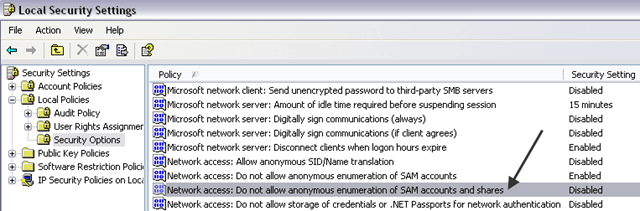
You can go to Control Panel, Administrative Tools, Local Security Policy, Local Policies, Security Options. Now find the following policy:
Network access: Do not allow anonymous enumeration of SAM accounts and shares
Make sure that the value is set to Disabled. Also, make sure to disable only the setting that says “SAM accounts and shares” not the one that says “SAM accounts” only.
access is denied network resource
10. Uninstall anti-virus and Internet Security

Sunday, January 22, 2012

NTLM versions and network compatibilities

Source http://www.sevenforums.com/network-sharing/5369-networking-file-share-between-windows-7-windows-xp.html SourceB  
Trying to share files between my three machines (there are actually none windows machines as well using SMB share).
They all work with each other except "Windows 7" is misbehaving. 
Everyone is prompted for a password to browse the 7 machine, and 7 is asked for password when it tries to look at any other device. This is obviously a "password encryption" thing that I have run into before, but now I cannot seem to find a solution. 
I have the following changes to Windows 7: 
HKLM\SYSTEM\CurrentControlSet\Control\Lsa LmCompatibilityLevel=1 
Which I think is all I had to do with Vista and XP to get them to cooperate. Since I do not have gpedit.msc, is there any other registery changes that need to be made for this work? Thank you. 
-----------------------------  
secpol.msc also has, under Security Options, Network Security: LAN Manager Authentication Level ... which can make changes to the setting. registry: HKLM/System/CurrentControlSet\Control\LSA Look for the 0 = sent LM adn NTLM, never use NTLMv2 1 = use NTLMv2 if negitiated. LM, NTLM and LTLMv2 can be used 2 = send NTLM only. 3 = sent NTLMv2 only. 4 = Domain controllers refuse LM. 5 = Domain controllers refuse LM and NTLM.  ---------------------------- It does not look like 7 "Home" has secpol.msc either. I tried setting LmCompatiblityLevel to 0 and 1, neither seemed to work. =====================
Windows XP SP2, Vista, Windows 7 clients unable to connect to Netware CIFS
=====================
eSafe Proxy with NTLM v2.0
Windows Vista, Windows 7 and Windows Server 2008 R2 and higher use NTLM v2.0-only by default. eSafe Proxy uses NTLM v1.0. The default setting within Windows can be changed to operate in a mode which is backwards compatible with eSafe Proxy. Take the following steps to change the NTLM settings:
  1. 1. Open the Group Policy Editor with gpedit.msc;
  2. 2. Go to Computer Configuration – Windows Settings – Security Settings – Local Policies – Security Options;
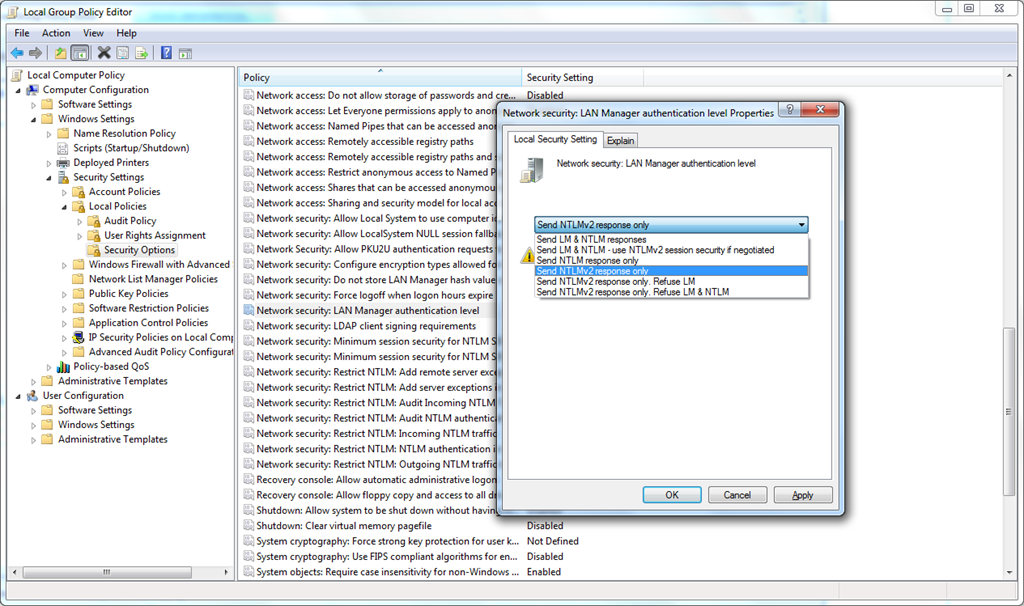
  3. 3. Go to the setting: Network security: LAN Manager authentication level
  4. 4. Change this setting to: Send LM & NTLM – use NTLMv2 session security if negotiated
  5. 5. Apply the policy with gpupdate /force
ntlmv2
The picture shows the policy setting within Windows.
This should solve the problem with single sign-on on Windows Vista, Windows 7 and Windows Server 2008 R2 and higher.
======================  
Disable NetBIOS and NTLM on Windows 2003 Domain Controllers
About NTLMv1/LM ... I don't think it's a problem disabling them (maybe only if you have some very old OS on your network). Regarding NETBIOS
I think the domain controller need this functionality for the replication. Anyway, for fully disable NETBIOS and SMB check
http://www.microsoft.com/technet/Sec...n2k/a0604.mspx
(as you can see it's not enough to check Disable Netbios over TCP/IP from
Advanced TCP/IP settings).
Andrei Ungureanu
www.eventid.net
Free Windows event logs reports
http://www.altairtech.ca/evlog/
=================  

Wednesday, January 18, 2012

Networking with different Windows

New features and functionality in PortQry version 2.0 (for NT5.2)
Networking home computers running different versions of Windows
If your network contains computers running different versions of Windows, put all computers in the same workgroup Let's assume that you've already set up the physical network itself. If you haven’t, see What you need to set up a home network.
After your network is set up, the next step is to fine-tune it so that all the computers can find each other—something you'll need if you want to share files and printers.
If computers running Windows XP are part of your network, it’s important to use the same workgroup name for all of the computers on your network. This makes it possible for computers running different versions of Windows to detect and access each other. Remember that the default workgroup name is not the same in all versions of Windows.
To find or change the workgroup name on a computer running Windows XP
  1. Click Start, right-click My Computer, and then click Properties.
  2. In System Properties, click the Computer Name tab to see the workgroup name. To change the name, click Change, type the new name in Computer name, and then click OK.
To find the workgroup name on a computer running Windows Vista or Windows 7
Open System by clicking the Start button Picture of the Start button, right-clicking Computer, and then clicking Properties.
  1. The workgroup name is displayed under Computer name, domain, and workgroup settings.
To change the workgroup name on a computer running Windows Vista or Windows 7
Open System by clicking the Start button Picture of the Start button, right-clicking Computer, and then clicking Properties.
  1. Under Computer name, domain, and workgroup settings, click Change settings.
  2. In System Properties, on the Computer Name tab, click Change.
  3. In Computer Name/Domain Changes, in Workgroup, type the name of the workgroup you want to use, and then click OK. You will be prompted to restart your computer.
Picture of the System windowThe workgroup name is displayed in the System window
Set the network location to Home or Work
Next, check the network location on all computers running Windows Vista or Windows 7. The network location is a setting that allows Windows to automatically adjust security and other settings based on the type of network that the computer is connected to. For more information, see Choosing a network location.
There are four network locations:
  • Home. The computer is connected to a network that has some level of protection from the Internet (for example, a router and a firewall) and contains known or trusted computers. Most home networks fall into this category. HomeGroup is available on networks with the Home network location.
  • Work. The computer is connected to a network that has some level of protection from the Internet (for example, a router and a firewall) and contains known or trusted computers. Most small business networks fall into this category.
  • Public. The computer is connected to a network that's available for public use. Examples of public network types are public Internet access networks, such as those found in airports, libraries, and coffee shops.
  • Domain. The computer is connected to a network that contains an Active Directory domain controller. An example of a domain network is a network at a workplace. This network location is not available as an option and must be set by the domain administrator.
For your home network, make sure that the network location type is set to Home. Here's how to check:
  • Open Network and Sharing Center by clicking the Start button Picture of the Start button, and then clicking Control Panel. In the search box, type network, and then click Network and Sharing Center.
The network location type is displayed below the network name.
Picture of Network and Sharing CenterThe network location type is displayed in Network and Sharing Center
If your network type is public, click Public network, and then select the network location you want.
Warning 
Warning
You should only change a network to Home or Work if it's a known and trusted network, such as your home or small business network. Changing a network in a public place to Home or Work can be a security risk because it allows other people on the network to see your computer.
Make sure your firewall allows file and printer sharing
If you're using Windows Firewall, you can skip this section, because Windows Firewall automatically opens the correct ports for file and printer sharing when you share something or turn on network discovery. (For more information about network discovery, see What is network discovery?) If you're using another firewall, you must open these ports yourself so that your computer can find other computers and devices that have files or printers that you want to share.
To find other computers running Windows Vista or Windows 7, open these ports:
  • UDP 3702
  • UDP 5355
  • TCP 5357
  • TCP 5358
To find other computers running earlier versions of Windows, and to use file and printer sharing on any version of Windows, open these ports:
  • UDP 137
  • UDP 138
  • TCP 139
  • TCP 445
  • UDP 5355
To find network devices, open these ports:
  • UDP 1900
  • TCP 2869
  • UDP 3702
  • UDP 5355
  • TCP 5357
  • TCP 5358
To make HomeGroup work correctly between computers running Windows 7, open these ports:
  • UDP 137
  • UDP 138
  • TCP 139
  • TCP 445
  • UDP 1900
  • TCP 2869
  • UDP 3540
  • TCP 3587
  • UDP 3702
  • UDP 5355
  • TCP 5357
  • TCP 5358
Turn on additional file and printer sharing options
By changing your network location to Home or Work, network discovery is automatically turned on . You can also turn on these sharing options individually:
  • Network discovery
  • File sharing (in Windows 7, this is automatically turned on when you share a file or folder)
  • Public folder sharing
When you turn on these options, your computer can:
  • Find other computers and devices on your home network and have other computers find your computer
  • Share its files and folders
  • Share its Public folders
Note

Note
Password-protected sharing is a special option that's discussed below.
To turn on network discovery, file and printer sharing, and public folder sharing in Windows 7
Open Advanced sharing settings by clicking the Start button Picture of the Start button, and then clicking Control Panel. In the search box, type network, click Network and Sharing Center, and then, in the left pane, click Change advanced sharing settings.
  1. Click the chevron Picture of the chevron icon to expand the Home or Work network profile.
  2. Select the options to turn on network discovery and file sharing.
  3. Under Public folder sharing, do one of the following:
    • To share your Public folders so that people on other computers on the network can open files in them but can't create or change files, click Turn on sharing so anyone with network access can open files.
    • To share your Public folders so that people on other computers on the network can open files in them and also create or change files, click Turn on sharing so anyone with network access can open, change, and create files.
      Click Save changes. Administrator permission required If you're prompted for an administrator password or confirmation, type the password or provide confirmation.
To turn on network discovery, file sharing, public folder sharing, and printer sharing in Windows Vista Open Network and Sharing Center in Control Panel.
  1. Under Sharing and Discovery, click the chevron Picture of the chevron icon next to File sharing to expand the section, click Turn on file sharing, and then click Apply. Administrator permission required If you're prompted for an administrator password or confirmation, type the password or provide confirmation.
  2. Click the chevron Picture of the chevron next to Public folder sharing to expand the section, and then do one of the following:
    • To share the Public folder so that people on other computers on the network can open files in it but can't create or change files, click Turn on sharing so anyone with network access can open files, and then click Apply. Administrator permission required If you're prompted for an administrator password or confirmation, type the password or provide confirmation. This is the default setting.
    • To share the Public folder so that people on other computers on the network can open files in it and also create or change files, click Turn on sharing so anyone with network access can open, change, and create files, and then click Apply. Administrator permission required If you're prompted for an administrator password or confirmation, type the password or provide confirmation.
  3. Click the chevron Picture of the chevron next to Printer sharing to expand the section, click Turn on printer sharing, and then click Apply. Administrator permission required If you're prompted for an administrator password or confirmation, type the password or provide confirmation.
Consider using password-protected sharing
Password-protected sharing is a more secure method of sharing files and folders on a network, and it is enabled by default. With password-protected sharing enabled, people on your network can't access shared folders on other computers, including the Public folders, unless they have a user name and password on the computer that has the shared folders. They will be prompted to type a user name and password when accessing the shared folders.
For quicker access, you might want to have matching user accounts on all your computers. For example, Dana wants to use password-protected sharing to more securely share files and printers between her two computers. On Computer A, she has the user account "Dana22" and the password "Fly43$." If she sets up that same user account and password combination on Computer B, she can more quickly access shared files on Computer B. If Dana changes the password on one of these computers, she must make the same change on the other computer.
To turn on password-protected sharing in Windows 7
  1. Open Advanced sharing settings by clicking the Start button Picture of the Start button, and then clicking Control Panel. In the search box, type network, click Network and Sharing Center, and then, in the left pane, click Change advanced sharing settings.
  2. Click the chevron Picture of the chevron icon to expand the Home or Work network profile.
  3. Under Password protected sharing, click Turn on password protected sharing, and then click Save changes. Administrator permission required If you're prompted for an administrator password or confirmation, type the password or provide confirmation.
To turn on password-protected sharing in Windows Vista
  1. Open Network and Sharing Center in Control Panel.
  2. Under Sharing and Discovery, click the chevron Picture of the chevron icon next to Password protected sharing to expand the section, click Turn on password protected sharing, and then click Apply. Administrator permission required If you're prompted for an administrator password or confirmation, type the password or provide confirmation.
To share a file or folder
In any version of Windows, you can right-click a file or folder, click Share, and then select the people or groups you want to share with. You can also assign permissions so that those people can or cannot make changes to the file or folder you shared. For more information, see Share files with someone.
Using the network map
The network map in Network and Sharing Center is a graphical view of the computers and devices on your network, showing how they're connected and including any problem areas. This can be helpful for troubleshooting. Before a computer running Windows XP can be detected and appear on the network map, you might need to install the Link-Layer Topology Discovery (LLTD) protocol on that computer. For more information, go to Network Map Does Not Display Computers Running Windows XP on the Microsoft website.
If the LLTD protocol is installed but computers running Windows XP still don't appear on the network map, firewall settings could be preventing Windows from detecting them. Check the firewall settings and make sure that file and printer sharing is enabled. To learn how to do this, if you're using Windows Firewall, open Help and Support and search for "Enable file and printer sharing." Open the Help topic, and then scroll to the end. If you're using another firewall, check the information that came with your firewall.

 
  • Do you have any third party firewall installed on the computer or are you using Windows Firewall?
  • Were you able to access remote desktop connection on this computer earlier?
  • Did you make any changes to the computer before this issue started?

However, if you are using Windows Firewall and if Windows Firewall is blocking a program and you want to allow that program to communicate through the firewall, you can usually do that by selecting the program in the list of allowed programs (also called theexceptions list) in Windows Firewall.

Access the links below and follow the steps to troubleshoot the issue and add the program to exception list.
A port stays open all the time, so be sure to close ports that you don't need open anymore.
  1. Open Windows Firewall by clicking the Start button Picture of the Start button, and then clicking Control Panel. In the search box, type firewall, and then click Windows Firewall.
  2. In the left pane, click Advanced settings. Administrator permission required If you're prompted for an administrator password or confirmation, type the password or provide confirmation.
  3. In the Windows Firewall with Advanced Security dialog box, in the left pane, click Inbound Rules, and then, in the right pane, click New Rule.
  4. Follow the instructions in the New Inbound Rule wizard.
If you’re having trouble allowing other computers to communicate with your computer through Windows Firewall, you can try using the Incoming Connections troubleshooter to automatically find and fix some common problems.
Open the Incoming Connections troubleshooter by clicking the Start button Picture of the Start button, and then clicking Control Panel. In the search box, type troubleshooter, and then click Troubleshooting. Click View all, and then click Incoming Connections.

----------------

If you are using any third party firewall, you may contact the security software manufacturer and check how to change the settings for you to use remote desktop
Remote desktop or Terminal services use TCP port 3389, not port 137.
Port assignments for TCP and UDP.
http://technet.microsoft.com/en-us/library/cc959833.aspx

Service overview and network port requirements

Saturday, January 14, 2012

Networking troubleshooting for dummies

Top 10 Home Networking Problems and Mistakes
Tips for Troubleshooting Windows File and Printer Sharing

How to Find a MAC Address

  • Windows 95 and newer: winipcfg
  • Windows NT and newer: ipconfig /all
  • Linux and some Unix: ifconfig -a
  • Macintosh with Open Transport: TCP/IP Control Panel - Info or User Mode/Advanced
  • Macintosh with MacTCP: TCP/IP Control Panel - Ethernet icon
Causes of Dropped Network Connections
Windows Server 2003 Networking TCP-IP AND WINS AND IPSec AND Print AND Firewall (pdf)
Step by Step Configuration of NAT PAT
Router/Public IP
Configuring a Second Router on a Static Network

ping 192.168.1.1
Pinging 192.168.1.1 with 32 bytes of data:
Reply from 192.168.1.25: Destination host unreachable.
Ping statistics for 192.168.1.1:
    Packets: Sent = 4, Received = 4, Lost = 0 (0% loss)
The WiFi signal is fine, i get full bars, and have checked the exact strength with InSSIDer. The ethernet cable is also fine.

Did vista change the way ping responds?
ping 192.168.1.10
Pinging 192.168.1.10 with 32 bytes of data:
Reply from 192.168.1.106: Destination host unreachable.
...
Ping statistics for 192.168.1.10:
Packets: Sent = 4, Received = 4, Lost = 0 (0% loss),
ping 192.168.1.111
Pinging 192.168.1.111 with 32 bytes of data:
Reply from 192.168.1.106: Destination host unreachable.
...
Ping statistics for 192.168.1.111:
Packets: Sent = 4, Received = 4, Lost = 0 (0% loss),
Sounds like routing issue.
Is the 192.168.1.106 the local computer? Or this post may help
Ping 192.168.1.101 but the response is 192.168.1.107


Please tell me why I have different result when I ping from 2 workstation on my network. 
Pinging 192.168.137.101 with 32 bytes of data:
Reply from 192.168.137.199: Destination host unreachable.
[where 199 is the workstation(Windows 7) IP]

or
Pinging 192.168.137.101 with 32 bytes of data:

Request timed out.
...


Ping statistics for 192.168.137.101:
Packets: Sent = 4, Received = 0, Lost = 4 (100% loss),
[the IP of the workstation (Windows XP)is 192.168.137.29]
....

While I'm not sure the results are displayed differently. Both errors tell me that the device you are trying to ping is OFFLINE or the Firewall is enabled and ICMP is blocked. 
------------------
Is 199 the workstation you are trying to ping or 101 and 199 is the switch? (that is what it looks like to me)?
Are you pinging from two totally different machines to the same destination? If so it looks as if (guessing) you might have a bad network cable or switch port in regards to the destination machine.
----------------------
Are you pinging for the name or the ip address?
You could try to flush the DNS on both machines you are pinging from by entering in
ipconfig /flushdns 
at the command prompt to make sure they have the latest info from your dns server.
Or get into the dns server and
  • remove the entries in both the forward and reverse lookups then 
  • reload to make sure they match the ip address of the machines and then 
  • flush the dns on the machines you are pinging from.
Run a tracert and see where it fails to know if it's a turned off switch in between or the end device that's unavailable.
-------------------
My take?
192.168.137.199 is your Win7 workstation.
The replies are from this adapter telling you it cannot "Find" the 192.168.137.101 IP Address
This is the Expected response in this situation from Win7
The XP machine gives its default response for a non responsive ping, request timed out. This also is the expected response from XP.
No problem, this is the proper response from both machines if they cannot get to the IP address requested.
The issue is:
Why can they not get to .101, possibly a firewall issue?
-------------------
Response indicated is correct for both a WIN 7 and XP OS. To troubleshoot ping your gateway to verify you are reaching your switch then ping .29 from 199 and the reverse that will prove that you can reach the switch and other machines on the same subnet. If that works check the .101 device for connectivity. Your options for 3 devices in the same subnet are incorrect gateway, incorrect subnet mask, software or hardware firewall blocking ICMP, no power or no lan connection at device .101.
-------------------
Do you have any kind of subnetting in place? If your Win7 box is 255.255.255.128 or smaller you will be spanning subnets and if you don't have routing in place, you'll receive that error.
For the XP side, check that .101 is online and has no FW running. Timeouts usually mean the machine is not there or is blocking ICMP.
-------------------
Win 7 is probably using IPv6 and your XP is not. You could also check your DNS on both machines, but I'd guess it's the IPv6 on Win7 causing your issue.
=======================
ipconfig /all 
DHCP Enabled. . . . . . . . . . . : Yes
Autoconfiguration Enabled . . . . : Yes
IPv4 Address. . . . . . . . . . . : 192.168.1.3(Preferred)
Subnet Mask . . . . . . . . . . . : 255.255.255.0
Lease Obtained. . . . . . . . . . : 03 July 2011 10:23:37
Lease Expires . . . . . . . . . . : 06 July 2011 10:51:57
Default Gateway . . . . . . . . . : 192.168.1.1
DHCP Server . . . . . . . . . . . : 192.168.1.1
DNS Servers . . . . . . . . . . . : 192.168.1.1
NetBIOS over Tcpip. . . . . . . . : Enabled

ping 208.67.222.222
Pinging 208.67.222.222 with 32 bytes of data:
Reply from 192.168.1.1: Destination host unreachable.
Ping statistics for 208.67.222.222:
Packets: Sent = 4, Received = 4, Lost = 0 (0% loss),
 

This is very odd...
Pinging 192.168.2.1 with 32 bytes of data:
Reply from 192.168.1.1 ...
the reply IP is from another PC! 
Correct behavior:
ping 192.168.2.1
Pinging 192.168.2.1 with 32 bytes of data:
Reply from 192.168.2.1: bytes=32 time=3ms TTL=64
Reply from 192.168.2.1: bytes=32 time=2ms TTL=64
Reply from 192.168.2.1: bytes=32 time=4ms TTL=64
Reply from 192.168.2.1: bytes=32 time=6ms TTL=64

It seems a common problem with Windows 7 that one's internet can suddenly be unable to connect via the ethernet cable or over wireless when it had worked previously.
There are numerous solutions that have worked for others according to my research but unluckily for me none of them are resolving this issue on my system and I have been forced to seek guidance.
Compaq 615
Windows 7
TP-Link modem model: TD-W8901G
Everything worked great for the first week I had this service installed then I unplugged the modem to clean my room and haven't been able to connect since, either via wireless or with the cable despite the connection showing a strong signal.
I know some services from 3rd party software can create problems like mine, such as anti-virus bundles or Apple software but I don't have the usual culprits running, such as Bonjour routine/program that comes with Adobe CS3 or Mcafee anti virus.
Here are some things I have already tried...
Update the network driver.
Steps to update network driver:
1. Click on start button.
2. In the search box type devmgmt.msc and then press enter.
3. Select the network card device and right click on it
4. Now select properties.
5. In the properties window, under Driver tab, click on Update Driver button.
6. After the installing the updates restart the computer.
For more information visit: Update a driver for hardware that isn't working properly

Tried this, it didn't work.

Try resetting the TCP/IP stack.
To reset the TCP/IP stack go to this article and either click on "Fix it for me" or follow the instructions to fix it yourself: How to reset Internet Protocol (TCP/IP) .

Tried this, it didn't work.

Troubleshoot using the Network troubleshooter in Windows 7 and check for the issue. Follow the below provided link.
Using the Network troubleshooter in Windows 7

Tried this, result was:
"Your broadband modem is experiencing connectivity problems.
Restart your broadband modem:
1. Unplug or turn off the modem.
2. After all the lights on the modem are off, wait at least 10 seconds.
3. Turn the modem back on or plug it back into the power outlet.
To restart a modem that has a built-in battery, press and quickly release the Reset button. If this doesn't fix the problem contact your internet service provider.
Problems found
The connection between your access point, router, or cable modem and the Internet is broken."
I followed those instructions and nothing worked. Despite it saying I have connectivity problems, remember it does show a strong signal!

Uninstall and reinstall ethernet adapter driver.
Tried this, it didn't work.
I first learned that by disabling and then enabling the local area connection, internet access is restored. Certainly its not the perfect solution and i can bare myself the pain in doing the same task every time i turn the PC on.
Fix No Internet Access in Windows 7 - Tildemark blogs

Tried this, it didn't work.

Disable TCP-IPv6
Tried this, it didn't work.

Go to Start - Search Box - TYPE "msconfig" - Hit Enter - Services Tab - Click the ceck next to ##Id_String1.6844f930_1628_4223_b5cc_5bb94b879762## Apple Computer, INC - Hit OK and Restart your computer.
Tried this, I don't have this Id string listed.
 
1. Take the LAN cable out
2. Restart and allow the WiFi to function or find nothing
3. Plug the LAN cable in. From this point on (until the next time you Restart), no "Unidentified Network" (two conflicting Networks) and Internet Access.

Tried this, it didn't work.

Unplug router for a minute, or reset it.
Tried both, neither worked.

Router firmware upgrade will solve problem working with windows 7.
Tried this, but was unable to follow the process because I get a dialogue box pop-up requesting user/pass:
"A user name and password are being requested by http://xxx.xxx.xxx.xxx. The site says: "TD-W8901G"
With both the correct username and pass (pasted from network properties) or original password (given that I had changed it) for some bizarre reason it doesn't seem to be accepted. Definately and unconditionally the correct user/pass but not accepted and thus cannot attempt possible firmware upgrade solution.

Turn firewall off.
Tried this, it didn't work.

Find and select "Internet Protocol Version 4 (TCP/IPv4) in the list then choose the properties button.
The properties window for the TCP/IPv4 protocol opens.
I have the buttons for "Obtain an IP address automatically" and "Obtain DNS server address automatically" selected.
Click the "Advanced" button to open up the Advance TCP/IP Settings window. It should show that you have DHCP enabled, however, in my case the default gateway address for my network was blank. I clicked the "Add" button beneath the Default Gateways box and added the gateway setting for my LAN here. That was it. As soon as I clicked the add button to add the gateway IP address I entered, it connected and I had full Internet access and no further problems connecting automatically after rebooting Win 7.
If you don't already know your LAN's gateway IP address, you can find it by going to the "Search programs and files" box on the Windows Start Menu (bottom left) and typing the command "cmd". Then hit enter to bring open a DOS box. In the DOS box window type the command "ipconfig" and hit enter on your keyboard. Look at the resulting list of numbers displayed beneath the section titled "Ethernet adapter Local Area Connection." The IP address of your LAN's Gateway is listed across from "Default Gateway."
Tried this, it didn't work.

Safe Mode With Networking.
Tried this, it didn't work.
Start
Accessories
Scroll to the "Command Prompt"
Highlight "Command Prompt"
Hold Shift and Right-click on "Command Prompt"
Choose "Run as Administrator"
You are now in the System32
Run this command: netsh winsock reset
It will prompt you to reboot your pc.
Reboot and try to reconnect to your preferred wireless.

Tried this, it didn't work.
Go to the device manager
select network card
right hand mouse button and go to properties
then the advanced tab
find network address
select not present
Now go to start and type CMD at the prompt type:
ipconfig /release
Enter
ipconfig /renew
Enter

Tried this, it didn't work.
 
- Click Start Button
- Type: ncpa.cpl
- Right click the Wireless Adapter and choose PROPERTIES
- Click and highlight the Internet Protocol TCP/IP Version 4 option
- Click the Properties button
- Choose “Use the following IP address”
- Enter the following for the IP address: 192.168.1.210
- Enter the following for the Subnet Mask: 255.255.255.0
- Enter the following for the Default Gateway: 192.168.1.1
- Choose “Use the following DNS servers”
- Enter the following for the Primary DNS server: 192.168.1.1
- Enter the following for the Secondary DNS server: 4.2.2.3
- Click OK
- Click OK
- Reconnect to the wireless signal
Tried this, it didn't work.
 ----------------------------
Have you tried a direct connection to the Modem, bypassing the Router?
Post an ipconfig /all of the computer in question for review.
Click on Start => in run or search box type cmd press enter (run as Admin for Vista and 7). From the black screen, type the word ipconfig /all and press enter. Right click on the black screen or Command prompt then choose Select All and Paste the results onto your Post. 
------------
Have you confirmed that none of your browsers are using Proxy servers?
No but I get the yellow exclamation mark on my connection on the taskbar so it seems to be the whole connection rather than just via Firefox and IE.
------------
Ping DNS
Not sure what this is or how to do it but I tried C:\WINDOWS\SYSTEM32>nslookup and got this:
Microsoft Windows [Version 6.1.7601]
Copyright (c) 2009 Microsoft Corporation. All rights reserved.
C:\Windows\system32>nslookup
DNS request timed out.
timeout was 2 seconds.
Default Server: UnKnown
Address: 192.168.1.1
-----------------
Let's try assigning Static IP to both your LAN and Wireless config by following this guide:
Setting a Static IP Address in Windows 7 - PortForward.com
For your Wireless Setting assign the following Static IP:
IP Address - 192.168.2.51. If this IP is already taken try assigning a diff IP as long as it won't past 250.
Subnet Mask - 255.255.255.0
Gateway - 192.168.2.1
DNS - 208.67.222.222
For your wired connection assign these Static IP:
IP Address - 192.168.1.3
Subnet Mask - 255.255.255.0
Gateway - 192.168.1.1
DNS - 8.8.8.8 and 8.8.4.4
Also, if you want to use your wired connection, disable your wireless connection, do the same method to your wireless connection to avoid conflict, see if it works this time.
One pop-up:
Warning: Multiple default gateways are intended to provide redundancy to a single network (such as intranet or the Internet).
They will not function properly when the gateways are on two separate, disjointed networks (such as one on your intranet and one on the Internet). Do you want to save this configuration? Yes/No

I figured the new settings for the problem wireless connection are conflicting with the wireless from the school so I disabled that adapter but it hasn't stopped the pop-up warnings. Here is another one:
The IP address 192.168.2.51 you have entered for this network adapter is already assigned to another adapter 'Miscrosoft Virtual WiFi Miniport Adapter' on this computer. If the same address is assigned to both adapters and they both become active, only one of them will use this address. This may result in incorrect system configuration.
Do you want to fix the problem by entering a different IP address for this adapter in the list of IP addresses in the Advanced dialogue box? Yes/No

-------------------- 
Please switch the settings back to the way they used to be, DHCP or auto IP assignment on both LAN and Wireless.
Do these commands on both. Click on Start and type cmd.
From Command prompt screen type:
ipconfig /release press enter
ipconfig /renew press enter
Now, disable your wireless connection, then try to connect using your wired connection.
------------------------
It won't release and renew with out proper IP's assigned.
Lets Power Cycle your Modem and your computer to get the IP back.
You may do another ipconfig to see if IPs are back. Test your wired connection after.
How to Power Cycle Your Computer and Internet Connection. | Schrock Innovations Computer Company
---------------------
Is your Network Adapter disabled? Your ipconfig shows a Media Disconnected.
Also, you'll have to type ipconfig /all next time to show us the entire output.
At this point you might want to contact your ISP again and be very persistent. There might be something wrong with the modem.
Can you give us a print screen of your computer's Device Manager, expand Network Adapters?
---------------------
REALLY STUPID..!
These problems all started when I disconnected and unplugged the modem so I could give the room a good clean. One thing I hadn't tried was connecting a cable into a little box with a picture of a telephone on it. I thought this was simply for a landline but given my options had more or less run out I gave it a whirl and hey presto my internet is back! 
-------------------------
Okay... you might have overlooked the RJ11 or telephone port
==============================


http://www.eggheadcafe.com/searchform.aspx?search=dhcp+both+servers

Linksys WRT54G as a wireless ethernet bridge

forums.anandtech.com/showthread.php?t=1115
network-technologies.org/Projects/Virtual_Brain_Online.php/article/62/