Bienvenido! - Willkommen! - Welcome!

Bitácora Técnica de Tux&Cía., Santa Cruz de la Sierra, BO
Bitácora Central: Tux&Cía.
Bitácora de Información Avanzada: Tux&Cía.-Información
May the source be with you!
Showing posts with label partition manipulation tools. Show all posts

Friday, June 28, 2013

EaseUS Partition Recovery

http://www.easeus.com/partition-recovery/
EaseUS Partition Recovery Free
Why to choose EaseUS Partition Recovery?
EaseUS Partition Recovery, a free and easy-to-use partition recovery software to recover deleted or lost partition, takes up one of the best partition recovery software for you to keep owing to the following features:
  • Free for both home and commercial users.
  • Use it with ease: a wizard interface walks you through all the partition recovery process.
  • Recover deleted or lost partition quickly and easily.
  • Offer several optional scan areas helps locate the lost partition quickly.
  • Support FAT, NTFS, Ext2/Ext3 file system.
  • Support IDE / ATA / SATA / SCSI drives.
  • Bootable disk based on WinPE
  • Support Windows 2000, XP, 2003, Vista, 2008, 7
Partition Loss Scenarios
  • Inadvertently deleted partitions (using fdisk or other programs)
  • Accidently lost partitions (for example due to virus attack)
  • ALLTHEPROFIL9SW-3YE3M-LSMR8-PCDHB-L7FDLALLTHEPROF
Partition Recovery Tutorial

Sunday, May 12, 2013

Data Recovery and Filesystem Tools

http://www.sysint.no/products/Download/tabid/536/language/en-US/Default.aspx
Strip My Rights
Author: Systemintegrasjon AS
Version:   File Date:   Number of Downloads: 6489  File size: 33 K
Date Released: 2/8/2008

File Description:
Utility for Windows XP and Windows Server 2003 which runs applications with reduced rights. If you for instance is logged on as Administrator or another user with administrative privileges on your Windows computer, you can use StripMyRights to run for instance Internet Explorer, Outlook or other programs with the rights of an ordinary user.
In this way the security risk of being logged on with elevated privileges may be reduced.
The utility is based on the ideas of the DropMyRights tool from Microsoft, but with several features added.
Read more...
Chown for Windows
Author: Systemintegrasjon AS
Version:   File Date:   Number of Downloads: 2825  File size: 60 K
Date Released: 2/8/2008

File Description:
Tool to take ownership of files and folders, or just take full control of the files and folders, without first taking ownership.
The tool is GNU-licensed and originally written by Alexander Frink.
Now supports file names up to 32000 characters in length.
Latest: Fixed problem with stack overflow for deep directory structures.

========================
http://www.ntfs.com/products.htm#disk_utilities
Active@ KillDisk
Hard Disk, HDD/USB Disk Eraser
Download
Active@ Disk Image
Hard Drive Image & Backup Software *
Download
Active@ Hard Disk Monitor
Monitor hard drive health
Download


Active@ Disk Editor
Advanced Disk Editor(Hex Viewer)
Download

Active@ Partition Recovery
Partition Recovery Software
Download
Active@ UNDELETE
File Undelete,Hard Drive Data Recovery
Download
NTFS Data Recovery Toolkit
NTFS disks recovery toolset
Download


Active@ UNERASER
Free undelete software
Download

Tuesday, October 18, 2011

Partition Managers

http://sourceforge.net/projects/gparted/files/gparted-live-stable/

GParted is a free partition manager that enables you to resize, copy, and move partitions without data loss.
The bootable image is called GParted Live and enables all the features of the GParted application. GParted Live can be used on GNU/Linux as well as other operating systems, such as Windows or Mac OS X.
GParted is a free partition editor for graphically managing your disk partitions.
GParted is useful for tasks such as: creating space for new operating systems, restructuring disk space to separate user and operating system data, and copying partitions to enable upgrading to a larger hard disk drive.
Your hard disk drive or USB flash drive can be subdivided into one or more partitions. GParted enables you to reorganize your disk partitions while preserving the contents of these partitions.
Features Create partition tables (e.g., msdos, gpt)
  • Perform actions with partitions such as:
    • create or delete
    • resize or move
    • check
    • label
    • copy and paste
  • Manipulate file systems such as:
    • btrfs
    • ext2 / ext3 / ext4
    • fat16 / fat32
    • hfs / hfs+
    • linux-swap
    • ntfs
    • reiserfs / reiser4
    • ufs
    • xfs
    For specific actions supported see detailed features.
  • Enable and disable partition flags (e.g., boot, hidden)
  • Align partitions to mebibyte (MiB) or cylinder boundaries
  • Attempt data rescue from lost partitions
  • Supports hardware RAID, motherboard BIOS RAID, and Linux software RAID.
  • Supports all sector sizes (e.g., 512, 1024, 2048, 4096 byte sectors)
Requirements
GParted is developed on x86 based computers using GNU/Linux. It can be used on other operating systems, such as Windows or Mac OS X, by booting from media containing GParted Live.
forosdelweb.com/ problema-redimensionar-con-gparted
==============================
Source

AboutRefresh this pageRSS FeedTwitter
The Parted Magic OS employs core programs of GParted and Parted to handle partitioning tasks with ease, while featuring other useful software (e.g. Partimage, TestDisk, Truecrypt, Clonezilla, G4L, SuperGrubDisk, ddrescue, etc…) and an excellent set of info to benefit the user. An extensive collection of file system tools are also included, as Parted Magic supports the following: btrfs, ext2, ext3, ext4, fat16, fat32, hfs, hfs+, jfs, linux-swap, ntfs, reiserfs, reiser4, and xfs. Parted Magic requires at least a i586 processor and 312MB of RAM to operate or 175MB in “Live” mode.
================================
Source
Home Edition (freeware)
Pro
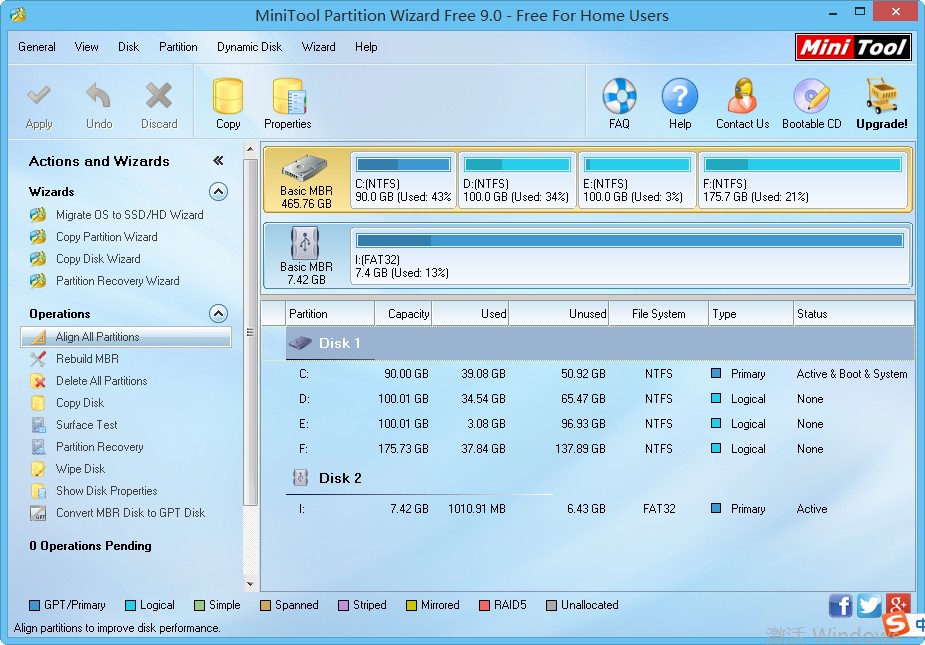
About Magic Partition Software - MiniTool Partition Wizard 7.0
Click image to enlarge
MiniTool Partition Wizard is a Windows based server partition manager software. Our server partition software supports both MBR and GUID partition table (GPT) on 32/64 bits Operating System including Windows XP, Vista, Windows Server 2000/2003/2008, Windows SBS and Windows 7. Our magic partition software supports all hard disks including IDE, SATA, SCSI, USB external disks, Fire wire disks and all level RAID configurations.

As a Partition Manager Server, MiniTool Partition Wizard provides powerful and professional functions to manage partition including:

================================
Easeus Partition Master
ALL-IN-ONE Partition Manager Software Version Platform Size
Home Edition
- Download from Download.com
9.1 Full Version
New update
Windows-icon Windows 2000 Professional, XP, Vista, Windows 7 SP1(Support 32 and 64 bit) 11.1 MB
As Partition Magic alternative, EaseUS Partition Master Home Edition is a ALL-IN-ONE partition solution and disk management freeware. It allows you to extend partition (especially for system drive), manage disk space easily, settle low disk space problem on MBR and GUID partition table (GPT) disk under Windows 2000/XP/Vista/Windows 7 (SP1 included) 32 bit and 64 bit system.
Top Benefits
Main Features partition manager icon
Partition Manager
copy icon.gif
Disk & Partition Copy Wizard
partition recovery icon.gif
Partition Recovery Wizard
Learn More...
===========================
The GRUB4DOS Tutorial is popular, and see the new Tutorials #30 and #43 on how to have multiple Windows install ISOs all on the same USB flash drive.
Try booting Windows 7 directly from a USB drive - see Tutorial #47 for details!
============================
www.rmprepusb.com 
RM'sPreparation utility for USB drives
Partition and format your USB drive and make it bootable with RMPrepUSB (a Windows utility)


RMPrepUSB and RMPartUSB are freeware utilities for private use only - no registration is required, and all versions are unlimited versions and do not contain any adware or viruses.
Please do not distribute these utilities without the authors permission as these utilities are not 'copyright free', 'free software', 'Open Source' or 'Open Licence' products, but are products which are made available for private use at zero cost.

Commercial use (i.e. selling it or included it in another product) and distribution is forbidden and you need to contact RM for licensing costs if you wish to include or re-distribute it as part of a commercial solution.
Email: support@rm.com for licence enquiries.
Please note: No licence is required for the internal use of RMPrepUSB by technicians/engineers within a company.


Portable: RMPrepUSB is portable and does not need to be installed, but it does write some settings to the Registry when you exit the application.
These settings are removed from the Registry when you uninstall RMPrepUSB.

Tuesday, May 31, 2011

Acronis Backup & Recovery 10

Update:
  1. Download the update. See Downloading the Latest Build of Acronis Software;
  2. Install the update. See:

======================
Acronis Startup Recovery Manager Fails to Activate on Windows 7/2008

Increase Windows System Reserved partition to resolve the issue
This article applies to:
  • Acronis Backup & Recovery 10 Advanced Server
  • Acronis Backup & Recovery 10 Advanced Server - Small Business Server Edition
  • Acronis Backup & Recovery 10 Advanced Server - Virtual Edition
  • Acronis Backup & Recovery 10 Advanced Workstation
  • Acronis Backup & Recovery 10 Server for Windows
  • Acronis Backup & Recovery 10 Workstation
  • Windows 7
  • Windows Server 2008 R2
Symptoms
  1. You try to activate Acronis Startup Recovery Manager on a system that has a Windows System Reserved partition; (!) This partition can be viewed in Windows Disk Management (Start-Run -> diskmgmnt.msc):

  2. Activation fails with the message similar to the following one: Unable to copy asrm.bin to \\?\Volume\{07cc1c88-f797-11df-9ad3-806e6f666963}\bootwiz\
    There is not enough space on disk


Cause
There is not enough space on Windows System Reserved partition for Acronis Startup Recovery Manager files.
Acronis Startup Recovery Manager is automatically placed on the active partition. By default, Windows System Reserved partition size is 100 MB and about 71 MB is free, which is enough for Acronis Startup Recovery Manager files. If some of the free space is taken by other software or if Windows System Reserved partition size is reduced manually, there will not be enough space for the files.

Solution
Increase the size of Windows System Reserved partition by 50-100 MB. You can do this with Acronis Disk Director 11 Home, Acronis Disk Director 11 Advanced or other disk management software.
Alternatively, you can use Acronis Bootable Media instead of Acronis Startup Recovery Manager. See Standalone Version of Acronis Software.

More information
Acronis Development Team is working on fixing this issue. The fix is planned for the next build of Acronis Backup & Recovery 10.
See also:

Thursday, July 29, 2010

Repairing corrupted partition table

Source

Fixdisktable


This is a utility that handles ext2, FAT, NTFS, ufs, BSD disklabels (but not yet old Linux swap partitions); it actually will rewrite the partition table, if you give it permission.

gpart


GPART is a utility that handles ext2, FAT, Linux swap, HPFS, NTFS, FreeBSD and Solaris/x86 disklabels, minix, reiser fs; it prints a proposed contents for the primary partition table, and is well-documented.

rescuept


  • Homepage: util-linux ?
  • Download: ?
  • Author: ?
  • Access: ?
  • License: ?
Recognizes ext2 superblocks, FAT partitions, swap partitions, and extended partition tables; it may also recognize BSD disklabels and Unixware 7 partitions. It prints out information that can be used with fdisk or sfdisk to reconstruct the partition table. It is in the non-installed part of the util-linux distribution.

findsuper


  • Homepage: e2progs ?
  • Download: ?
  • Author: ?
  • Access: ?
  • License: ?
Small utility that finds blocks with the ext2 superblock signature, and prints out location and some info. It is in the non-installed part of the e2progs distribution.

GPart Partition Table Recovery Tool

Fuente
Gracias mil, Vicente!!!

Muchos de nosotros que nos dedicamos con cierta frecuencia a borrar particiones de aquí, crear por allá y ampliar por más allá, nos hemos encontrado alguna vez en el fatídico momento en el que te das cuenta que te has cargado esa partición repleta de ficheros que tanta falta te hacen. ¿Qué podemos hacer en esos casos? ¿Es reversible?
Como ya vimos en Montar una imagen raw de Qemu. Los primeros 32 Kbytes de un disco., las particiones son apenas 64 bytes en el primer sector (512 bytes) del disco duro, el que llamamos MBR (Master Boot Record). Bueno, para ser exactos, en el MBR sólo se pueden guardar las 4 particiones (apenas 16 bytes para cada partición) primarias que podemos tener en el sistema de particiones de los PC, o 3 primarias más 1 extendida que puede almacenar un número indefinido de particiones lógicas en el EBR (Extended Boot Record).
Pues bien, un cambio que podamos hacer en esa tabla de particiones por ejemplo con el fdisk de Linux en principio sólo nos estará modificando la información del MBR y/o del EBR, pero en principio no la del sitio donde está la partición, a menos que el programa de gestión de particiones haga cosas más agresivas, algo que suele hacer, por ejemplo, el administrador de discos de windows. Además, si el gestor de particiones que usemos también tiene la capacidad de formatear particiones recién creadas, y es eso lo que seleccionamos, también es altamente probable que perdamos irremediablemente nuestros datos.
Me acuerdo de una vez, hace muchos años, que me cargué la tabla de particiones, ya no recuerdo cómo. Como en aquella ocasión no conocía ninguna herramienta de recuperación de particiones, me tocó armarme de paciencia, recordar de cuánto tamaño era más o menos cada partición e ir probando durante varias horas a crear particiones con el fdisk de Linux empezando un poco más aquí y empezando un poco más allá hasta que conseguí dar con un conjunto de particiones que se montaban sin errores y conseguí no perder mis datos. Hice una recuperación de particiones manual. No fui difícil pero sí muy pesado.
Más recientemente también me ha pasado alguna vez tocar la partición que no era pero, esta vez sí, ya conocía el genial gpart y pude recuperarlas sin apenas despeinarme. Aunque el nombre sea muy parecido, no debemos confundir el gpart (Guess PC-type hard disk partitions), Gpart 0.1f , Gpart 0.1h
una herramienta de recuperación de particiones, con el GParted (Gnome Partition Editor), un gestor de particiones que nos permite crearlas, eliminarlas, moverlas, copiarlas e incluso cambiarles el tamaño, llegando a igualar y superar al antiguo rey en este campo: el famoso Partition Magic.
Gpart is a tool which tries to guess the primary partition table of a PC-type hard disk in case the primary partition table in sector 0 is damaged, incorrect or deleted. The guessed table can be written to a file or device. Supported (guessable) filesystem or partition types: 
  • DOS/Windows FAT (FAT 12/16/32)
  • Linux ext2
  • Linux swap partitions versions 0 and 1 (Linux >= v2.2.X)
  • OS/2 HPFS
  • Windows NTFS
  • *BSD disklabels
  • Solaris/x86 disklabels
  • Minix FS
  • Reiser FS
  • Linux LVM physical volume module (LVM by Heinz Mauelshagen)
Así, si tenemos una tabla de particiones como esta:
# sfdisk -l /dev/hdb
Disk /dev/hdb: 4161 cylinders, 16 heads, 63 sectors/track
Units = cylinders of 516096 bytes, blocks of 1024 bytes, counting from 0

   Device Boot Start     End   #cyls    #blocks   Id  System
/dev/hdb1   *      0+   1999-   2000-   1007968   83  Linux
/dev/hdb2       2000    2499-    500-    251996    7  HPFS/NTFS
/dev/hdb3       2500    4160    1661     837144    5  Extended
/dev/hdb4          0       -       0          0    0  Empty
/dev/hdb5       2500+   2999     500-    251968+  82  Linux swap / Solaris
/dev/hdb6       3000+   3499     500-    251968+   b  W95 FAT32
/dev/hdb7       3500+   4160     661-    333112+  83  Linux
y las borramos todas con el comando fdisk de Linux o incluso más agresivamente, eliminando todo el MBR:
# dd if=/dev/zero of=/dev/hdb count=1 bs=512
1+0 records in
1+0 records out
512 bytes (512 B) copied, 0.00656895 s, 77.9 kB/s
# sfdisk -l /dev/hdb

Disk /dev/hdb: 4161 cylinders, 16 heads, 63 sectors/track

sfdisk: ERROR: sector 0 does not have an msdos signature
 /dev/hdb: unrecognized partition table type
No partitions found
una primera ejecución de gpart (paquete que viene en Debian y Ubuntu) nos encontrará todas las particiones sin fallos, pero de momento aún no las escribe:
# gpart /dev/hdb

Begin scan...
Possible partition(Linux ext2), size(984mb), offset(0mb)
Possible partition(Windows NT/W2K FS), size(246mb), offset(984mb)
Possible extended partition at offset(1230mb)
   Possible partition(Linux swap), size(246mb), offset(1230mb)
   Possible partition(DOS FAT), size(246mb), offset(1476mb)
   Possible partition(Linux ext2), size(325mb), offset(1722mb)
End scan.

Checking partitions...
Partition(Linux ext2 filesystem): primary
Partition(OS/2 HPFS, NTFS, QNX or Advanced UNIX): primary
   Partition(Linux swap or Solaris/x86): logical
   Partition(DOS or Windows 95 with 32 bit FAT): logical
   Partition(Linux ext2 filesystem): logical
Ok.

Guessed primary partition table:
Primary partition(1)
   type: 131(0x83)(Linux ext2 filesystem)
   size: 984mb #s(2015936) s(63-2015998)
   chs:  (0/1/1)-(1023/15/63)d (0/1/1)-(1999/15/62)r

Primary partition(2)
   type: 007(0x07)(OS/2 HPFS, NTFS, QNX or Advanced UNIX)
   size: 246mb #s(503992) s(2016000-2519991)
   chs:  (1023/15/63)-(1023/15/63)d (2000/0/1)-(2499/15/55)r

Primary partition(3)
   type: 005(0x05)(Extended DOS)
   size: 817mb #s(1674288) s(2520000-4194287)
   chs:  (1023/15/63)-(1023/15/63)d (2500/0/1)-(4160/15/63)r

Primary partition(4)
   type: 000(0x00)(unused)
   size: 0mb #s(0) s(0-0)
   chs:  (0/0/0)-(0/0/0)d (0/0/0)-(0/0/0)r
Si convenimos que el gpart ha hecho un buen trabajo, podemos decirle con la opción -W que escriba el MBR completo con la tabla de particiones que ha conseguido averiguar en un fichero normal o en un fichero de dispositivo. Por ejemplo, si lo hiciéramos en un fichero, el comando sería algo así (nos hace unas preguntas adicionales al final sobre si queremos editar las particiones o cuál queremos que sea la partición activa):
# gpart -W mbr_del_sistema /dev/hdb

Begin scan...
Possible partition(Linux ext2), size(984mb), offset(0mb)
Possible partition(Windows NT/W2K FS), size(246mb), offset(984mb)
Possible extended partition at offset(1230mb)
   Possible partition(Linux swap), size(246mb), offset(1230mb)
   Possible partition(DOS FAT), size(246mb), offset(1476mb)
   Possible partition(Linux ext2), size(325mb), offset(1722mb)
End scan.

Checking partitions...
Partition(Linux ext2 filesystem): primary
Partition(OS/2 HPFS, NTFS, QNX or Advanced UNIX): primary
   Partition(Linux swap or Solaris/x86): logical
   Partition(DOS or Windows 95 with 32 bit FAT): logical
   Partition(Linux ext2 filesystem): logical
Ok.

Guessed primary partition table:
Primary partition(1)
   type: 131(0x83)(Linux ext2 filesystem)
   size: 984mb #s(2015936) s(63-2015998)
   chs:  (0/1/1)-(1023/15/63)d (0/1/1)-(1999/15/62)r

Primary partition(2)
   type: 007(0x07)(OS/2 HPFS, NTFS, QNX or Advanced UNIX)
   size: 246mb #s(503992) s(2016000-2519991)
   chs:  (1023/15/63)-(1023/15/63)d (2000/0/1)-(2499/15/55)r

Primary partition(3)
   type: 005(0x05)(Extended DOS)
   size: 817mb #s(1674288) s(2520000-4194287)
   chs:  (1023/15/63)-(1023/15/63)d (2500/0/1)-(4160/15/63)r

Primary partition(4)
   type: 000(0x00)(unused)
   size: 0mb #s(0) s(0-0)
   chs:  (0/0/0)-(0/0/0)d (0/0/0)-(0/0/0)r

Edit this table (y,n) : n

Activate which partition (1..4, q to quit) : 1
Write this partition table (y,n) : y
y la escritura final del MBR al disco la haríamos con un dd:
# dd if=mbr_del_sistema of=/dev/hdb
1+0 records in
1+0 records out
512 bytes (512 B) copied, 0.00676343 s, 75.7 kB/s
Aunque también podemos querer escribir el MBR con la tabla de particiones recuperada directamente en el disco, algo que podríamos hacer con un comando como este:
# gpart -W /dev/hdb /dev/hdb
Ambos caminos nos devolverían nuestra preciada tabla de particiones.
Sin embargo, puede que no siempre sea tan fácil. Por ejemplo, si esas mismas particiones del principio las borramos con el administrador de discos de Windows y volvemos a Linux a ver si las podemos recuperar, sfdisk no es capaz de hacer un buen trabajo del todo, ya que no consigue colocar correctamente la partición extendida: la partición swap de Linux la pone primaria cuando era lógica, la extendida se sale del disco y la de Linux del final está orphaned. Un pequeño desastre, vamos. De hecho, el Warning que nos devuelve impide que podamos escribir esta tabla de particiones con la opción -W. Sin embargo, las pistas que nos dá son más que buenas para que, con un poco de paciencia, un poco de recordar cómo estaba todo y unas pruebas, consigamos reconstruir la tabla ya más manualmente, eso sí:
# gpart /dev/hdb

Begin scan...
Possible partition(Linux ext2), size(984mb), offset(0mb)
Possible partition(Windows NT/W2K FS), size(246mb), offset(984mb)
Possible partition(Linux swap), size(246mb), offset(1230mb)
Possible extended partition at offset(1476mb)
   Possible partition(DOS FAT), size(246mb), offset(1476mb)
   Possible partition(Linux ext2), size(325mb), offset(1722mb)
End scan.

Checking partitions...
Partition(Linux ext2 filesystem): primary
Partition(OS/2 HPFS, NTFS, QNX or Advanced UNIX): primary
Partition(Linux swap or Solaris/x86): primary
   Partition(DOS or Windows 95 with 32 bit FAT): logical
   Partition(Linux ext2 filesystem): orphaned logical 

* Warning: partition(Extended DOS) ends beyond disk end.
Number of inconsistencies found: 1.

Guessed primary partition table:
Primary partition(1)
   type: 131(0x83)(Linux ext2 filesystem)
   size: 984mb #s(2015936) s(63-2015998)
   chs:  (0/1/1)-(1023/15/63)d (0/1/1)-(1999/15/62)r

Primary partition(2)
   type: 007(0x07)(OS/2 HPFS, NTFS, QNX or Advanced UNIX)
   size: 246mb #s(503992) s(2016000-2519991)
   chs:  (1023/15/63)-(1023/15/63)d (2000/0/1)-(2499/15/55)r

Primary partition(3)
   type: 130(0x82)(Linux swap or Solaris/x86)
   size: 246mb #s(503936) s(2520063-3023998)
   chs:  (1023/15/63)-(1023/15/63)d (2500/1/1)-(2999/15/62)r

Primary partition(4)
   type: 005(0x05)(Extended DOS)
   size: 817mb #s(1674288) s(3024000-4698287)
   chs:  (1023/15/63)-(1023/15/63)d (3000/0/1)-(4660/15/63)r
La página man de gpart es de lectura y comprensión imprescindible previos a su uso. Su sección de particiones extendidas es especialmente interesante.
Finalmente, no hace falta decir que la mejor forma de recuperar una tabla de particiones perdida es, como siempre, tener un backup. ¿Y como hacemos un backup de la tabla de particiones? No podría ser más sencillo. Con un dd podemos guardar el MBR del disco que nos interese:
dd if=/dev/hda of=backup-hda.mbr count=1 bs=512
El MBR, como hemos dicho, contiene las particiones primarias y la extendida si existe, pero no las lógicas. Para guardarlas también, y además tener un fichero de texto que describa todas las particiones por si queremos recuperarlas por otros medios, podemos usar el sfdisk:
# sfdisk -d /dev/hda > backup-hda.sf
El fichero resultante tiene un aspecto como éste:
# cat backup-hdb.sf
# partition table of /dev/hdb
unit: sectors

/dev/hdb1 : start=       63, size=  2015937, Id=83
/dev/hdb2 : start=  2016000, size=   504000, Id= 7
/dev/hdb3 : start=  2520000, size=  1674288, Id= 5
/dev/hdb4 : start=        0, size=        0, Id= 0
/dev/hdb5 : start=  2520063, size=   503937, Id=82
/dev/hdb6 : start=  3024063, size=   503937, Id= b
/dev/hdb7 : start=  3528063, size=   666225, Id=83
Para recuperar el MBR del backup:
dd if=backup-hda.mbr of=/dev/hda
Para recuperar las particiones del backup:
sfdisk /dev/hda < backup-hda.sf
:wq

Friday, June 19, 2009

Extended n Filesystem Explorer

Explore2fs
Explore2fs is a GUI explorer tool for accessing ext2 and ext3 filesystems. It runs under all versions of Windows and can read almost any ext2 and ext3 filesystem. A beta version of Virtual Volumes is now available. This is a technology preview for Explore2fs 2. Virtual Volumes also has the ability to read ReiserFS and many other filesystems
explore2fs-1.08beta9.zip