Bienvenido! - Willkommen! - Welcome!

Bitácora Técnica de Tux&Cía., Santa Cruz de la Sierra, BO
Bitácora Central: Tux&Cía.
Bitácora de Información Avanzada: Tux&Cía.-Información
May the source be with you!
Showing posts with label hd tools. Show all posts

Tuesday, May 21, 2013

Hard Disk Repair Tools

softwaresolution.informer.com/Hard-Disk-Repair-Tool/
http://www.diskinternals.com/raid-recovery/
Reconstruct
RAID-enabled motherboard from NVidia, Intel, or VIA
Adaptec RAID Controllers
DDF compatible devices
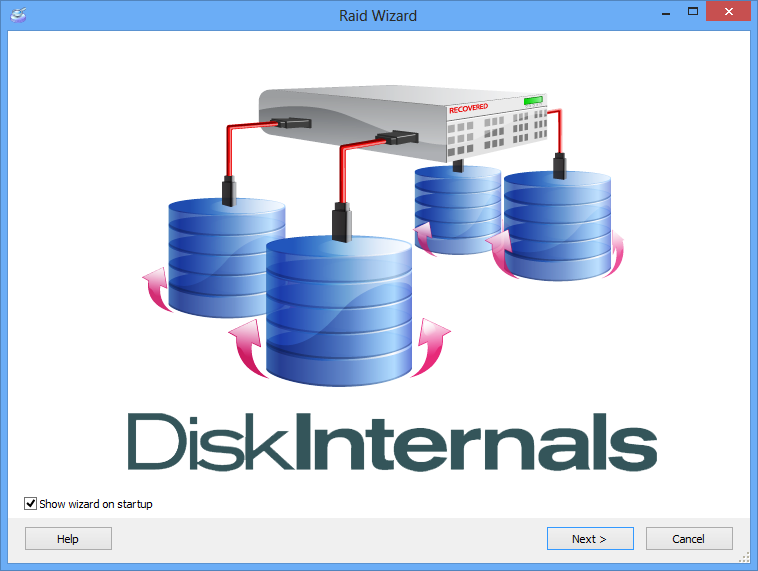
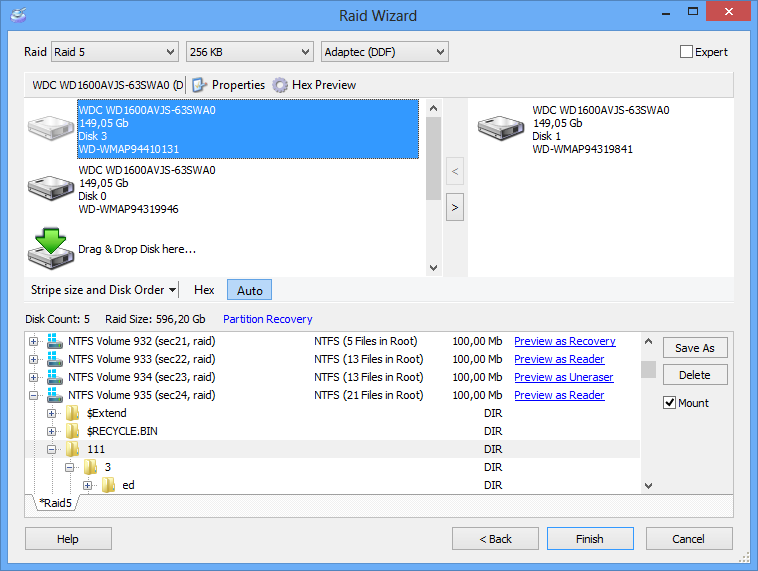
Recover corrupted RAID arrays in a fully automatic mode. Raid Recovery is the first tool to automatically detect the type of the original RAID array while still allowing for fully manual operation. Raid Recovery is no doubt a highly valuable tool for users of all types of RAID arrays, whether hardware, native, or software. The drag-and-drop user interface allows specifying parts of the RAID array by simply dragging and dropping icons representing the disks.
Reconstruct all types of arrays just as easily as a single hard disk. Raid Recovery recognizes all imaginable configurations of various types of arrays, including RAID 0, 1, 0+1, 1+0, 1E, 4, 5, 5R and JBOD, no matter whether they are connected to a dedicated RAID controller or a RAID-enabled motherboard from NVidia, Intel, or VIA. Microsoft software raids (also called Dynamic Disks) are also supported, including JBOD (span), RAID 0, 1, and 5 configurations. Version 1.5 and higher works with Adaptec RAID Controllers and DDF compatible devices
Detecting the right type of an array is vital for correct recovery. Raid Recovery supports both manual and fully automatic detection of essential parameters such as type of array, type of RAID controller, stripe size, and disk order.


  • Overview
  • Features
  • Repairing RAID Arrays
  • Recovery for RAID Arrays
  • VMware Disk Images
  • Forensic Disk Images
  • Sunday, May 12, 2013

    Data Recovery and Filesystem Tools

    http://www.sysint.no/products/Download/tabid/536/language/en-US/Default.aspx
    Strip My Rights
    Author: Systemintegrasjon AS
    Version:   File Date:   Number of Downloads: 6489  File size: 33 K
    Date Released: 2/8/2008

    File Description:
    Utility for Windows XP and Windows Server 2003 which runs applications with reduced rights. If you for instance is logged on as Administrator or another user with administrative privileges on your Windows computer, you can use StripMyRights to run for instance Internet Explorer, Outlook or other programs with the rights of an ordinary user.
    In this way the security risk of being logged on with elevated privileges may be reduced.
    The utility is based on the ideas of the DropMyRights tool from Microsoft, but with several features added.
    Read more...
    Chown for Windows
    Author: Systemintegrasjon AS
    Version:   File Date:   Number of Downloads: 2825  File size: 60 K
    Date Released: 2/8/2008

    File Description:
    Tool to take ownership of files and folders, or just take full control of the files and folders, without first taking ownership.
    The tool is GNU-licensed and originally written by Alexander Frink.
    Now supports file names up to 32000 characters in length.
    Latest: Fixed problem with stack overflow for deep directory structures.

    ========================
    http://www.ntfs.com/products.htm#disk_utilities
    Active@ KillDisk
    Hard Disk, HDD/USB Disk Eraser
    Download
    Active@ Disk Image
    Hard Drive Image & Backup Software *
    Download
    Active@ Hard Disk Monitor
    Monitor hard drive health
    Download


    Active@ Disk Editor
    Advanced Disk Editor(Hex Viewer)
    Download

    Active@ Partition Recovery
    Partition Recovery Software
    Download
    Active@ UNDELETE
    File Undelete,Hard Drive Data Recovery
    Download
    NTFS Data Recovery Toolkit
    NTFS disks recovery toolset
    Download


    Active@ UNERASER
    Free undelete software
    Download

    Saturday, January 26, 2013

    Diagnostic software for hard drives

    TackTech Corporation... thanks!
    Download the latest diagnostic software and utilities from the manufacturer of your hard drive(s).
    Hitachi [IBM]
    Seagate [ SamsungMaxtor [Quantum],  Conner ]
    Toshiba [Fujitsu]
    Western Digital
    -----------------------------
    Hitachi, Ltd. / IBM Corporation
    Hitachi | IBM
    January 2003 - IBM and Hitachi's storage divisions merged to establish Hitachi Global Storage Technologies (Hitachi GST).
    - Download Drive Fitness Test v4.16 b00 (10.07.2009) - CD Image (Direct Link)
    - View Additional Information

    Maxtor Corporation / Quantum HDD
    Maxtor | Quantum

    May 22, 2006 - Seagate Technology completed acquisiton of Maxtor Corporation.
    April 2, 2001 - Maxtor Corporation merged with Quantum Hard drive division (Quantum HDD).
    Maxtor/Quantum SCSIMax v1.21 (05.14.2003)
    SCSIMax is a diagnostic utility for all Maxtor/Quantum® SCSI hard disk drives supporting Self-Monitoring, Analysis, and Reporting Technology (S.M.A.R.T). This test will determine hard drive integrity in a short period of time, with a high degree of confidence. If the program completes without error, the problem remains elsewhere in your system. Check SCSI cables, termination and operating system. Maxtor recommends you use this utility for troubleshooting potential hard drive problems. These problems include, but are not limited to: potential hard drive surface media problems (e.g., bad clusters or sectors, partitioning/formatting problems, etc.) and drive recognition problems (e.g. hard drive that is not recognized by the operating system). SCSIMax uses the SCSI controller's ASPI driver to route Int13 commands to the hard drive. The utility is not data destructive, but Maxtor recommends that you complete a full backup of your hard drive before running this utility. Note: Incompatible with Apple® systems, and SCSI Ultra320 controllers. This utility does not run from the Windows desktop.
    Note: Incompatible with Apple® systems, and SCSI Ultra320 controllers. This utility does not run from the Windows desktop.
    - Download SCSIMax (Direct Link | 70KB)
    - View Additional Information

    Samsung Samsung
    Samsung Drive Manager 1.0.147 (10.28.2011)
    Samsung Drive Manager is a bundled software for Samsung external drives. It comprises:
    Samsung AutoBackup
    Samsung SecretZone
    Samsung Secure Manager - a secure external hard drive management solution
    Samsung external drive management tools Note: Samsung Secure Manager cannot be used if your hard drive does not support the security function.
    - Download Drive Manager (Direct Link)
    - View Additional Information

    ES-Tool (The Drive Diagnostic Utility) v2.12a (03.12.2009)
    ES Tool (The Drive Diagnostic Utility) is made with the aim of testing a Samsung hard disk drive while it is installed inside a PC, regardless of the status of user's operating system. In fact of the drives returned to Samsung, a large percentage are NTF("No Trouble Found") after testing. So it is strongly recommended to test the drive if it is truly defective by a few fundamental troubleshooting of ES Tool first, to avoid user's unnecessary effort and inconvenience of replacing a good drive.
    - Download ES-Tool for FDD (Direct Link)
    - Download ES-Tool Bootable CD ISO (Direct Link)
    - View Additional Information

    HUTIL (Diagnostic Utility for New Drives) v2.10 (10.08.2007)
    Hutil (The Drive Diagnostic Utility) is made with the aim of testing a Samsung hard disk drive while it is installed inside a PC, regardless of the status of user’s operating system. In fact of the drives returned to Samsung, a large percentage are NTF(“No Trouble Found”) after testing. So it is strongly recommended to test the drive if it is truly defective by a few fundamental troubleshooting of Hutil first, to avoid user’s unnecessary effort and inconvenience of replacing a good drive.

    - Download HUTIL for FDD (Direct Link)
    - Download HUTIL Bootable CD ISO (Direct Link)
    - View Additional Information

    SHDIAG (Diagnostic for Old Drives) v1.25 (05.27.2007)
    This program is used to diagnose the disk when the SAMSUNG hard disk is suspected to have failures. It is strongly recommended to back up your data before using this program!
    - Download Shdiag (Direct Link)
    - View Additional Information

    SUTIL (Utility for Old Drives) 1.01 (09.13.2002)
    This utility will erase hard drives and set their DMA modes.
    - Download SUTIL (Direct Link)
    - View Additional Information

    Seagate LLC Seagate [ Samsung, Maxtor [Quantum], Conner ]
    1979 - Seagate Technology was founded (under the name "Shugart Technology")
    1986 - Conner Peripherals founded by Seagate Technology co-founder Finis Conner.
    February 5, 1996 - Seagate completed the merger with Conner Peripherals, Inc.
    May 22, 2006 - Seagate Technology completed acquisiton of Maxtor Corporation.
    December 12, 2006 - Al Shugart, co-founder of Seagate, died.
    SeaTools for DOS v2.23 (Graphical) (02.09.2011)
    SeaTools for Windows has replaced SeaTools Online and PowerMax. SeaTools for Windows is a comprehensive, easy-to-use diagnostic tool that helps you quickly determine the condition of the disc drive in your external hard drive, desktop or notebook computer. It includes several tests that will examine the physical media on your Seagate or Maxtor disc drive and any other non-Seagate disc drive.

    SeaTools for Windows tests USB, 1394, ATA (PATA/IDE), SATA and SCSI drives. It installs onto your system. SeaTools for Windows is completely data safe.
    - Download SeaTools for DOS (Floppy Diskette Creator)
    - Download SeaTools for DOS (ISO CD-ROM Image)
    - View Additional Information


    SeaTools for DOS v1.10 (Text) (11.07.2007)
    SeaTools for Windows has replaced SeaTools Online and PowerMax. SeaTools for Windows is a comprehensive, easy-to-use diagnostic tool that helps you quickly determine the condition of the disc drive in your external hard drive, desktop or notebook computer. It includes several tests that will examine the physical media on your Seagate or Maxtor disc drive and any other non-Seagate disc drive.

    SeaTools for Windows tests USB, 1394, ATA (PATA/IDE), SATA and SCSI drives. It installs onto your system. SeaTools for Windows is completely data safe.

    - Download SeaTools for DOS (Floppy Diskette Creator)
    - Download SeaTools for DOS (ISO CD-ROM Image)
    - View Additional Information


    SeaTools for Windows v1.2.0.6 (10.15.2011)
    SeaTools for Windows has replaced SeaTools Online. SeaTools for Windows is a comprehensive, easy-to-use diagnostic tool that helps you quickly determine the condition of the disc drive in your external hard drive, desktop or notebook computer. It includes several tests that will examine the physical media on your Seagate disc drive and any non-Seagate disc drive.

    SeaTools for Windows tests USB, 1394, ATA (PATA/IDE), SATA and SCSI drives.
     It install onto your system. SeaTools for Windows is completely data safe.

    You can run SeaTools for Windows to test your disc drive if your PC has:
    Microsoft Windows 7, Vista, XP or 2000.
    Microsoft .NET Framework v2.0 - Available for download (approximately 23 MB) from www.microsoft.com. Search the site for .NET 2.0 or go directly there.
    VGA 1024x768 or greater graphics capability
    - Download SeaTools for Windows (32-bit) Setup file
    - View Additional Information


    SeaTools Enterprise Edition
    SeaTools Diagnostic Suite is Seagate's exclusive disc drive diagnostic software designed to troubleshoot most Seagate hard drive issues. Ideal for SCSI or Fibre Channel drives in servers and workstations. Tests multiple drives simultaneously and sequentially. This version does not test ATA or SATA.

    - Download SeaTools Enterprise Edition v2.4.39 (Windows | 07.16.2003)
    - Download SeaTools Enterprise Edition v2.54 (Linux Command Line | 09.21.2001)
    - Download SeaTools Enterprise Edition v5.2.23-010730 (Linux Graphical)


    Seagate /Acronis DiscWizard 11.0.0.8142 (06.24.2008)
    Seagate DiscWizard makes it easy to work with your new Seagate disc drives. DiscWizard lets you quickly install your new disc drive, with wizards that guide you through the processes of creating and formatting partitions on your disc drive.

    DiscWizard also lets you transfer your data to your new Seagate disc drive in minutes. The software migrates everything – your operating systems, applications, documents and personal setting – to your new disc drives just as you had them. After you migrate, you can keep using your PC just like before. You can then keep your old drive as a backup or use DiscWizard to store your image backups.

    - Download DiscWizard
    - View Additional Information


    Toshiba / Fujitsu
    Toshiba

    On October 1st, 2009, Fujitsu Limited transferred its hard disk drive business to Toshiba Corporation.

    For warranty service, contact the Toshiba SDD Repair Center.


    Windows Diagnostic Tool Ver. 1.12 (For IDE/ATA/SATA Hard Drives)
    This diagnostic tool is available for use by customers who feel their Fujitsu Branded Toshiba hard drive may not be operating normally. It is only designed for use with Fujitsu Branded Toshiba ATA/IDE hard drives.
    There are 2 diagnostic modes:

    Quick Test
    About 3 minutes, does random seek/read tests.
    Comprehensive Test
    About 30 to 100 minutes, also performs surface scan. *Supports Windows 2000/XP/Vista

    - Download and Additional Information


    DOS Diagnostic Tool Ver. 7.0 (For IDE/ATA/SATA Hard Drives) (04.20.2007)
    This diagnostic tool is available for use by customers who feel their Fujitsu Branded Toshiba hard drive may not be operating normally. It is only designed for use with Fujitsu Branded Toshiba ATA/IDE hard drives. There are 2 diagnostic modes:

    Quick Test
    About 3 minutes, does random seek/read tests.
    Comprehensive Test
    About 30 to 100 minutes, also performs surface scan. *Runs only under DOS from a bootdisk.

    - Download and Additional Information


    Diagnostic Tool Ver. 2.3 (For SCSI Hard Drives) (01.15.2004)
    This diagnostic tool is available for use by customers who feel their Fujitsu Branded Toshiba SCSI hard drive may not be operating normally. It is only designed for use with Fujitsu Branded Toshiba SCSI hard drives. There are 3 test modes:

    Quick Test
    1 to 3 minutes, a basic operational test.
    Comprehensive Test
    20 to 25 minutes, also performs Read/Write tests.
    Comprehensive Test
    30 to 70 minutes, also verify and surface test. *Supports Windows NT/98/2000/2003/XP *Requires Adaptec's ASPI32 driver.

    - Download and Additional Information


    Other Toshiba/Fujitsu Hard Drive Utilities.


    Fujistu
    FJDT (Fujitsu ATA Diagnostic Tool) v6.90 (11.03.2006)
    FJDT is diagnostic tool to help customers speedily verifiy whether their EIDE hard disk drive is operating correctly. FJDT can diagnose your suspected faulty hard drive by checking the S.M.A.R.T. data and also by scanning the entire surface of the drive, sector by sector, to verify media integrity.

    - Download FJDT (Fujitsu ATA Diagnostic Tool) (Direct Link | English)
    - View Additional Information

    [SDIAG] SCSI Diagnostic Tool v2.7 (01.23.2006)
    SDIAG is a simple and reliable SCSI diagnostic tool developed by Fujitsu verifying the condition of your Fujitsu SCSI Hard Disk Drive. A high percentage of Hard Drives returned to the manufacturer are actually diagnosed as "No Trouble Found" (NTF). There could be many circumstances that are causing the system to fail and invariably the hard drive is blamed. SDIAG can be employed without the disruptive removal of the drive from the system and its status ascertained saving both time and money.

    - Download SDIAG (SCSI Diagnostic Tool) (Direct Link)
    - View Additional Information


    [Ultra-ATA] Change Mode Utility v1.19 (10.23.2001)
    A utility to change the UltraATA capability of the drive. Three batch files allow the mode setting for UDMA100, 66, and 33.

    - Download SDIAG (SCSI Diagnostic Tool) (Direct Link)
    - View Additional Information

    Western Digital Corporation
    Western Digital
    Data Lifeguard v11.2 for drives > 137GB (CD) (December 2006)
    This zip file contains a bootable CD image of the Data Lifeguard v11.2 installation CD which contains both DOS and Windows versions and was written specifically for the installation of Western Digital EIDE hard drives. If your computer system already has a hard drive installed with an operating system of Windows 98SE or greater, you should use the Windows version of Data Lifeguard for best results. The DOS version is required if installing a hard drive in a new system without existing operating system support. If you plan on copying the contents of a boot drive, Western Digital recommends using the DOS version of Data Lifeguard Tools.

    - Download Data Lifeguard
    - View Additional Information


    Data Lifeguard v11.2 for drives > 137GB (April 2006)
    The downloadable Data Lifeguard Tools now comes in both DOS and Windows versions and was written specifically for the installation of Western Digital EIDE hard drives. If your computer system already has a hard drive installed with an operating system of Windows 98SE or greater, you should use the Windows version of Data Lifeguard for best results. The DOS version is required if installing a hard drive in a new system without existing operating system support. If you plan on copying the contents of a boot drive, Western Digital recommends using the DOS version of Data Lifeguard Tools.

    - Download Data Lifeguard
    - View Additional Information


    Data Lifeguard Tools 11.0 for DOS and Windows (CD) (01.02.2007)
    This zip file contains a bootable CD image of the Data Lifeguard v11.0 installation CD which contains both DOS and Windows versions and was written specifically for the installation of Western Digital EIDE hard drives. If your computer system already has a hard drive installed with an operating system of Windows 98SE or greater, you should use the Windows version of Data Lifeguard for best results. The DOS version is required if installing a hard drive in a new system without existing operating system support. If you plan on copying the contents of a boot drive, Western Digital recommends using the DOS version of Data Lifeguard Tools.

    - Download Data Lifeguard Tools 11.0 for DOS (CD) (Direct Link | 27.4MB)
    - View Additional Information


    Data Lifeguard Tools 11.0 for DOS (05.15.2006)
    This zip file contains a bootable CD image of the Data Lifeguard v11.0 installation CD which contains both DOS and Windows versions and was written specifically for the installation of Western Digital EIDE hard drives. If your computer system already has a hard drive installed with an operating system of Windows 98SE or greater, you should use the Windows version of Data Lifeguard for best results. The DOS version is required if installing a hard drive in a new system without existing operating system support. If you plan on copying the contents of a boot drive, Western Digital recommends using the DOS version of Data Lifeguard Tools.

    - Download Data Lifeguard Tools 11.0 for DOS (Direct Link | ZIP | 1.56MB)
    - Download Data Lifeguard Tools 11.0 for DOS (Direct Link | EXE | 1.74MB)
    - View Additional Information


    Data Lifeguard Diagnostic v5.19 for DOS (Floppy) (December 2010)
    The Data Lifeguard Diagnostic Tools are used primarily for determining the physical condition of your hard drive. If you are having computer problems which you suspect are hard drive related, you can test your drive with this tool.

    - Download DLG Diagnostic
    - View Additional Information


    Data Lifeguard Diagnostic v5.04f for DOS (CD) (October 31, 2008)
    The Data Lifeguard Diagnostic Tools are used primarily for determining the physical condition of your hard drive. If you are having computer problems which you suspect are hard drive related, you can test your drive with this tool.

    - Download DLG Diagnostic
    - View Additional Information


    Data Lifeguard Diagnostic for Windows v1.24 (July 2011)
    This is a Windows version of the Data Lifeguard Diagnostics utility. The utility can perform drive identification, diagnostics, and repairs on a Western Digital FireWire, EIDE, or USB drive. In addition, it can provide you with the drive's serial and model numbers.

    - Download DLGDIAG for Windows
    - View Additional Information
    Friday, January 18, 2013

    Seagate HDs

    st500dm002-1bd142 kc45
    http://www.smarthdd.com/en/database/ST500DM002-1BD142/KC45/index.htm
    http://www.seagate.com/files/staticfiles/docs/pdf/es-LA/datasheet/disc/barracuda-ds1737-1-1111la.pdf
    http://files.hddguru.com/download/PC-3000-UDMA%20Support/Seagate/F3/

    Barracuda
    ®
    Ventajas principales
    Duplique su capacidad y reduzca costos con la tecnología número uno
    en la industria para unidades de disco duro de 1 TB por disco.
    Capacidad de hasta 3 TB con un rendimiento de 7.200 rpm. ¿Por qué
    conformarse con menos?
    La interfaz SATA de 6 GB/s optimiza el rendimiento en ráfaga.
    La servotecnología AcuTrac™ de Seagate brinda un rendimiento
    fiable, incluso en aquellas unidades con un ancho de pista de solo
    75 nanómetros.
    La tecnología OptiCache™ de Seagate mejora el rendimiento general
    en un 45 % más en comparación con la generación precedente.
    La tecnología SmartAlign™ de Seagate proporciona una transición
    simple y transparente a sectores con el formato avanzado de 4K.
    El software gratuito DiscWizard™ de Seagate le permite instalar
    unidades de disco duro de 3 TB en Windows, incluido XP,
    sin UEFI BIOS.
    Aplicaciones más indicadas
    PC de sobremesa o todo en uno
    Servidores domésticos
    Sistemas de juego para PC
    RAID de sobremesa
    Dispositivos de almacenamiento externos
    conectados directamente (DAS)
    Dispositivos de almacenamiento
    conectados en red (NAS)

    Monday, April 30, 2012

    HDAT2

    http://www.hdat2.com/
    HDAT2 is program for test or diagnostics of ATA/ATAPI/SATA, SSD and SCSI/USB devices.
    It will not execute in a DOS session under Windows. You should make a DOS boot floppy disk or CD/DVD and boot your system for it and execute this program from that floppy disk or CD-ROM. HDAT2 program has 2 levels:

    • Drive level testing - main function is testing and repair (to regenerate) bad sectors for detected devices
      - you get much information about detected devices

    • File level testing - read/find/check items (MBR, boot, directories, etc.) of file system FAT12/16/32
      - check/remove (regenerates) bad sectors records, flags in FAT table


    Features:
    • fully implemented commands: SET MAX, SET SECURITY, Device Configuration Overlay (DCO)
    • device access with interrupt 13h, direct via ATA ports, with ASPI drivers
    • detects ATA/ATAPI/SATA devices with on-board and add-on controllers
    • detects devices on AHCI/RAID controllers (just only on ports 0-3)
    • detects USB devices via USB ASPI driver or BIOS (if supported)
    • detects SCSI hard drives via BIOS interrupt 13h or ASPI drivers
    • other SCSI devices are detected via ASPI drivers only (must be loaded before);
      with ASPI drivers you will get more information about SCSI devices
    • test and repair device for bad sectors (so far version 4.5.3 only)
    • many different test-functions for hard drives
    • resize hard drives which supports SET MAX ADDRESS/EXT
      (supports 28/48-bits LBA addressing modes)
    • drive lock detection via security feature (Security Menu)
    • S.M.A.R.T. functions for ATA/SATA and SCSI drives only
    • information about devices (ATA/ATAPI, BIOS interrupt 13h, ASPI, EDD)
    • sector viewer for devices (also for USB, ZIP, CD-data discs)
    • to access ATA/SATA CD/DVD drive you don't need any driver or MSCDEX
    • enable/disable some features for direct-access devices
    • Device Configuration Overlay (DCO) feature set
      (you can restore a full capacity or allow/disallow some feature sets of hard drive)

    Friday, April 27, 2012

    Bootable Hard Drive Diagnostics

    Source (carbon copy of the article by John Carrona)

    This is intended to be a one-stop shopping spot for testing your hard drive outside of Windows.  If you're able to get into Windows, some of the manufacturer's offer tests that will work inside of Windows.   
    Suggestions are welcomed!
    What you'll need:
    - a blank CD
    - a computer with an internet connection where you can download a file, install a small program, and burn a CD (doesn't have to be the computer that you'll be testing).
    1.  Determine the make and model of your hard drive(s)
    - In Windows XP - Go to Start...Run...and type in "devmgmt.msc" (without the quotes) and press Enter.  Click on the + sign next to Disk Drives and use Google to search the information listed there).  Also check for USB, eSATA and 1394 devices.  In short, you're testing any and all storage devices (remove any flash drives)
    - In Windows VISTA/Windows 7 - Go to Start...and type in "devmgmt.msc" (without the quotes) and press Enter.  Click on the + sign next to Disk Drives and use Google to search the information listed there.  Also check for USB, eSATA, and 1394 devices.  In short, you're testing any and all storage devices (remove any flash drives)
    - From outside of Windows: Unplug the system from the wall, remove the battery (if it's a laptop) and crack the case open.  Look inside to locate the hard drive(s) and write down the make and model number (although the model number isn't required for the test, it will help you to identify what sort of drive to replace if the test says that the drive is bad).  Also check for USB and 1394 devices.  In short, you're testing any and all storage devices (remove any flash drives)
    If you're unable to see the hard drive info, follow the steps below for the Hitachi DFT.  At the screen where it asks you if the list is correct, the model number of your drive will be there.  Use Google to search for the model and that will let you know the manufacturer.

    NOTE:  If you have a RAID array, the test's may not detect the hard drive.  If that is the case, please run the manufacturer's diagnostics from within Windows.  There will be a different download for this at the manufacturer's website.
    NOTE:  It's strongly recommended that you use the test from the manufacturer of your hard drive.  Most manufacturers build in tests that are only for their drives (in addition to the standard S.M.A.R.T. tests) - so using their test will give more accurate results.

    NOTE:
      Please run the test on all hard drives attached to your system.  This is necessary as a fault in any of the drives can cause problems with the entire system.
    2. Locate the support website of the hard drive manufacturer from the following list and download the appropriate file to your computer.  FWIW - the first link for each drive usually contains more information/instructions about running the test.  If you cannot locate a test for your hard drive - run the Hitachi DFT (for older systems designed for IDE drives - primarily XP and earlier) or the Seagate SeaTools (for newer systems designed for SATA drives - primarily Vista and later).
    Hitachi - http://www.hitachigst.com/hdd/support/download.htm#DFT  Download this image for CD's: http://www.hitachigst.com/hdd/support/downloads/dft32_v416_b00.iso 
    FYI - I have seen issues with v415 on some Asus laptops - it will erase the boot settings, requiring you to go into the BIOS and reset the BIOS to default values.
    Western Digital  -  I've had issues with running this from a CD/DVD - try the Hitachi DFT (on older/IDE systems) or the Seagate SeaTools (on newer/SATA systems) - http://support.wdc.com/product/download.asp?level1=6&lang=en  Download the Diag504fCD.iso file on this page:  http://support.wdc.com/product/download.asp?groupid=601&sid=30&lang=en
    I have hosted a zipped copy of the ISO that I use (at work) here:   http://www.box.net/shared/gl0fifqgj4
                                                                                                                                         http://cid-5a5378e587a744c3.skydrive.live.com/self.aspx/.Public/W-D%5E_DLG%5E_504f.zip

    Seagate
     - http://www.seagate.com/www/en-us/support/downloads/seatools  Download the Seatools for DOS ISO CD-ROM Image from this link:  http://www.seagate.com/www/en-us/support/downloads/seatools/seatooldreg (Direct download here: http://www.seagate.com/staticfiles/support/seatools/SeaToolsDOS223ALL.ISO
    Maxtor - Seagate SeaTools has replaced the Maxtor diagnostics.  Use the Seagate SeaTools links above.
    Fujitsu - sold to Toshiba on 01 Oct 2009.  No tests available AFAIK.  Use the SeaGate SeaTools for Vista and newer systems, use Hitachi DFT for XP and older systems.  Thanks to MvdB:  You can find RMA info, warranty info AND diagnostics for the Fujitsu drives here: http://sdd.toshiba.com/main.aspx?Path=ServicesandSupport/WarrantySupport/SoftwareUtilities#diagnostic
    Samsung - Go to http://www.samsung.com/us/support/ and select "Hard Disk Drives" under the Office category.
    Enter the information about your hard drive model, then click on the Get Downloads link on the next page, then on the Software link on the following page.
    If there's no downloads available, try this link - it seems to be the same version (ESTOOL v3.01) for every drive: http://org.downloadcenter.samsung.com/downloadfile/ContentsFile.aspx?CDSite=US&CttFileID=220644&CDCttType=SW&ModelType=C&ModelName=HA250JC&VPath=SW/201011/20101118113245515/ESTOOL301v.iso
    You must unzip the file before you can burn (NOT copy) the ISO image to a CD.

    IBM
     - IBM has merged with Hitachi.  Use the Hitachi DFT (Drive Fitness Test) listed above.
    Intel(SSD) - Intel Solid State Drive Toolbox located here:  http://downloadcenter.intel.com/Detail_Desc.aspx?agr=Y&DwnldID=18455
    3.  If you do not have a disk burning program that's capable of burning ISO images to your CD drive, I suggest this free tool:  http://isorecorder.alexfeinman.com/isorecorder.htm  Select the appropriate version by following the instructions, Install the program, then reboot your system.
    FYI - an ISO burner will place files in a certain order on the disk, this is what makes the disk bootable.  You CANNOT  just copy the file to a CD - it won't work!
    4.  Insert the blank CD into the CD drive and dismiss any dialogs that may pop up.  Then right click on the ISO file that you downloaded and select "Copy Image to CD" (it should be the top choice on the context (right click) menu.  Follow the prompts to record the image.  Remember that the slower the speed you select, the less likely it is that there will be errors in the burn process.  Most disk images are small, so the process shouldn't take very long even at the slowest speed.
    5.  Boot from the CD to run the test.  Here's a partial list of ways to access the built in boot menus of different systems.  Press the appropriate key when the first screen shows up after you turn the computer on.
    HP/Compaq - Esc (starting to use F9 also) (F10 will usually access BIOS)
    Dell - F12  (F2 will access BIOS)
    Gateway/eMachines - F10 (moving to F12 with newer models)  (F2 will access BIOS)
    Acer - F12 (not always)  (F2 will access BIOS)
    Toshiba - F12 (older systems will be different)
    Sony - usually will boot to CD, may ask you to "Press any key to boot from CD"
    Asus - Esc (F2 will access BIOS)
    SamsungEsc (F2 will access BIOS)
    Nokia
    - F12  (F2 will access BIOS)
    Lenovo - F12 (?Del wil access BIOS)
    When in doubt, either access the BIOS (Setup) and make the CD drive the first boot device (before the hard drive), or post in the forums for assistance.
    6.  Follow the prompts on the screen to run the test.  In particular run the Long/Extended/Complete/Comprehensive/etc test - as the shorter tests are not completely reliable.  
    My greatest experience is with the Hitachi DFT - and you can just press Enter (2 times) until you get to the screen where it asks you to agree to the conditions (press A), confirm the devices listed (press Y), select Advanced (press A), then Start (press S) there.
    For the Seagate SeaTools - boot from the CD, click on "Accept", wait for it to finish detecting the drives, then in the upper left corner select "Basic Tests", then select "Long Test" and let it run.
    NOTE:  If you have more than one drive installed, run the test on each drive.
    If you encounter any problems running the test - just post them to the forums and someone will be glad to help you out.

    Sunday, April 22, 2012

    Software for Toshiba drives

    www.semicon.toshiba.co.jp/eng/event/news/
    ========================

    TOSHIBA Disc Creator 2.1.0.6
    TOSHIBA Disc Creator 2.1.0.6Toshiba Disc Creator is a program for creating CDs, DVDs and HD DVDs.

    NTI Backup NOW! 5.1.5.506
    NTI Backup NOW! 5.1.5.506
    NTI Backup Now Standard Edition a lite version that backs up and restores files.
    • Publisher: NewTech Infosystems
    • Last updated: April 19th, 2008
    NTI Shadow 3.7.7.10
    NTI Shadow 3.7.7.10
    NTI Shadow is an award-winning, easy-to-use backup solution.
    • Publisher: NewTech Infosystems
    • Last updated: December 7th, 2011

    Source
    toshiba
    Get the latest NTI updates, downloads and promotions


    NTI Backup Now EZ NTI Backup Now EZ
    Download NTI Backup Now EZ update here:
    Click Here
    NTI Echo NTI Echo
    No new software updates are available
    NTI Pocket Data Backup NTI Pocket Data Backup
    No new software updates are available
    Take me to the Toshiba Support Home Page


    NTI corp 
    NTI Backup Now EZ
    NTI Backup Now EZ update patch
    Windows 7 / Vista / XP
    NTI OEM Versions
    NTI Backup Now EZ 1.1.2.51
    NTI Backup Now EZ 1.1.2.77a
    February 22 2010
    ========================
    storage.toshiba.com/archived models
    Toshiba Portable Hard Drive
    320 / 500 / 640GB* / External / USB 2.0  


     Service Bulletin  – Important information for NTI's Backup Now EZ

    To ensure proper installation of NTI's Backup Now EZ software, it is recommended that you install the software to the default directory shown in the software. If you choose to change the default installation directory, you must create a new folder to ensure trouble free operation.
    Click below to download the latest version of NTI's Backup Now EZ. This service pack includes all the latest feature enhancements, Windows 7 compatibility and critical updates.
    Backup Now EZ v1.1.2.77.zip
    NOTE This update is mandatory for all users that have not yet installed Backup Now EZ on their computers. It includes all the latest feature enhancements and is Windows 7 compatible.

    Backup Now EZ Patch (1.1.2.51 to 1.1.2.77).zip
    NOTE This is an update for current users of Backup Now EZ. It includes minor feature enhancements and ensures Windows 7 compatibility. This update is recommended for all users that have already installed Backup Now EZ on their computer

    Special offers & software patches are specific to the software bundled with Toshiba USB hard drives. Update Patch
    ------------------------------------
    Toshiba STOR.E ART 4 External Hard Drives are pre-loaded with NTI Backup Now EZ, enableing data backup and data protection through 256-bit data encryption.
    The STOR.E ART 4 family ships a 500GB model (118.9 x 79 x 13.5mm / 154 grams) with red graphical accents, and 750GB and 1TB drives (118.9 x 79 x 16.5mm / 186 grams) with blue and white trims, respectively. 
    ====================
    storage.toshiba.com/storage-services-support/software-utilities
    ----------------------
    Partition Alignment Tool for Toshiba Generation One Advanced Format HDDs
    Most recent computer operating systems (OSs) have been designed to work effectively with Generation One AF HDD supporting 512 emulation. Generation One AF HDD may deliver superior performance as compared to legacy 512 byte per sector drive models when properly configured with the host file system,. In PC applications, the host file system is primarily determined by the OS installed on the computer.
    Toshiba offers the Paragon Partition Alignment Tool (PAT) to align partitions on Toshiba Generation One AF HDD for optimal system and application performance. To determine if your Toshiba HDD will benefit from alignment, please refer AF table below. The table outlines which OS can benefit from the assistance of PAT.
    This downloadable tool is available to licensed single system users of Toshiba HDDs.
    Recommended reading:
    Refer table of OS to PAT usage (Do not use for encryptedpartitions.)
    Operating System PAT Usage Guidelines for Toshiba Generation One AF HDD
    Windows® 7 (32- or 64-bit) - factory installed Not necessary
    Windows® 7 (32- or 64-bit) - non-factory installed
    pre-Service Pack 1 (SP1) versions
    Recommended
    Windows® 7 (32- or 64-bit) - non-factory installed
    Service Pack 1 (SP1) or above
    Not necessary
    Windows Vista®, SP1 and above
    1 partition drive configurations
    Not necessary
    Windows Vista®, SP1 and above
    1 partition drive configurations
    Recommended
    Windows Vista®, without SP Recommended
    Windows® XP (32- or 64-bit) Recommended
    Windows Server® 2003 Recommended
    Windows Server® R2 2003 Recommended
    Windows Home Server® version 1 Recommended
    Windows Home Server® Recommended
    Windows Server® 2008 Not necessary*
    Windows Server® 2008 R2 Not necessary*
    Windows® PE 3.0 and below Recommended
    Other Windows® OSs not listed above Upgrading to an newer OS if using AF drives.
    Apple Mac OS X 10.4 and above Not necessary
    Linux Ubuntu 8.04 and below Recommend using a Linux partition utility; (see FAQ)  PDF (47kB)
    Linux kernel 2.6.34 and below Recommend using a Linux partition utility; (see FAQ)  PDF (47kB)
    Open SuSE Linux Recommend using a Linux partition utility; (see FAQ)  PDF (47kB)
    Note: PAT may not be suitable for Toshiba Generation One AF HDDs alignment activities involving multiple client systems or disk image cloning; (see FAQ).  PDF (47kB)
    Preparation before download PAT
    see more at link
    PAT Download
    Multi-language software will allow you to select one of ten languages during install.
    Recommended reading:
    http://www.toshibastorage.com/
     ===========================
    Toshiba and Security
    While consumers continue to amass "digital valuables" and recognize the need for privacy protection, Toshiba enables convenience, performance and security with backup software and self-encrypting drives. Learn more arrow

    Pre-loaded software
    Whether backing up your entire system, or packing up the pictures, files, music and videos you need to bring, our portable hard drives can help. They come with pre-loaded software (Canvio 3.0 models only) to save you the time and expense of buying the right back-up app. And they make restoring data just as easy.
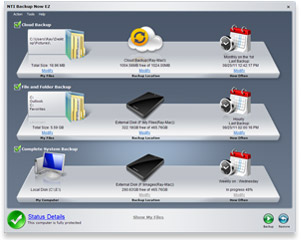
    Backup Software Screenshot
    Enabling Cloud Storage
    Cloud computing is an important and compelling new tool for IT managers. Click the Learn more arrow to watch the video: "Storage in the Age of Cloud Computing".  
    Extremely Accurate

    Tuesday, August 2, 2011

    Westen Digital SW

    Available software for WD Scorpio Blue
    • File Name: WinDlg_124.zip
    • File Size: 901 KB
    • Version: v1.24
    • Publish Date: 7/2011
    Important! If a pop-up blocker is installed, you may need to disable it in order to download the software.
    Description
    This is a Windows version of the Data LifeGuard Diagnostics. It will test WD internal and external drives. In additional, it can provide you with the model and serial of WD drives attached to the system.
    Supported Operating Systems

    • Windows 7 32/64-bit versions
    • Windows Vista 32/64 bit versions
    • Windows XP 32/64-bit versions
    Instructions

    1. Download the Windows Data Lifeguard Diagnostics, WinDlg_122.zip
    2. Extract and run the program, WinDlg.exe. If running Windows Vista, you will need to Right-Click on the WinDlg.exe file and choose to Run As Administrator.
    3. Read and accept the license agreement to continue.
    4. On the main program screen, there are two windows. In the top window, you will see the drives in your system, that are available for testing. The model number, serial number, and capacity of each drive will be displayed. In the bottom window, the partition information for the selected drive will be displayed.
    5. Highlight the drive and select the icon on the top row to test or run SMART status.
    6. The DLGDIAG - Select an Option window appears.
    7. You will see the following options:
      • QUICK TEST - performs SMART drive quick self-test to gather and verify the Data Lifeguard information contained on the drive.
      • EXTENDED TEST - performs a Full Media Scan to detect bad sectors. Test may take several hours to complete depending on the size of the drive.
      • WRITE ZEROS - writes zeros to the drive with options of Full Erase and Quick Erase. File system and data will be lost.
      • VIEW TEST RESULT - displays the latest test results.
    8. Select the test you wish to perform and click the Start button.
    9. When the test completes, you will be notified with a pass/fail message. Click the Close button.

    Acronis True Image WD Edition Software helps you to completely clone your current system drive onto your new WD hard drive. Cloning makes an exact copy of your old system drive on your new WD hard drive, including the operating system, applications, data, preferences, and email settings. Everything will be present and operate exactly as it did on your old hard drive. Acronis True Image WD Edition now supports WD Advanced Format Drives and ensures that all partitions are optimally aligned.
    ATIWD is based on the award winning Acronis True image Home 2009 backup, restore and disaster recovery program.
    Key Features of Acronis True Image WD Edition Software:
    • Drive Cloning - Copies the source drive to a new WD drive, leaving all data on the source drive.
    • Drive Migration - Erase the source drive after the new WD drive has been imaged.
    • Drive Deployment - Enables users to prepare a WD drive so that selected folders or partitions can be excluded from the destination image.
    • Drive Image Backup - The long-term usage of the Drive Kit software will be to provide full drive image backups of a source drive at any time. Backup drive images will be stored as a file, which can be copied to any direct attached drive, network attached storage drive or optical media (CD/DVD).
    • Drive Image Recovery - The Recovery Manager enables users to restore a drive image from a direct or network attached drive. The Recovery Manager can also either erase just a portion of the drive to be used for the restored drive image, or all of the previous OS.
    • Create a Bootable Standalone Recovery Manager - With the Drive Kit software, users can create a bootable ISO image file, which contains the WD Drive Kit Standalone Recovery Manager software.
    • Recover a Drive Image from the Bootable Recovery Manager Software - The bootable Standalone Recovery Manager enables users to recover a drive image from either a CD/DVD drive, a direct attached drive, or a network attached drive.
    • Download the Data Lifeguard Tools software (Acronis True Image WD Edition and user manual and the WD diagnostic tool) and follow the instructions provided to complete the installation.
    Acronis True Image WD Edition Software
      File Size: 151 MB (approx.) Version: 14157 Publish Date: 7/20/2011
    Supported Operating Systems
    • Windows XP
    • Windows Vista
    • Windows 7

    Sunday, January 23, 2011

    Hard Disk Drives:

    data recovery and repair
    western digital 750 not showing any partition or data
    WD200EB - Clicking clicking clicking....and then working
    Samsung hd502hj[ Go to pageGo to page: 1, 2, 3, 4 ]

    Ddrescue, dd_rescue, and HDClone are freeware cloning utilities that know how to work around bad sectors. They can also clone your drive in reverse, effectively disabling lookahead caching.
    HDClone: http://www.miray.de/products/sat.hdclone.html
    dd_rescue: http://www.garloff.de/kurt/linux/ddrescue/
    ddrescue: http://www.gnu.org/software/ddrescue/ddrescue.html
    Comparison between ddrescue and dd_rescue:
    http://www.forensicswiki.org/wiki/Dd_rescue
    The Best Disk Cloning Hardware/Software:
    the-best-disk-cloning-hardware-software-t10396.html 

    AFF Repair Station

    Source
    Overview With Repair Station you can:
    remove an unknown ATA-password; both security levels are supported: High and Maximum
    diagnose and recover HDD firmware area
    ATA Passwords
    Almost all laptops and some modern desktop computers have the ability to lock a hard disk drive with an ATA password so that hard drive remains inaccessible until correct password is entered. Manufacturers call this technology different ways, for example, HP calls it DriveLock, but it is all the same. The password is stored inside of the hard drive's Firmware Area (on the surface). Since the password is stored on the surface, it cannot be removed by swapping circuit boards. And, since the Firmware Area cannot be read with any widely available software, the password cannot be easily read or removed.
    Repair Station has the ability to access the Firmware Area and reset the password, thus making your hard drive unlocked. Unlocking process is done automatically and takes just a few minutes.
    Since Repair Station does not alter partitions or file systems, it is absolutely safe to your data.
    What is Firmware Area
    Firmware Area (or System Area) is a reserved space dedicated to hard drive's own needs, such as: storing SMART logs, defect reallocation tables, program code (overlays) and so on. Flash EEPROM chip contains only a little part of the Firmware; its primary role is to spin up the spindle and unpark heads so that the drive can read the rest of the firmware from surface.
    Firmware Area is inaccessible with generic ATA commands; it cannot be read or written with any software since the fact that the protocol is vendor-unique, and hard drive vendors do not disclose any information about their hard drive Firmware area structure or even about how to access it. We put more than four years of research and development into Repair Station, and we've made it able to access and recover the Firmware area.
    Firmware Area failures
    More than half of hard disk drive failures are caused by firmware area damage. Just a little damage is enough to render a hard drive totally unusable. In such cases hard drive becomes inaccessible and sometimes can completely disappear from the system.
    For example, a hard drive can lose its parameters such as device model number and capacity. When it happens, there is no access to partitions and files. In most cases the problem is caused by firmware area damage and can be fixed with Repair Station.
    Repair Station reads the Firmware Area, extracts and analyzes all firmware structures, rebuilds damaged parts and writes the firmware back to the drive. The process is absolutely safe to the data (partitions and files) and takes no more than 20 minutes.
    If you have an issue with a hard drive, please feel free to download Repair Station and run diagnostics (which is free). Repair Station diagnoses the Firmware Area and hard drive mechanics and displays a short summary of hard drive's health.