Showing posts with label sound. Show all posts
Showing posts with label sound. Show all posts
Sunday, October 23, 2011
AudioMedia - Protools (Mac)
www.coutant.org/protools/index.html
digidesign.com
epanorama.net/circuits/microphone_powering
personal.telefonica.terra.es/ /audio/Microfono electret


Tuesday, November 9, 2010
OpenSUSE -Sound Howto
[Content changed and updated!]
You should not have to run kmix or alsamixer as user root.
$ kmix
$ alsamixer
# /etc/init.d/alsasound stop
# /etc/init.d/alsasound start
----------------
System INFO
# dmesg
# lspci
# lsmod
# aplay -l
# amixer
# cat /proc/asound/cards
# head -n 3 /proc/asound/card1/codec#0
# amixer
# alsactl init
# fuser -v /dev/snd/*
---------------------------
Hardware without sound:
ASUS P7P55-M
audio chipset VIA VT1708S
openSUSE 11.3 (64-bit)
===========================
OpenSUSE upgraded from 11.2 to 11.3 and then...:
SDB:Intel-HDA sound problems===========================
SDB:Audio troubleshootingAfter openSUSE installation, in some cases it is necessary to adjust audio mixer settings in order to get sound.
For some sound codecs, the RPM "alsa-firmware" (which is not installed by default) is needed to provide sound functionality. In some other cases, where the audio hardware is newer, a more up-to-date version of ALSA is required. In other cases (due to the very large numbers of audio cards on the market), YaST is not able to configure the card automatically, and hence manual configuration is necessary.
ALSA overview Note that the openSUSE sound driver comes with an application called “alsa” (advanced linux sound architecture) that is installed by default, and users are given a chance to configure this during the openSUSE installation.
Installing alsa-firmware on openSUSE-10.3 to 11.2
Starting with openSUSE-10.3, some of the older sound cards also require the application “alsa-firmware”, in addition to “alsa” and “alsa-utils”, so before proceeding, ensure that you have “alsa”, “alsa-utils”, and “alsa-firmware” installed.
To see if you have alsa-firmware installed, type in a konsole/xterm:
For other openSUSE's the alsa versions will differ slightly.
In openSUSE-10.3 - 11.2, to install alsa-firmware, in a konsole/xterm, type "su" (without quotes) followed by root password to get root permissions in that konsole/xterm, and then to install alsa-firmware type:
# zypper install alsa-firmware
After alsa-firmware is installed, restart your PC (to restart alsa) and check your sound (see STEP-1 below)
STEP-1: How to test your sound
A simple test to see if your sound works, is to open a konsole or xterm, and type (it may be easier to copy and paste this into your konsole/xterm):
Note you should check your mixer settings (kmix if using KDE, and alsamixer if using Gnome) to ensure that PCM and Master Volume are set high.
If no sound initially, try around 95% and back off the levels once basic sound is established. Note the test for surround sound is different.
If that test yields errors, try instead this more simple test:
STEP-2
===========================
SDB:AudioTroubleshooting - openSUSE
* in a terminal, or xterm, or konsole, type: uname -a #and post output here
* in a terminal, or xterm, or konsole, type: rpm -qa | grep alsa #and post output here
* in a terminal, or xterm, or konsole, type: cat /etc/modprobe.d/sound #and post output here
* in addition in openSUSE-11.1 run the script /usr/sbin/alsa-info.sh and post here the output URL. Just the URL
===========================
Source
Run (with your PC connected to the Internet) the diagnostic script:
and select the share/upload option, post here the website/URL address it gives you for the script output.
Your ALSA information is located at http://www.alsa-project.org/db/?f=5eca09337ca520808677a5fea87048b2b94a8779
Please inform the person helping you.
If you can't find that, then run:
/tmp/alsa-info.txt
and copy the file and paste the contents on New - Pastie and press paste on that site, and post here the website/URL address where the pasted contents end up after pressing paste.
========================
# aplay -l
**** List of PLAYBACK Hardware Devices ****
card 0: Intel [HDA Intel], device 0: VT1708S Analog [VT1708S Analog]
Subdevices: 1/2
Subdevice #0: subdevice #0
Subdevice #1: subdevice #1
card 0: Intel [HDA Intel], device 1: VT1708S Digital [VT1708S Digital]
Subdevices: 1/1
Subdevice #0: subdevice #0
card 1: NVidia [HDA NVidia], device 3: NVIDIA HDMI [NVIDIA HDMI]
Subdevices: 1/1
Subdevice #0: subdevice #0
card 1: NVidia [HDA NVidia], device 7: NVIDIA HDMI [NVIDIA HDMI]
Subdevices: 1/1
Subdevice #0: subdevice #0
card 1: NVidia [HDA NVidia], device 8: NVIDIA HDMI [NVIDIA HDMI]
Subdevices: 1/1
Subdevice #0: subdevice #0
card 1: NVidia [HDA NVidia], device 9: NVIDIA HDMI [NVIDIA HDMI]
Subdevices: 1/1
Subdevice #0: subdevice #0
# cat /proc/asound/cards
0 [Intel ]: HDA-Intel - HDA Intel
HDA Intel at 0xf5ff8000 irq 38
1 [NVidia ]: HDA-Intel - HDA NVidia
HDA NVidia at 0xf7bfc000 irq 17
# head -n 3 /proc/asound/card1/codec#0
Codec: Nvidia GPU 0b HDMI/DP
Address: 0
Function Id: 0x1
# amixer
Simple mixer control 'Master Front',0
Capabilities: pvolume pswitch penum
Playback channels: Front Left - Front Right
Limits: Playback 0 - 31
Mono:
Front Left: Playback 0 [0%] [-34.50dB] [on]
Front Right: Playback 0 [0%] [-34.50dB] [on]
Simple mixer control 'PCM',0
Capabilities: pvolume penum
Playback channels: Front Left - Front Right
Limits: Playback 0 - 255
Mono:
Front Left: Playback 0 [0%] [-51.00dB]
Front Right: Playback 0 [0%] [-51.00dB]
Simple mixer control 'Front',0
Capabilities: pvolume pswitch penum
Playback channels: Front Left - Front Right
Limits: Playback 0 - 42
Mono:
Front Left: Playback 42 [100%] [0.00dB] [on]
Front Right: Playback 42 [100%] [0.00dB] [on]
Simple mixer control 'Front Mic',0
Capabilities: pvolume pswitch penum
Playback channels: Front Left - Front Right
Limits: Playback 0 - 31
Mono:
Front Left: Playback 0 [0%] [-34.50dB] [on]
Front Right: Playback 0 [0%] [-34.50dB] [on]
Simple mixer control 'Front Mic Boost',0
Capabilities: cvolume penum
Capture channels: Front Left - Front Right
Limits: Capture 0 - 3
Front Left: Capture 3 [100%] [30.75dB]
Front Right: Capture 3 [100%] [30.75dB]
Simple mixer control 'Surround',0
Capabilities: pvolume pswitch penum
Playback channels: Front Left - Front Right
Limits: Playback 0 - 42
Mono:
Front Left: Playback 42 [100%] [0.00dB] [on]
Front Right: Playback 42 [100%] [0.00dB] [on]
Simple mixer control 'Center',0
Capabilities: pvolume pvolume-joined pswitch pswitch-joined penum
Playback channels: Mono
Limits: Playback 0 - 42
Mono: Playback 42 [100%] [0.00dB] [on]
Simple mixer control 'LFE',0
Capabilities: pvolume pvolume-joined pswitch pswitch-joined penum
Playback channels: Mono
Limits: Playback 0 - 42
Mono: Playback 42 [100%] [0.00dB] [on]
Simple mixer control 'Side',0
Capabilities: pvolume pswitch penum
Playback channels: Front Left - Front Right
Limits: Playback 0 - 42
Mono:
Front Left: Playback 34 [81%] [-12.00dB] [on]
Front Right: Playback 34 [81%] [-12.00dB] [on]
Simple mixer control 'Line',0
Capabilities: pvolume pswitch penum
Playback channels: Front Left - Front Right
Limits: Playback 0 - 31
Mono:
Front Left: Playback 0 [0%] [-34.50dB] [on]
Front Right: Playback 0 [0%] [-34.50dB] [on]
Simple mixer control 'Mic',0
Capabilities: pvolume pswitch penum
Playback channels: Front Left - Front Right
Limits: Playback 0 - 31
Mono:
Front Left: Playback 0 [0%] [-34.50dB] [off]
Front Right: Playback 0 [0%] [-34.50dB] [off]
Simple mixer control 'Mic Boost',0
Capabilities: cvolume penum
Capture channels: Front Left - Front Right
Limits: Capture 0 - 3
Front Left: Capture 0 [0%] [0.00dB]
Front Right: Capture 0 [0%] [0.00dB]
Simple mixer control 'IEC958',0
Capabilities: pswitch pswitch-joined penum
Playback channels: Mono
Mono: Playback [off]
Simple mixer control 'IEC958 Default PCM',0
Capabilities: pswitch pswitch-joined penum
Playback channels: Mono
Mono: Playback [on]
Simple mixer control 'Capture',0
Capabilities: cvolume cswitch penum
Capture channels: Front Left - Front Right
Limits: Capture 0 - 31
Front Left: Capture 19 [61%] [12.00dB] [on]
Front Right: Capture 19 [61%] [12.00dB] [on]
Simple mixer control 'Capture',1
Capabilities: cvolume cswitch penum
Capture channels: Front Left - Front Right
Limits: Capture 0 - 31
Front Left: Capture 0 [0%] [-16.50dB] [on]
Front Right: Capture 0 [0%] [-16.50dB] [on]
Simple mixer control 'Digital',0
Capabilities: cvolume penum
Capture channels: Front Left - Front Right
Limits: Capture 0 - 120
Front Left: Capture 0 [0%] [-30.00dB]
Front Right: Capture 0 [0%] [-30.00dB]
Simple mixer control 'Independent HP',0
Capabilities: enum
Items: 'OFF' 'ON'
Item0: 'OFF'
Simple mixer control 'Input Source',0
Capabilities: cenum
Items: 'Stereo Mixer' 'Mic' 'Front Mic' 'Line'
Item0: 'Stereo Mixer'
Simple mixer control 'Smart 5.1',0
Capabilities: pswitch pswitch-joined penum
Playback channels: Mono
Mono: Playback [off]
======================
The order of audio devices could also be reversed.
That order of audio devices is enough to cause a problem if your desktop/applications look at the wrong device, and IMHO it is important you sort that.
Please, what are you using for a speaker test for sound?
Also, what happens if you disable pulse audio and then test? i.e. you could open up a Terminal session and enter su - and then the password.
At the terminal prompt enter this command (with root permissions).
restart and test.
If that does not work, then you MUST enable it again with (with root permissions):
Whether any of the above works, or does not work, PLEASE write a bug report on openSUSE-11.3 as this should work automatically. There is guidance for writing bug reports here: Submitting Bug Reports - openSUSE Please write the bug report against component "sound" in openSUSE-11.3 M7. Please include ALL salient information in the bug report, as the SuSE-GmbH sound packager, who is also an alsa sound driver developer, will refuse to read a forum thread. Any forum thread. Please attach to the bug report the /tmp/alsa-info.txt file from running:
... the advantage of raising the bug report is if the alsa developer (also a SuSE-GmbH sound packagers) fixes the bug, he will also send it upstream so that ALL linux distributions will benefit from the fix. Both Fedora and SuSE have an excellent reputation for this (sending fixes upstream). The most popular Linux distribution has a poor reputation in this regard.
===========================
Do Not use the LIne Out Port (green or lime)!
You can hear mp3 and wav files
You should not have to run kmix or alsamixer as user root.
$ kmix
$ alsamixer
# /etc/init.d/alsasound stop
# /etc/init.d/alsasound start
----------------
System INFO
# dmesg
# lspci
# lsmod
# aplay -l
# amixer
# cat /proc/asound/cards
# head -n 3 /proc/asound/card1/codec#0
# amixer
# alsactl init
# fuser -v /dev/snd/*
---------------------------
Hardware without sound:
ASUS P7P55-M
audio chipset VIA VT1708S
openSUSE 11.3 (64-bit)
===========================
OpenSUSE upgraded from 11.2 to 11.3 and then...:
SDB:Intel-HDA sound problems===========================
SDB:Audio troubleshootingAfter openSUSE installation, in some cases it is necessary to adjust audio mixer settings in order to get sound.
For some sound codecs, the RPM "alsa-firmware" (which is not installed by default) is needed to provide sound functionality. In some other cases, where the audio hardware is newer, a more up-to-date version of ALSA is required. In other cases (due to the very large numbers of audio cards on the market), YaST is not able to configure the card automatically, and hence manual configuration is necessary.
ALSA overview Note that the openSUSE sound driver comes with an application called “alsa” (advanced linux sound architecture) that is installed by default, and users are given a chance to configure this during the openSUSE installation.
Installing alsa-firmware on openSUSE-10.3 to 11.2
Starting with openSUSE-10.3, some of the older sound cards also require the application “alsa-firmware”, in addition to “alsa” and “alsa-utils”, so before proceeding, ensure that you have “alsa”, “alsa-utils”, and “alsa-firmware” installed.
To see if you have alsa-firmware installed, type in a konsole/xterm:
rpm -q alsa alsa-utils alsa-firmware
and if you get: alsa-1.0.14-31.2 alsa-utils-1.0.14-27 package alsa-firmware is not installedthen clearly alsa-firmware is not installed, and it is useful for openSUSE-10.3 users (and possibly essential for some hardware codecs under openSUSE-10.3) that you install it now.
For other openSUSE's the alsa versions will differ slightly.
In openSUSE-10.3 - 11.2, to install alsa-firmware, in a konsole/xterm, type "su" (without quotes) followed by root password to get root permissions in that konsole/xterm, and then to install alsa-firmware type:
# zypper install alsa-firmware
After alsa-firmware is installed, restart your PC (to restart alsa) and check your sound (see STEP-1 below)
STEP-1: How to test your sound
A simple test to see if your sound works, is to open a konsole or xterm, and type (it may be easier to copy and paste this into your konsole/xterm):
speaker-test -Dplug:front -c2 -l5 -twav
To stop the above test, while the konsole/xterm has the mouse focus, press Note you should check your mixer settings (kmix if using KDE, and alsamixer if using Gnome) to ensure that PCM and Master Volume are set high.
If no sound initially, try around 95% and back off the levels once basic sound is established. Note the test for surround sound is different.
If that test yields errors, try instead this more simple test:
speaker-test -c2 -l5 -twav
If there is no sound from either test when using a konsole (or xterm) as a regular user, try as user root. ie type "su" (no quotes, and enter root password when prompted) and then try the test line. If you get sound with root permissions, but you got no sound as a regular user, then you probably have a permissions problem. See below in Step-6 for how to deal with that. Assuming you have no sound at all, go to step-2 below. STEP-2
===========================
SDB:AudioTroubleshooting - openSUSE
* in a terminal, or xterm, or konsole, type: uname -a #and post output here
* in a terminal, or xterm, or konsole, type: rpm -qa | grep alsa #and post output here
* in a terminal, or xterm, or konsole, type: cat /etc/modprobe.d/sound #and post output here
* in addition in openSUSE-11.1 run the script /usr/sbin/alsa-info.sh and post here the output URL. Just the URL
===========================
Source
Run (with your PC connected to the Internet) the diagnostic script:
/usr/sbin/alsa-info.sh
Your ALSA information is located at http://www.alsa-project.org/db/?f=5eca09337ca520808677a5fea87048b2b94a8779
Please inform the person helping you.
If you can't find that, then run:
/usr/sbin/alsa-info.sh --no-upload
and open the file/tmp/alsa-info.txt
and copy the file and paste the contents on New - Pastie and press paste on that site, and post here the website/URL address where the pasted contents end up after pressing paste.
========================
# aplay -l
**** List of PLAYBACK Hardware Devices ****
card 0: Intel [HDA Intel], device 0: VT1708S Analog [VT1708S Analog]
Subdevices: 1/2
Subdevice #0: subdevice #0
Subdevice #1: subdevice #1
card 0: Intel [HDA Intel], device 1: VT1708S Digital [VT1708S Digital]
Subdevices: 1/1
Subdevice #0: subdevice #0
card 1: NVidia [HDA NVidia], device 3: NVIDIA HDMI [NVIDIA HDMI]
Subdevices: 1/1
Subdevice #0: subdevice #0
card 1: NVidia [HDA NVidia], device 7: NVIDIA HDMI [NVIDIA HDMI]
Subdevices: 1/1
Subdevice #0: subdevice #0
card 1: NVidia [HDA NVidia], device 8: NVIDIA HDMI [NVIDIA HDMI]
Subdevices: 1/1
Subdevice #0: subdevice #0
card 1: NVidia [HDA NVidia], device 9: NVIDIA HDMI [NVIDIA HDMI]
Subdevices: 1/1
Subdevice #0: subdevice #0
# cat /proc/asound/cards
0 [Intel ]: HDA-Intel - HDA Intel
HDA Intel at 0xf5ff8000 irq 38
1 [NVidia ]: HDA-Intel - HDA NVidia
HDA NVidia at 0xf7bfc000 irq 17
# head -n 3 /proc/asound/card1/codec#0
Codec: Nvidia GPU 0b HDMI/DP
Address: 0
Function Id: 0x1
# amixer
Simple mixer control 'Master Front',0
Capabilities: pvolume pswitch penum
Playback channels: Front Left - Front Right
Limits: Playback 0 - 31
Mono:
Front Left: Playback 0 [0%] [-34.50dB] [on]
Front Right: Playback 0 [0%] [-34.50dB] [on]
Simple mixer control 'PCM',0
Capabilities: pvolume penum
Playback channels: Front Left - Front Right
Limits: Playback 0 - 255
Mono:
Front Left: Playback 0 [0%] [-51.00dB]
Front Right: Playback 0 [0%] [-51.00dB]
Simple mixer control 'Front',0
Capabilities: pvolume pswitch penum
Playback channels: Front Left - Front Right
Limits: Playback 0 - 42
Mono:
Front Left: Playback 42 [100%] [0.00dB] [on]
Front Right: Playback 42 [100%] [0.00dB] [on]
Simple mixer control 'Front Mic',0
Capabilities: pvolume pswitch penum
Playback channels: Front Left - Front Right
Limits: Playback 0 - 31
Mono:
Front Left: Playback 0 [0%] [-34.50dB] [on]
Front Right: Playback 0 [0%] [-34.50dB] [on]
Simple mixer control 'Front Mic Boost',0
Capabilities: cvolume penum
Capture channels: Front Left - Front Right
Limits: Capture 0 - 3
Front Left: Capture 3 [100%] [30.75dB]
Front Right: Capture 3 [100%] [30.75dB]
Simple mixer control 'Surround',0
Capabilities: pvolume pswitch penum
Playback channels: Front Left - Front Right
Limits: Playback 0 - 42
Mono:
Front Left: Playback 42 [100%] [0.00dB] [on]
Front Right: Playback 42 [100%] [0.00dB] [on]
Simple mixer control 'Center',0
Capabilities: pvolume pvolume-joined pswitch pswitch-joined penum
Playback channels: Mono
Limits: Playback 0 - 42
Mono: Playback 42 [100%] [0.00dB] [on]
Simple mixer control 'LFE',0
Capabilities: pvolume pvolume-joined pswitch pswitch-joined penum
Playback channels: Mono
Limits: Playback 0 - 42
Mono: Playback 42 [100%] [0.00dB] [on]
Simple mixer control 'Side',0
Capabilities: pvolume pswitch penum
Playback channels: Front Left - Front Right
Limits: Playback 0 - 42
Mono:
Front Left: Playback 34 [81%] [-12.00dB] [on]
Front Right: Playback 34 [81%] [-12.00dB] [on]
Simple mixer control 'Line',0
Capabilities: pvolume pswitch penum
Playback channels: Front Left - Front Right
Limits: Playback 0 - 31
Mono:
Front Left: Playback 0 [0%] [-34.50dB] [on]
Front Right: Playback 0 [0%] [-34.50dB] [on]
Simple mixer control 'Mic',0
Capabilities: pvolume pswitch penum
Playback channels: Front Left - Front Right
Limits: Playback 0 - 31
Mono:
Front Left: Playback 0 [0%] [-34.50dB] [off]
Front Right: Playback 0 [0%] [-34.50dB] [off]
Simple mixer control 'Mic Boost',0
Capabilities: cvolume penum
Capture channels: Front Left - Front Right
Limits: Capture 0 - 3
Front Left: Capture 0 [0%] [0.00dB]
Front Right: Capture 0 [0%] [0.00dB]
Simple mixer control 'IEC958',0
Capabilities: pswitch pswitch-joined penum
Playback channels: Mono
Mono: Playback [off]
Simple mixer control 'IEC958 Default PCM',0
Capabilities: pswitch pswitch-joined penum
Playback channels: Mono
Mono: Playback [on]
Simple mixer control 'Capture',0
Capabilities: cvolume cswitch penum
Capture channels: Front Left - Front Right
Limits: Capture 0 - 31
Front Left: Capture 19 [61%] [12.00dB] [on]
Front Right: Capture 19 [61%] [12.00dB] [on]
Simple mixer control 'Capture',1
Capabilities: cvolume cswitch penum
Capture channels: Front Left - Front Right
Limits: Capture 0 - 31
Front Left: Capture 0 [0%] [-16.50dB] [on]
Front Right: Capture 0 [0%] [-16.50dB] [on]
Simple mixer control 'Digital',0
Capabilities: cvolume penum
Capture channels: Front Left - Front Right
Limits: Capture 0 - 120
Front Left: Capture 0 [0%] [-30.00dB]
Front Right: Capture 0 [0%] [-30.00dB]
Simple mixer control 'Independent HP',0
Capabilities: enum
Items: 'OFF' 'ON'
Item0: 'OFF'
Simple mixer control 'Input Source',0
Capabilities: cenum
Items: 'Stereo Mixer' 'Mic' 'Front Mic' 'Line'
Item0: 'Stereo Mixer'
Simple mixer control 'Smart 5.1',0
Capabilities: pswitch pswitch-joined penum
Playback channels: Mono
Mono: Playback [off]
======================
The order of audio devices could also be reversed.
That order of audio devices is enough to cause a problem if your desktop/applications look at the wrong device, and IMHO it is important you sort that.
Please, what are you using for a speaker test for sound?
If no sound in any application, then try each of the following in a terminal, first as a regular user and then with root permissions. Try with and without headsets:
- first:
speaker-test -Dplug:front -c2 -l5 -twav
- second, try again:
speaker-test -c2 -l5 -twav
- third:
speaker-test -c2 -D hw:0,0 -t wav -l3
- fourth, this next command has a volume meter at the bottom of its output with a changing number of #'s and %'s to show volume levels so run this command and tell me if the number of #'s and %'s are changing:
aplay -vv /usr/share/sounds/alsa/Front_*
- fifth: and also:
aplay -vv /usr/share/sounds/alsa/test.wav
Do any of those give an indication of sound ?
Also, what happens if you disable pulse audio and then test? i.e. you could open up a Terminal session and enter su - and then the password.
At the terminal prompt enter this command (with root permissions).
# setup-pulseaudio --disable
If that does not work, then you MUST enable it again with (with root permissions):
# setup-pulseaudio --enable
# /usr/sbin/alsa-info.sh --no-upload
===========================
ii  alsa-base                                1.0.20+dfsg-1
         ALSA driver configuration files
ii  alsa-utils                               1.0.20-1
         ALSA utilities
ii  libesd-alsa0                             0.2.41-4
         Enlightened Sound Daemon (ALSA) - Shared lib
ii  libsdl1.2debian-alsa                     1.2.13-4+b1
         Simple DirectMedia Layer (with X11 and ALSA

$ sudo alsactl init
Unknown hardware: "HDA-Intel" "Analog Devices AD1986A"
"HDA:11d41986,104381b3,00100500" "0x1043" "0x81cb"
Hardware is initialized using a guess method

$ cat /proc/asound/cards
 0 [NVidia         ]: HDA-Intel - HDA NVidia
                      HDA NVidia at 0xfe024000 irq 22

$ cat /proc/asound/devices
  0: [ 0]   : control
 16: [ 0- 0]: digital audio playback
 17: [ 0- 1]: digital audio playback
 24: [ 0- 0]: digital audio capture
 33:        : timer

alsamixer shows:
Card:
Chip:
(everything is unmuted)

$ aplay -l
$ aplay -L
$ cat /proc/asound/card0/codec#0
=======================
Uncomplete workaround until it can be fixed:
Connect your speakers or headset to the rear speaker out port (black)Do Not use the LIne Out Port (green or lime)!
You can hear mp3 and wav files
Monday, August 30, 2010
Analog to digital (mp3 or wav)- Open Source SW
Audacity
Excellent open-source audio editing tool.
The same software that comes with many of the dedicated USB turntables.
InfraRecorder
Open-source CD writing application - lets you burn the captured .wav files to regular audio CDs.
If you already have Nero Suite, you can use that instead.
Excellent open-source audio editing tool.
The same software that comes with many of the dedicated USB turntables.
InfraRecorder
Open-source CD writing application - lets you burn the captured .wav files to regular audio CDs.
If you already have Nero Suite, you can use that instead.
Tuesday, October 13, 2009
Creative MultiSpeaker Surround
First:
Free System Scan:liutilities.com
How many system related errors does your computer have?
As a SoftwarePatch.com user you no longer need to guess... this Free System Scan will give you a complete diagnosis and deep scan of your registry for Errors and Conflicts.
System Scan
Live! DriverPack
PlayCenter 3 (Version 3.02.52)
Recorder (Version no. 2.00.31)
MiniDisc Center (Version no. 1.01.15)
Remote Center (Version no. 1.40.26)
Note: Please unzip this package and run the EXE file for each driver and application separately. For more information on how to install the Sound Blaster Live! DriverPack correctly, please refer to the README_FIRST.TXT file.
Taken from mydigitallife.info:
Enable CMSS of Creative Sound Blaster Live! 24-Bit External in Vista x86 and X64
Free System Scan:liutilities.com
How many system related errors does your computer have?
As a SoftwarePatch.com user you no longer need to guess... this Free System Scan will give you a complete diagnosis and deep scan of your registry for Errors and Conflicts.
System Scan
Sound Blaster Live! Driver Pack Full Package - XP/2000
This is the complete package for the Sound Blaster Live! Driver Pack (for Windows 2000/XP) that consists of:Live! DriverPack
PlayCenter 3 (Version 3.02.52)
Recorder (Version no. 2.00.31)
MiniDisc Center (Version no. 1.01.15)
Remote Center (Version no. 1.40.26)
Note: Please unzip this package and run the EXE file for each driver and application separately. For more information on how to install the Sound Blaster Live! DriverPack correctly, please refer to the README_FIRST.TXT file.
Taken from mydigitallife.info:
Enable CMSS of Creative Sound Blaster Live! 24-Bit External in Vista x86 and X64
Creative MultiSpeaker Surround (CMSS) is a feature in Sound Blaster audio cards as part of EAX technology which allows stereo upmix from various sources such as MP3, WMA, or Wav to become 4.1, 5.1, 6.1 or 7.1 channels surround sound, depending on speaker setup and sound card model. CMSS works regardless of whether the typical stereo sources are Dolby Surround encoded or not, and works well with Dolby Pro Logic, WAVE, AVI and MIDI program material. Unfortunately, with latest Windows Vista driver from Creative for Creative Sound Blaster Live! 24-bit External sound card, CMSS is not supported. Here’s a little trick that allows SB Live! 24-bit External to support CMSS.
The hack should work in both 32-bit and 64-bit of Windows Vista, and is good as a workaround at least until Creative releases a proper Vista driver for the sound card.
- Disable integrated onboard sound.
- Remove all sound cards installed.
- Uninstall all drivers of previous installed sound cards, including Vista driver for SB Live! 24-bit External if it has already been installed.
- Remove all Creative software.
- Restart computer.
- Download the Basic Audio Applications for PC (consists of Device Manager, EAX Console & Speaker Settings).
- Download the audio driver for SB Live! 32-bit External for Windows XP:
- Extracted both the drivers and application setup installers downloaded with WinRAR or PowerAchiver.
- Plug in the Creative Sound Blaster Live! 24-bit External sound card. Windows Vista will detect the sound card and install it as USB Audio Device.
- Run the following setup program (setup.exe) in the sub-folder of the unpacked Basic Audio Application folder. Do not restart computer until you have finished install all three application:
/setup/DevCon/setup.exe
/setup/EaxCon/setup.exe
/setup/SpkSet/setup.exe - Restart computer now.
- After Windows Vista boots up, go to Device Manager in Control Panel -> System and Maintenance. Expand Sound, video and game controllers and right click on USB Audio Device, and choose “Update Driver Software”.
- Select “Browse my computer for driver software”, and input the following location path inside the unpacked WinXP SB Live! driver folder:
x64: /Drivers/Win2k/SBKS64.inf
x86: /Drivers/Win2k/kscombo.inf - After the driver is updated, reboot.
- After booting up, go to Control Panal again, select Hardware and Sound -> Sound. Highlight Speakers and then select “Configure”. In the Speaker Setup configuration wizard, select Stereo and Front left and right.
- Run Creative Speaker Settings and select the correct speaker type under Speaker/Headphone Selection section. Do not sync with Control Panel.
- Run the Creative EAX Settings. Under CMSS-3D, select (tick) Enable, and choose CMSS. Do not select Stereo Surround as the sound channels won’t come out from every speaker, and make sure Stereo Focus is 0%.
Enjoy CMSS surround sound in Windows Vista.
Saturday, September 6, 2008
Do It Yourself: Ringtones
Source:DSL DIY
...
(Download Dam Small Linux and start it!)
...
(Download Dam Small Linux and start it!)
...3) Grab your favorite song in mp3 format.
(you know where to get it)
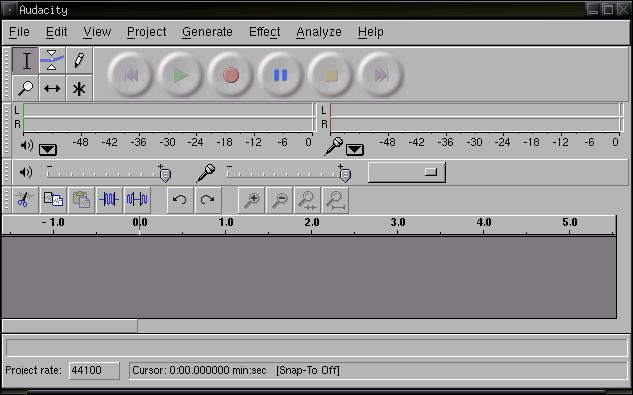
Once you have all that Launch Audacity; from your menu MyDSL -> Audacity.
After a moment or two you should have an application that looks like this:
(you know where to get it)
After a moment or two you should have an application that looks like this:
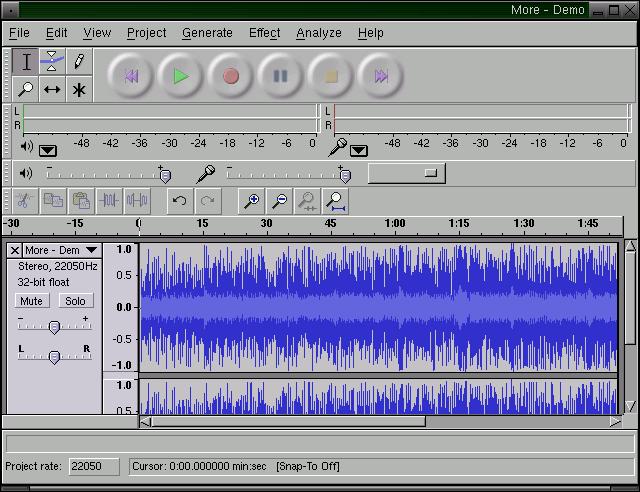
Next open your song up in Audacity by clicking File -> Open, then selecting your choice mp3. Audacity will have to convert your mp3 into its native format. This could take a few moments. After it is done and the song is fully loaded Audacity should look something like this:
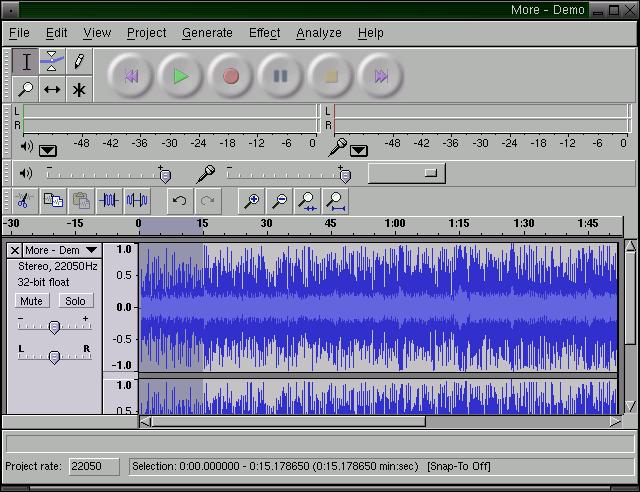
At this point you may want to play your song in Audacity to see what part of the song you want to have for your ringtone. Once you figure that part out, selecting the part of the song that you want to sample is simple. Just use your mouse to highlight the section you want.
In this screenshot I chose the beginning of the song, but you could have chosen the middle or the end just as easily.
Be sure to play the selected area so that you know that you have the right snippet for your ringtone.
Once you have the piece you like, go to Edit -> Copy to get the song snippet, then go to File -> New to launch a new Audacity window. Once the new window is open go to it and select Edit -> Paste. You now have the sampled song snippet in the new Audacity window. Half way there! Well, almost.
Be sure to play the selected area so that you know that you have the right snippet for your ringtone.
Once you have the piece you like, go to Edit -> Copy to get the song snippet, then go to File -> New to launch a new Audacity window. Once the new window is open go to it and select Edit -> Paste. You now have the sampled song snippet in the new Audacity window. Half way there! Well, almost.
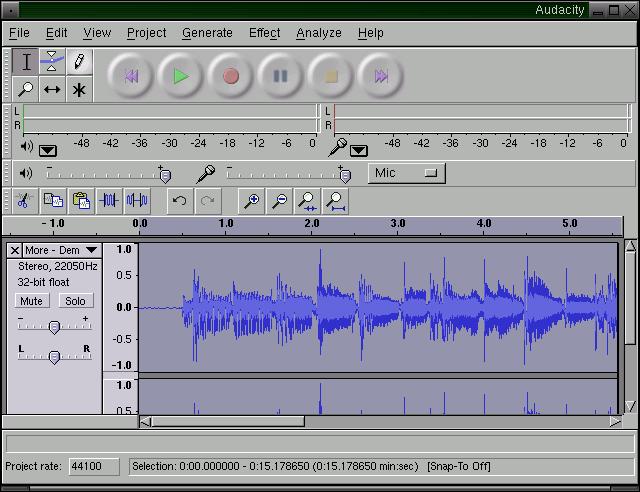
This screenshot is the 15 second song sample I selected. As you can see, the 15 second clip is represented in the same amount of space which causes us to have a more detailed view of the music without zooming. Notice that at the beginning of the song there is no sound, we could remove that section by selecting it with the mouse and do a Edit -> Delete. On the tail end of your music sample you may want to have the song fade out. In the photo I selected the last second and a half or so and I chose Effect -> Fade out. You can visually see the music tapering down. There are lots of effects in Audacity, but I like to keep it simple.
At this point we are dun with the editing. You should listen to the sample now and see if you like what you hear. If you do, then lets keep on going.
We are going to use Lame to do the mp3 encoding, so we will export this sample as an uncompressed .wav. In Audacity, select File -> Export as Wav. I saved mine as sample.wav.
We're all done with Audacity, now it is time to use Lame. Lame is a command line tool, so you will be using Aterm to issues the mp3 encoding commands to lame.
According to what I've read one could use 16, 24 or 32 bit rate while encoding. Most recommend not using 16 bit rate because it gives poor sound quality. On the other hand 32 bit encoding makes a much larger file. A good middle of the road approach is to use 24 bit format which makes an mp3 about 25% smaller than a 32 bit file yet still has good sound quality. On good speakers you certainly could hear the difference between 24 and 32, bot on your tiny cell phone speakers it won't make any difference.
To encode the mp3 all you have to do is: dsl@box:~$ lame -b
I chose 24 bit encoding and medium to make for a smaller file. For my wav file I gave this command:
dsl@box:~$ lame -b 24 sample.wav sample.mp3
Done! See how simple that is? Now, to get it to your phone on from DSL you have a few options:
At this point we are dun with the editing. You should listen to the sample now and see if you like what you hear. If you do, then lets keep on going.
We are going to use Lame to do the mp3 encoding, so we will export this sample as an uncompressed .wav. In Audacity, select File -> Export as Wav. I saved mine as sample.wav.
We're all done with Audacity, now it is time to use Lame. Lame is a command line tool, so you will be using Aterm to issues the mp3 encoding commands to lame.
According to what I've read one could use 16, 24 or 32 bit rate while encoding. Most recommend not using 16 bit rate because it gives poor sound quality. On the other hand 32 bit encoding makes a much larger file. A good middle of the road approach is to use 24 bit format which makes an mp3 about 25% smaller than a 32 bit file yet still has good sound quality. On good speakers you certainly could hear the difference between 24 and 32, bot on your tiny cell phone speakers it won't make any difference.
I chose 24 bit encoding and medium to make for a smaller file. For my wav file I gave this command:
dsl@box:~$ lame -b 24 sample.wav sample.mp3
Done! See how simple that is? Now, to get it to your phone on from DSL you have a few options:
- Email your new ringtone to your phone
- If your phone has USB support, plug it in and move the .mp3 over.
- Bluetooth, well, you could save it onto a drive and access that drove from an OS that does Bluetooth later. We are only a 50MB distribution after all!
Thursday, August 14, 2008
AC97: Front panel problem
Source
Motherboard diagram says the following;
1.Mic Left in
2.Ground
3.Mic Right in
4.GPIO
5.Right Line in
6.Jack Sense
7.Front Sense
8.Key
9.Left Line in
10.Jack Sense
Now the connectors (there are 7 of them) say the following;
Return R, Return L
Spkout R, Spkout L
GND(which I have taken to mean Ground)
Mic In, Mic Bias
Try this:
Mic IN -- mic L
GND -- Gnd
Mic BIAS -- mic R
Line-Out Right -- Speaker-Out R
Line-Out Left -- Speaker-Out L
Return-L + R --no connect
------------------------------------------
I cant seem to figure out what is wrong with the connection of my front panel mic jack. My motherboard manual says to connect it to the correct pins, and has a note that says:
If your front panel cable is separated, please connect it to pin1 and pin3 or pin5 and pin7 to activate the MIC function.
:rolleyes: doesnt tell me much since i cant figure out what pins they speak of...and i dont know what the cable is separated from or not separated from based on this sentence
here is a map of my pin layout (there are 10 spots for pins in all, with one spot not having a pin):
G ? N _ N
1H H H ? H
through the process of elimination and using the manual - i have found out that
the ? are the open pins for the front panel mic cables
H is for my headphones and are connected correctly, while 1H is pin 1. the _ is where there is no pin. the N is where the pin is marked 'NC' in the manual (I think this means not to use them). G is the ground, also connected correctly
i have tried hooking up the cables in both possible configurations (only two left - that is, top ? hooked to pink wire, bottom ? hooked to yellow, and vice versa) but the mic doesnt work.
also of note is that the computer records loud clicking noises when the headphones are plugged in, and records light static (light a fan blowing into a mic) when its not plugged in, regardless of config.
any suggestions on what to do?
------------------------------------------
Here's my layout:
BLINE_OUT_L . . Line out_L
(empty one) . NC
BLINE_OUT_R . . Line out_R
+5VA . . MICPWR
AGND . . MIC2
(The dots represent the pins)
This is supposed to be standard.
my mobo doesnt have this as the pin descriptors. i have
top row (from left to right)
AGND
Front audio detect
NC
(blank)
NC
second row
Smart jack F left channel - pin 1
Smart jack F right channel
Smart jack E right channel
SENSE B
Smart jack E left channel
the cables are labeled differently (of course..) my total config is below:
mic in --> front audio detect
mic bias --> SENSE B
ground --> AGND
speaker out left --> smart jack e left
speaker out right --> smart jack e right
speaker return left - disconnected
speaker return right - disconnected
also, my rear jacks dont work now, or before when i HAD hooked up cables to each of the smart jacks, but i disconnected them and the rear jacks still dont work, but the headphone jack still works fine - leaving me with the config i have now. so it appears they arent needed. im so confused with this now...:-|
also, the clicking was steady and highly loud. it also had horrible staticky noise along with that. i could only get some recorded sound (very faint) by tapping on the case, and not the headphones. not sure what the hell to consider the source of that sound. i tried tapping headphones and speakers
-----------------------------------
Did you try pins 1 and 3 as the manual suggested? Bare in mind that 1 wire per channel is enough. Ground can be mutual.
And for the white noise, get used to it. PC is one big noise generator. I have my PC hooked to Hi-Fi and, believe me, if I increase the volume high enough on my Hi-Fi (90%), I can hear CD spin up, HD's clicks and even some noise when I'm scrolling the web page. And it's all being picked up by the analog CD Audio cable. Wires work like an antenna.
But all that wouldn't be heard on the headphones. Unless they are $1000 or more headset and you have acute hearing of a bat.
If you're hearing loud constant noise, it's connected wrong.
You should try to find correct connections on channel by channel basis.
------------------------------------------
well, i have come a long way since i last posted, by just tossing the manual in the trash. i have found that
1. jumpers across pins 5/6 and 9/10 make rear output jack work. take the jumpers off to connect front panel by plugging into 5, and 9
2. the speaker jack in the back, and the headphone jack in the front, cannot be hooked up at the same time due to the jumpers.
3. the mic works by hooking up 'mic in' to 'smart jack f left channel' and 'mic bias' to 'smart jack f right channel' (go figure there...)
-------------------------------------------
i have an ECS Elitegroup PF88 mobo, and the second question's answer is that it is a module i suppose, that increases (extends, if you will) the number of jacks for microphone use. it doesnt allow me to use both the front and back headphone/speaker jacks no matter what config i use.
i have this config now.
GRD=empty=jumper=no pin=jumper
mic in(pin1)=mic bias=jumper=empty=jumper
so my friend tells me i need a splitter, or audio hub...kinda defeats the purpose of connectivity to make the jacks only work one at a time, and require microscopic wire changes...in the corner of my case...
------------------------------------------
yea - i could only laugh (in horror and fury) when i see mic outputs go to inputs labelled left and right. what a pile of crap is what i thought. mics have ONE CHANNEL. so this task required me to not only toss the manual but toss my common sense into the trash. the other thing that made me furious is the lack of warning or explanation about the jumpers. i took em off to work with the pins better and it took me roughly an hour to think back to what i did that couldve caused my speaker jack to stop working. i thought id shorted it or something...worst explanations ever in this manual, with the exception of the pin 1 and 3 thing. that made the mic work. too bad it doesnt tell you about the fact that the whole thing is counter-intuitive, since you cant hook up headphones and speakers at once. i figured that was the point.. now i spose ill be buying an audio hub like my friend suggested
ac97 = ALL CRAP 97 times over
==========================================
I have a TF7025-M2 Motherboard, and an Eagletech "Viper 2" case. I would like to know which connectors go where for the Front Headphones and Mic.
The motherboard "Front Panel Audio Header" male-pins are numbered and layed out like this in the manual:
(Description says: This header allows user to connect the front audio output cable with the PC front panel. It will disable the output of the back panel audio connectors)
1. Mic Left in 2. Ground
3. Mic Right in 4. GPIO
5. Right Line in 6. Jack Sense
7. Front Sense 8. Key
9. Left line in 10. Jack Sense
My case front audio connectors are:
1. MIC: Front panel mic input signal
2. MIC BIAS: Mic Power
3. Aud Gnd: Audio Ground
4. Ret-R: Right Channel Audio signal return from front panel
5. Ret-L: left Channel Audio signal return from front panel
6. FPOUT-R: Right Channel Audio Signal to front panel
7. FPOUT-L: Left Channel Audio Signal to front panel
I've tried a few different seemingly sensible combinations, but can't get my headphones to work if plugged in the front.
Any idea of which connectors correspond to what?
Answer
Not entirely, I would guess Ret-R would pair with Mic Right, Ret-L would pair with Mic Left, however those could also probably work with Right Line and Left Line. Ground would goe with Aud Gnd, other than that I'm not entirely sure of what to be connecting. I don't think its an entirely compatable setup, as the front panel is designed to have inputs and outputs, and the mainboard seems to only have inputs (mic and line-in).
==========================================
Howto: Headphone Jack sense on HP dv9000 series laptops
Motherboard diagram says the following;
1.Mic Left in
2.Ground
3.Mic Right in
4.GPIO
5.Right Line in
6.Jack Sense
7.Front Sense
8.Key
9.Left Line in
10.Jack Sense
Now the connectors (there are 7 of them) say the following;
Return R, Return L
Spkout R, Spkout L
GND(which I have taken to mean Ground)
Mic In, Mic Bias
Try this:
Mic IN -- mic L
GND -- Gnd
Mic BIAS -- mic R
Line-Out Right -- Speaker-Out R
Line-Out Left -- Speaker-Out L
Return-L + R --no connect
------------------------------------------
I cant seem to figure out what is wrong with the connection of my front panel mic jack. My motherboard manual says to connect it to the correct pins, and has a note that says:
If your front panel cable is separated, please connect it to pin1 and pin3 or pin5 and pin7 to activate the MIC function.
:rolleyes: doesnt tell me much since i cant figure out what pins they speak of...and i dont know what the cable is separated from or not separated from based on this sentence
here is a map of my pin layout (there are 10 spots for pins in all, with one spot not having a pin):
G ? N _ N
1H H H ? H
through the process of elimination and using the manual - i have found out that
the ? are the open pins for the front panel mic cables
H is for my headphones and are connected correctly, while 1H is pin 1. the _ is where there is no pin. the N is where the pin is marked 'NC' in the manual (I think this means not to use them). G is the ground, also connected correctly
i have tried hooking up the cables in both possible configurations (only two left - that is, top ? hooked to pink wire, bottom ? hooked to yellow, and vice versa) but the mic doesnt work.
also of note is that the computer records loud clicking noises when the headphones are plugged in, and records light static (light a fan blowing into a mic) when its not plugged in, regardless of config.
any suggestions on what to do?
------------------------------------------
Here's my layout:
BLINE_OUT_L . . Line out_L
(empty one) . NC
BLINE_OUT_R . . Line out_R
+5VA . . MICPWR
AGND . . MIC2
(The dots represent the pins)
This is supposed to be standard.
my mobo doesnt have this as the pin descriptors. i have
top row (from left to right)
AGND
Front audio detect
NC
(blank)
NC
second row
Smart jack F left channel - pin 1
Smart jack F right channel
Smart jack E right channel
SENSE B
Smart jack E left channel
the cables are labeled differently (of course..) my total config is below:
mic in --> front audio detect
mic bias --> SENSE B
ground --> AGND
speaker out left --> smart jack e left
speaker out right --> smart jack e right
speaker return left - disconnected
speaker return right - disconnected
also, my rear jacks dont work now, or before when i HAD hooked up cables to each of the smart jacks, but i disconnected them and the rear jacks still dont work, but the headphone jack still works fine - leaving me with the config i have now. so it appears they arent needed. im so confused with this now...:-|
also, the clicking was steady and highly loud. it also had horrible staticky noise along with that. i could only get some recorded sound (very faint) by tapping on the case, and not the headphones. not sure what the hell to consider the source of that sound. i tried tapping headphones and speakers
-----------------------------------
Did you try pins 1 and 3 as the manual suggested? Bare in mind that 1 wire per channel is enough. Ground can be mutual.
And for the white noise, get used to it. PC is one big noise generator. I have my PC hooked to Hi-Fi and, believe me, if I increase the volume high enough on my Hi-Fi (90%), I can hear CD spin up, HD's clicks and even some noise when I'm scrolling the web page. And it's all being picked up by the analog CD Audio cable. Wires work like an antenna.
But all that wouldn't be heard on the headphones. Unless they are $1000 or more headset and you have acute hearing of a bat.
If you're hearing loud constant noise, it's connected wrong.
You should try to find correct connections on channel by channel basis.
------------------------------------------
well, i have come a long way since i last posted, by just tossing the manual in the trash. i have found that
1. jumpers across pins 5/6 and 9/10 make rear output jack work. take the jumpers off to connect front panel by plugging into 5, and 9
2. the speaker jack in the back, and the headphone jack in the front, cannot be hooked up at the same time due to the jumpers.
3. the mic works by hooking up 'mic in' to 'smart jack f left channel' and 'mic bias' to 'smart jack f right channel' (go figure there...)
-------------------------------------------
i have an ECS Elitegroup PF88 mobo, and the second question's answer is that it is a module i suppose, that increases (extends, if you will) the number of jacks for microphone use. it doesnt allow me to use both the front and back headphone/speaker jacks no matter what config i use.
i have this config now.
GRD=empty=jumper=no pin=jumper
mic in(pin1)=mic bias=jumper=empty=jumper
so my friend tells me i need a splitter, or audio hub...kinda defeats the purpose of connectivity to make the jacks only work one at a time, and require microscopic wire changes...in the corner of my case...
------------------------------------------
yea - i could only laugh (in horror and fury) when i see mic outputs go to inputs labelled left and right. what a pile of crap is what i thought. mics have ONE CHANNEL. so this task required me to not only toss the manual but toss my common sense into the trash. the other thing that made me furious is the lack of warning or explanation about the jumpers. i took em off to work with the pins better and it took me roughly an hour to think back to what i did that couldve caused my speaker jack to stop working. i thought id shorted it or something...worst explanations ever in this manual, with the exception of the pin 1 and 3 thing. that made the mic work. too bad it doesnt tell you about the fact that the whole thing is counter-intuitive, since you cant hook up headphones and speakers at once. i figured that was the point.. now i spose ill be buying an audio hub like my friend suggested
ac97 = ALL CRAP 97 times over
==========================================
I have a TF7025-M2 Motherboard, and an Eagletech "Viper 2" case. I would like to know which connectors go where for the Front Headphones and Mic.
The motherboard "Front Panel Audio Header" male-pins are numbered and layed out like this in the manual:
(Description says: This header allows user to connect the front audio output cable with the PC front panel. It will disable the output of the back panel audio connectors)
1. Mic Left in 2. Ground
3. Mic Right in 4. GPIO
5. Right Line in 6. Jack Sense
7. Front Sense 8. Key
9. Left line in 10. Jack Sense
My case front audio connectors are:
1. MIC: Front panel mic input signal
2. MIC BIAS: Mic Power
3. Aud Gnd: Audio Ground
4. Ret-R: Right Channel Audio signal return from front panel
5. Ret-L: left Channel Audio signal return from front panel
6. FPOUT-R: Right Channel Audio Signal to front panel
7. FPOUT-L: Left Channel Audio Signal to front panel
I've tried a few different seemingly sensible combinations, but can't get my headphones to work if plugged in the front.
Any idea of which connectors correspond to what?
Answer
Not entirely, I would guess Ret-R would pair with Mic Right, Ret-L would pair with Mic Left, however those could also probably work with Right Line and Left Line. Ground would goe with Aud Gnd, other than that I'm not entirely sure of what to be connecting. I don't think its an entirely compatable setup, as the front panel is designed to have inputs and outputs, and the mainboard seems to only have inputs (mic and line-in).
==========================================
Howto: Headphone Jack sense on HP dv9000 series laptops
Subscribe to:
Posts (Atom)
Windows Updates

Network tools

[Your PC]

Me and Linus Torvalds' work
Usuario de Linux
desde 1995
 Regístrate!
Free&Open Source SW

 LibreOffice
 Firefox
Comics


Nerd or Dren?