Bienvenido! - Willkommen! - Welcome!

Bitácora Técnica de Tux&Cía., Santa Cruz de la Sierra, BO
Bitácora Central: Tux&Cía.
Bitácora de Información Avanzada: Tux&Cía.-Información
May the source be with you!
Showing posts with label hosts file. Show all posts

Sunday, August 8, 2010

the MVPS Hosts file

Source
The Hosts file contains the mappings of IP addresses to host names. This file is loaded into memory (cache) at startup, then Windows checks the Hosts file before it queries any DNS servers, which enables it to override addresses in the DNS. This prevents access to the listed sites by redirecting any connection attempts back to the local (your) machine. Another feature of the HOSTS file is its ability to block other applications from connecting to the Internet, providing the entry exists.
You can use a HOSTS file to block ads, banners, 3rd party Cookies, 3rd party page counters, web bugs, and even most hijackers. This is accomplished by blocking the connection(s) that supplies these little gems.
Example - the following entry 127.0.0.1 ad.doubleclick.net blocks all files supplied by that DoubleClick Server to the web page you are viewing. This also prevents the server from tracking your movements. Why? ... because in certain cases "Ad Servers" like Doubleclick (and many others) will try silently to open a separate connection on the webpage you are viewing, record your movements then yes ... follow you to additional sites you may visit.
In many cases using a well designed HOSTS file can speed the loading of web pages by not having to wait for these ads, annoying banners, hit counters, etc. to load. This also helps to protect your Privacy and Security by blocking sites that may track your viewing habits, also known as  "click-thru tracking" or Data Miners. Simply using a HOSTS file is not a cure-all against all the dangers on the Internet, but it does provide another very effective "Layer of Protection".
For Windows XP SP2 users you should see a Security Center prompt about allowing this connection. [screenshot]
Simply click No and continue. Yes the prompts can be annoying but at least you'll know, however you should not see these prompts if these entries are included in the HOSTS file.
Note: this prompt only occurs if (example) *.doubleclick.net is included in the "Restricted Zone".
...
Windows 7/Vista/XP   = C:\WINDOWS\SYSTEM32\DRIVERS\ETC
Windows 2K = C:\WINNT\SYSTEM32\DRIVERS\ETC
...
Reset the DNS Client with a simple batch file (submitted by: Ronny Ong - 2K/XP only)
DnsManual.bat (resets the DNS Client to Manual) [right-click and select: Save Target As]
DnsDisabled.bat (resets the DNS Client to Disabled) [right-click and select: Save Target As]
To use: double-click on the downloaded file and reboot that's it ...

For all other Questions, Issues and Solutions - see: The HOSTS File FAQ
For detailed Download and Extract Instructions - see: Download Help
How To Uninstall the MVPS HOSTS file
HostsMan is a freeware application that lets you manage your Hosts file.
Includes an option to turn off the unneeded DNS Client Service.
This also has an option to update the existing HOSTS file when needed.
Important! - make sure you select: Default action - Overwrite
Use the Server option to replace the Action Cancelled message. Windows Vista users ... once installed right-click on "hm.exe" and select: Properties
Click the Compatibility tab and select: "Run as Administrator" [screenshot]
This step was resolved in 3.2.71 Beta7. Win7 users see their documentation for more info.
Rename the HOSTS file on the fly ... a simple one click batch file. (Win9x/XP/Vista/Win7)
HostsXpert is a terrific multi-function Hosts File Manager [screenshot]
Note: no install required, it runs from anywhere ...
You will need to turn off the DNS Client service manually [info here]When updating the HOSTS file make sure to use the Replace option, rather than Merge
 
Homer is a LocalHost webserver used to replace the Action Cancelled message.
Download a custom image for use in Homer.
Simply save (Save Target As) blocked.gif (2 kb) to the "\Homer\Homer\images\" folder.

Thursday, October 9, 2008

Internet Explorer Security Zone Manager: ZonedOut

ImageWritten by funkytoad
Updated 9-7-2008
Need a way to Manage Internet Explorer's Zone's?
If so, then ZonedOut is for you. Add, Delete, Import, Export, Build a WhiteList and More.

ZonedOut v3.6 is a complete Internet Explorer Security Zone Manager.
Manage Zone Sites at the Current User and Local Machine level in style.
Includes a help file with General Usage notes, An outline of Commands, and the Freeware License Agreement. It is very important to read this help file.
 
(231 kb +/-)
Designed for Win2000 thru Vista

Important Notes:

  • Sites in Local Machine Key Zones apply to all users of a Computer. Current User Key Zone Sites Only apply to the individual users. When switching ZonedOut to operate on the Local Machine Key, ZonedOut is actually telling Internet Explorer (via the registry) to Use the Local Machine Key instead of the Current User Key.
  • Leaving ZonedOut set to the Local Machine key when you exit ZonedOut means that Sites loaded into the Current User Key are Ignored completely by IE. It is, and will remain an option to leave your computer set to Use the Local Machine Key only - However I do not recommend it in any case. ZonedOut will always warn you if you are exiting ZonedOut with your machine set to use the Local Machine Key.
  • Also note that Sites can be imported/added to the Local Machine Key if they exist in the Current User Key, However the opposite is not true i.e. If you try to import sites into the Current User key that exist in the Local Machine Key - they will Fail to import.

Known Issue (all versions) -If you have by chance "immunized" your computer with Spybot Search & Destroy, and use ZonedOut to "Remove All" restricted sites - ZonedOut will remove your trusted sites as well. Note that if you remove Spybot Search & Destroys Immunization the problem goes away...


Installing - Put ZonedOut.exe and ZonedOut.chm in their own directory. There is no installation. Simply delete the directory to "uninstall".

Includes a Help file - Read the help file.

Recommendation:
Eric Howes is now creating a special version of his "IE-SPYAD" for ZonedOut. I highly recommend using this list.
-IE-SPYAD for ZonedOut information and download
 or
-Eric's Privacy and Security Homepage

Finally:
ZonedOut is brought to you by Donna. This is her Idea. She said "make me one of these."
Visit Donna and tell her funkytoad says "hi"
Her Site http://cou.dozleng.com/
Her Blog http://msmvps.com/donna

Hosts file Manager: HostsXpert

Written by funkytoad

Image

Updated 7-27-2008

HostsXpert is an ultra-groovy Hosts file Manager, Editor and Helper-outter. Below you'll find a list of HostsXpert's functions. Just a Simple word of caution - Hosts files are not to be taken lightly -
Highly recommended reading

 Click Here to download HostsXpertImage
353kb  Includes help file (Win98 through Vista)    

Features:

  • Append File - Allows selection of a file to be appended to your current hosts file.
  • Replace File - Allows selection of a file to replace your hosts file.
  • Merge File - Allows selection of a file to be merged with your current hosts file.
  • Create Backup - Creates a Backup of you current hosts file. Backup file will be placed where ever HostsXpert.exe resides on your Hard drive.
  • Restore Backup - Restores the backup hosts file.
  • Restore MS Hosts - Restores the hosts file to Microsoft's original hosts file.
  • Add to Hosts Files - Adds the line item into your hosts file.
  • Delete Line - Deletes highlighted line from hosts file.
  • Toggle Comment - Toggles whether or not a line is a comment ('#').
  • Sort File - Sorts the current hosts file in alphanumeric order, removes all comment lines and duplicates.
  • Swap Localhost - Swaps the current hosts file between 127.0.0.1 and 0.0.0.0
  • Remove Block Items - Removes all blocking lines in the current hosts file.
  • Copy to Clipboard - Copies the current hosts file to the clipboard.
  • Make Hosts read-only/writable toggle
  • Search - Enter text to be searched for, click Previous or Next.
  • Open in Memopad - Opens the Memopad built-in to HostsXpert. 
Save Hosts - Saves the Hosts file from Memopad.
Save As - Allows you to save the hosts file as a file other than "Hosts".
Save Hosts Exit Memopad - Saves the Hosts file from Memopad, and returns you to normal view.
Exit Memopad - Does not save changes.
  • Whitelist
Remove Whitelist Items -Removes whitelisted Domains from your hosts file.
Add Whitelist Items - Add the whitelisted domains back into your hosts file.
ViewWhitelist - Opens up your whitelist for direct editing.
Save and Exit Whitelist - Saves changes, and closes the editor.
Exit Whitelist - Exits the editor and Discards changes/does not save the whitelist
  • Download
    Merge with or Replace your existing hosts file with either MVPs Hosts file or HpHosts file.
New in v4.1 - You can check for updates via the download menu.
Both websites offer an email subscription service for notification of updates-
MVPsHosts can be found here
(Notification subscription info at bottom of page)
hpHosts found here
(Notification subscription info on download page)

Wednesday, October 1, 2008

Strange behavior in the Back Button

Source

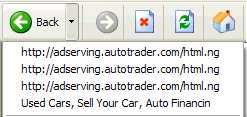
Sometimes when you click the Back button in IE6 to return to the previous page it appears that nothing happens. What usually occurs is that the HOSTS file has blocked one or more (<IFrame>) ad pages that are embedded into the web page you are viewing.
To verify this click the small drop-down arrow on the Back button, do you see just an ad server listed? ... well now you know ..... As you can see the first three links are blocked ad servers, simply skip to the valid link. However there are a few exceptions. In some cases the web page can contain a script to prevent the user from returning to a previous page.


Martin Hawes sends along this tip: (IE6)
If you add the "ad servers" you see listed in the Back Button drop-down, to the Restricted Zone this will eliminate the Back button issue.
Editors Note: however if you are using Windows XP SP2, you will be prompted by the "Security Center" about a 3rd party connection. Just click No and continue.


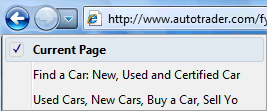
Vista/IE7 users should not see any ad servers listed in the drop-down list of the Back Button if your HOSTS file is working properly.

Wednesday, July 23, 2008

There's no place like 127.0.0.1

The hosts file is a computer file used to store information on where to find a node on a computer network. This file maps hostnames to IP addresses. The hosts file is used as a supplement to (or instead of) the domain name system on networks of varying sizes. Unlike DNS, the hosts file is under the control of the local computer's administrator.
Blocking unwanted parasites with a host file (thanks to mvps.org)

The Hosts file contains the mappings of IP addresses to host names. This file is loaded into memory (cache) at startup, then Windows checks the Hosts file before it queries any DNS servers**, which enables it to override addresses in the DNS. This prevents access to the listed sites by redirecting any connection attempts back to the local (your) machine. Another feature of the HOSTS file is its ability to block other applications from connecting to the Internet, providing the entry exists.
You can use a HOSTS file to block ads, banners, 3rd party Cookies, 3rd party page counters, web bugs, and even most hijackers. This is accomplished by blocking the connection(s) that supplies these little gems.

Example - the following entry 127.0.0.1 ad.doubleclick.net blocks all files supplied by that DoubleClick Server to the web page you are viewing. This also prevents the server from tracking your movements. Why? ... because in certain cases "Ad Servers" like Doubleclick (and many others) will try to open a separate connection on the webpage you are viewing.

For XP SP2 users you should see a Security Center prompt about allowing this connection. [screenshot]
Simply click No and continue. Yes the prompts can be annoying but at least you'll know, however you should not see these prompts if these entries are included in the HOSTS file.
Note: this prompt only occurs if (example) *.doubleclick.net is included in the "Restricted Zone".

More Examples
AdTech | BridgeTrack | Honesty | Mgnetwork | ValueClick | Google AdSense | Atdmt | Atdmt
Now here is a 3rd party ad server opening a connection to another 3rd party ad server - Ad-Flow
More 3rd parties opening other 3rd parties: Overture | Overture | Directtrack | Directtrack | RealMedia

Note: By placing these type sites in the Restricted Zone this also cures most "Back Button" issues.
Now includes most major parasites, hijackers and unwanted Adware/Spyware programs!
Proudly now the #1 rated HOSTS file on the Internet! - Google | MSN | Yahoo | AltaVista
Now regularly featured on the Kim Komando Radio Show
The MVPS HOSTS file has been selected by Pricelessware as "the best of the best in Freeware" for the 2nd time ...

In many cases using a well designed HOSTS file can speed the loading of web pages by not having to wait for these ads, annoying banners, hit counters, etc. to load. This also helps to protect your Privacy and Security by blocking sites that may track your viewing habits, also known as "click-thru tracking" or Data Miners. Simply using a HOSTS file is not a cure-all against all the dangers on the Internet, but it does provide another very effective "Layer of Protection".

Editors Note: As time has progressed the focus of this project has changed from just blocking ads/banners to protecting the user from the many parasites that now exist on the Internet. It doesn't serve much purpose if you block the ad banner from displaying as most other HOSTS files do, but get hijacked by a parasite from an evil exploit or download contained on the web site. The object is to surf faster while preserving your Safety, Security and Privacy. [more info]

To view the HOSTS file in plain text form. (692 kb) (opens in IE)
Note: The text version also makes a terrific reference for determining possible unwanted sites
Download: hosts.zip [right-click - Select: Save Target As] [Updated July-07-2008]

This download includes a simple batch file (mvps.bat) that will rename the existing HOSTS file to HOSTS.MVP then copy the included updated HOSTS file to the proper location. For more information please see the readme.txt included in the download.

Important! Windows Vista requires special instructions Not here - over there > see here

When you run the (mvps.bat) batch file XP users may see a prompt, simply click Run and continue. Once updated you should see another prompt that the task was completed. Some users may see a pop-up from certain Security programs about changes to the HOSTS file. Allow the change ... however if you see this pop-up at any other time ... investigate.

Download Information: (checksum info is on the HOSTS file not the "hosts.zip")
MD5
: b8d7e100b332a721e6ec038d3e350e30 SHA-1: 7a87991a9be57f6ce4389cc30c1af5b4f2bb07d4
(created by File Checksum Integrity Verifier) To view Checksum for this download Not here - over there > [click here]

Manual Method - Unzip in a "temp" folder and place in the appropriate installed location:

  • If you are having trouble downloading or extracting the HOSTS file [click here]
    Note: the below locations are for the typical default paths, edit as needed.
Windows Vista = C:\WINDOWS\SYSTEM32\
DRIVERS\ETC
Windows XP = C:\WINDOWS\SYSTEM32\
DRIVERS\ETC
Windows 2K = C:\WINNT\SYSTEM32\
DRIVERS\ETC
Win 98/ME = C:\WINDOWS

There is no need to turn on, adjust or change any settings with the exception of the DNS Client service (see below). Windows automatically looks for the existence of a HOSTS file and if found, checks the HOSTS file first for entries to the web page you just requested. The 127.0.0.1 is the location of your computer, so when the entry (example) "ad.doubleclick.net" is requested your computer thinks 127.0.0.1 is the location of the file. When this file is not located it skips onto the next file and thus the ad server is blocked from loading the banner, Cookie, or some unscrupulous ActiveX, or javascript file.
In case you're wondering ... this all happens in microseconds, which is much faster than trying to fetch a file from half way around the world. Another great feature of the HOSTS file is that it is a two-way file, meaning if some parasite does get into your system (usually bundled with other products) the culprit can not get out (call home) as long as the necessary entries exist. This is why it's important to keep your HOSTS file up to Date. Subscribe to a secure mailing list

Editors Note: in most cases a large HOSTS file (over 135 kb) tends to slow down the machine. This only occurs in W2000/XP/Vista. Windows 98 and ME are not affected.
To resolve this issue (manually) open the "Services Editor"

  • Start | Run (type) "services.msc" (no quotes)
  • Scroll down to "DNS Client", Right-click and select: Properties
  • Click the drop-down arrow for "Startup type"
  • Select: Manual, or Disabled (recommended) click Apply/Ok and restart. [more info]

When set to Manual (or Disabled) you can see that the above "Service" is not needed (after a little browsing) by opening the Services Editor again, scroll down to DNS Client and check the "Status" column. It should be blank, if it was needed it would show "Started" in that column. There are several Utilities that can reset the DNS Client for you ... [more info]

Editors Note: The above instructions are intended for a single (home-user) PC. If your machine is part of a "Domain", check with your IT Dept. before applying this work-around. This especially applies to Laptop users who travel or bring their machines home. Make sure to reset the Service (if needed) prior to connecting (reboot required) to your work Domain ...

JBF sends along this Tip: IPCOP running a DHCP server needs the local PC DNS Client enabled to function.

Reset the DNS Client with a simple batch file (submitted by: Ronny Ong - 2K/XP only)

DnsManual.bat (resets the DNS Client to Manual) [right-click and select: Save Target As]
DnsDisabled.bat (resets the DNS Client to Disabled) [right-click and select: Save Target As]
To use: double-click on the downloaded file and reboot that's it ...
For all other Questions, Issues and Solutions
- see: The HOSTS File FAQ
For detailed Download and Extract Instructions - see: Download Help

Related Utilities

  • SpywareBlaster can encrypt and create a backups of your HOSTS file.
  • WinPatrol will allow you to lock your HOSTS file and will monitor changes.
  • ZoneAlarm Pro and Security Suite users have a "Lock Hosts" file option.
    However this requires special instructions to edit or update the HOSTS file.
HostsMan is a freeware application that lets you manage your Hosts file.
Includes an option to turn off the unneeded DNS Client Service.
This also has an option to update the existing HOSTS file when needed.
Important! - make sure you select: Default action - Overwrite
Use the Server option to replace the Action Cancelled message.

Windows Vista users ... once installed right-click on "hm.exe" and select: Properties
Click the Compatibility tab and select: "Run as Administrator" [screenshot]

Rename the HOSTS file on the fly ... a simple one click batch file. (Win9x/XP/Vista)
HostsXpert is a terrific multi-function Hosts File Manager [screenshot]
Note: no install required, it runs from anywhere... when updating the HOSTS file make sure to use the Replace option, rather than Merge
Homer is a LocalHost webserver used to replace the Action Cancelled message.
Download a custom image for use in Homer.
Simply save (Save Target As) blocked.gif (2 kb) to the
"\Homer\Homer\images\" folder.
---------------------------------------------------------------
The host file is located in different locations in different operating systems and even in different Windows versions: [1]
  • Windows NT/2000/XP/2003/Vista:
    %SystemRoot%\system32\drivers\etc\
    is the default location, which may be changed.
    The actual directory is determined by the Registry key \HKEY_LOCAL_MACHINE\SYSTEM\CurrentControlSet\
    Services\Tcpip\Parameters\DataBasePath
    .
  • Windows 95/98/Me: %WinDir%\
  • Linux and other Unix-like operating systems: /etc
  • Mac OS 9 and earlier: System Folder: Preferences or System folder (format of the file may vary from Windows and Linux counterparts)
  • Mac OS X: /private/etc (uses BSD-style Hosts file)
Default content on Windows operating systems
In Windows, the default hosts file is often blank or it contains (inactive) comment lines followed by IPv4 or IPv6 localhost entries.
127.0.0.1       localhost
::1 localhost
An example can be found at:
http://vlaurie.com/computers2/Articles/hosts.htm