Bienvenido! - Willkommen! - Welcome!

Bitácora Técnica de Tux&Cía., Santa Cruz de la Sierra, BO
Bitácora Central: Tux&Cía.
Bitácora de Información Avanzada: Tux&Cía.-Información
May the source be with you!
Showing posts with label GPT. Show all posts

Saturday, May 25, 2013

Basic and Dynamic Disks

msdn.microsoft.com/en-us/library/windows/desktop/aa363785%28v
Before partitioning a drive or getting information about the partition layout of a drive, you must first understand the features and limitations of basic and dynamic disk storage types. For the purposes of this topic, the term volume is used to refer to the concept of a disk partition formatted with a valid file system, most commonly NTFS, that is used by the Windows operating system to store files. A volume has a Win32 path name, can be enumerated by the FindFirstVolume and FindNextVolume functions, and usually has a drive letter assigned to it, such as C:. For more information about volumes and file systems, see File Systems.
In this topic:
There are two types of disks when referring to storage types in this context: basic disks and dynamic disks. Note that the storage types discussed here are not the same as physical disks or partition styles, which are related but separate concepts. For example, referring to a basic disk does not imply a particular partition style—the partition style used for the disk under discussion would also need to be specified. For a simplified description of how a basic disk storage type relates to a physical hard disk, see Disk Devices and Partitions.
Basic Disks
Basic disks are the storage types most often used with Windows. The term basic disk refers to a disk that contains partitions, such as primary partitions and logical drives, and these in turn are usually formatted with a file system to become a volume for file storage. Basic disks provide a simple storage solution that can accommodate a useful array of changing storage requirement scenarios. Basic disks also support clustered disks, Institute of Electrical and Electronics Engineers (IEEE) 1394 disks, and universal serial bus (USB) removable drives. For backward compatibility, basic disks usually use the same Master Boot Record (MBR) partition style as the disks used by the Microsoft MS-DOS operating system and all versions of Windows but can also support GUID Partition Table (GPT) partitions on systems that support it. For more information about MBR and GPT partition styles, see the Partition Styles section.
You can add more space to existing primary partitions and logical drives by extending them into adjacent, contiguous unallocated space on the same disk. To extend a basic volume, it must be formatted with the NTFS file system. You can extend a logical drive within contiguous free space in the extended partition that contains it. If you extend a logical drive beyond the free space available in the extended partition, the extended partition grows to contain the logical drive as long as the extended partition is followed by contiguous unallocated space. For more information, see How Basic Disks and Volumes Work.
The following operations can be performed only on basic disks:
  • Create and delete primary and extended partitions.
  • Create and delete logical drives within an extended partition.
  • Format a partition and mark it as active.
Dynamic Disks
Dynamic disks provide features that basic disks do not, such as the ability to create volumes that span multiple disks (spanned and striped volumes) and the ability to create fault-tolerant volumes (mirrored and RAID-5 volumes). Like basic disks, dynamic disks can use the MBR or GPT partition styles on systems that support both. All volumes on dynamic disks are known as dynamic volumes. Dynamic disks offer greater flexibility for volume management because they use a database to track information about dynamic volumes on the disk and about other dynamic disks in the computer. Because each dynamic disk in a computer stores a replica of the dynamic disk database, for example, a corrupted dynamic disk database can repair one dynamic disk by using the database on another dynamic disk. The location of the database is determined by the partition style of the disk. On MBR partitions, the database is contained in the last 1 megabyte (MB) of the disk. On GPT partitions, the database is contained in a 1-MB reserved (hidden) partition.
Dynamic disks are a separate form of volume management that allows volumes to have noncontiguous extents on one or more physical disks. Dynamic disks and volumes rely on the Logical Disk Manager (LDM) and Virtual Disk Service (VDS) and their associated features. These features enable you to perform tasks such as converting basic disks into dynamic disks, and creating fault-tolerant volumes. To encourage the use of dynamic disks, multi-partition volume support was removed from basic disks, and is now exclusively supported on dynamic disks.
The following operations can be performed only on dynamic disks:
  • Create and delete simple, spanned, striped, mirrored, and RAID-5 volumes.
  • Extend a simple or spanned volume.
  • Remove a mirror from a mirrored volume or break the mirrored volume into two volumes.
  • Repair mirrored or RAID-5 volumes.
  • Reactivate a missing or offline disk.
Another difference between basic and dynamic disks is that dynamic disk volumes can be composed of a set of noncontiguous extents on one or multiple physical disks. By contrast, a volume on a basic disk consists of one set of contiguous extents on a single disk. Because of the location and size of the disk space needed by the LDM database, Windows cannot convert a basic disk to a dynamic disk unless there is at least 1 MB of unused space on the disk.
Regardless of whether the dynamic disks on a system use the MBR or GPT partition style, you can create up to 2,000 dynamic volumes on a system, although the recommended number of dynamic volumes is 32 or less. For details and other considerations about using dynamic disks and volumes, see Dynamic disks and volumes.
For more features of and usage scenarios for dynamic disks, see What Are Dynamic Disks and Volumes?.
The operations common to basic and dynamic disks are the following:
  • Support both MBR and GPT partition styles.
  • Check disk properties, such as capacity, available free space, and current status.
  • View partition properties, such as offset, length, type, and if the partition can be used as the system volume at boot.
  • View volume properties, such as size, drive-letter assignment, label, type, Win32 path name, partition type, and file system.
  • Establish drive-letter assignments for disk volumes or partitions, and for CD-ROM devices.
  • Convert a basic disk to a dynamic disk, or a dynamic disk to a basic disk.
Unless specified otherwise, Windows initially partitions a drive as a basic disk by default. You must explicitly convert a basic disk to a dynamic disk. However, there are disk space considerations that must be accounted for before you attempt to do this. For more information, see How To Convert to Basic and Dynamic Disks in Windows XP Professional.
Partition Styles
Partition styles, also sometimes called partition schemes, is a term that refers to the particular underlying structure of the disk layout and how the partitioning is actually arranged, what the capabilities are, and also what the limitations are. To boot Windows, the BIOS implementations in x86-based and x64-based computers require a basic disk that must contain at least one master boot record (MBR) partition marked as active where information about the Windows operating system (but not necessarily the entire operating system installation) and where information about the partitions on the disk are stored. This information is placed in separate places, and these two places may be located in separate partitions or in a single partition. All other physical disk storage can be set up as various combinations of the two available partition styles, described in the following sections. For more information about other system types, see the TechNet topic on partition styles.
Dynamic disks follow slightly different usage scenarios, as previously outlined, and the way they utilize the two partition styles is affected by that usage. Because dynamic disks are not generally used to contain system boot volumes, this discussion is simplified to exclude special-case scenarios. For more detailed information about partition data block layouts, and basic or dynamic disk usage scenarios related to partition styles, see How Basic Disks and Volumes Work and How Dynamic Disks and Volumes Work.
Master Boot Record
All x86-based and x64-based computers running Windows can use the partition style known as master boot record (MBR). The MBR partition style contains a partition table that describes where the partitions are located on the disk. Because MBR is the only partition style available on x86-based computers prior to Windows Server 2003 with Service Pack 1 (SP1), you do not need to choose this style. It is used automatically.
You can create up to four partitions on a basic disk using the MBR partition scheme: either four primary partitions, or three primary and one extended. The extended partition can contain one or more logical drives. The following figure illustrates an example layout of three primary partitions and one extended partition on a basic disk using MBR. The extended partition contains four extended logical drives within it. The extended partition may or may not be located at the end of the disk, but it is always a single contiguous space for logical drives 1-n.
Three primary partitions and one extended partition on a basic disk using MBR
Each partition, whether primary or extended, can be formatted to be a Windows volume, with a one-to-one correlation of volume-to-partition. In other words, a single partition cannot contain more than a single volume. In this example, there would be a total of seven volumes available to Windows for file storage. An unformatted partition is not available for file storage in Windows.
The dynamic disk MBR layout looks very similar to the basic disk MBR layout, except that only one primary partition is allowed (referred to as the LDM partition), no extended partitioning is allowed, and there is a hidden partition at the end of the disk for the LDM database. For more information on the LDM, see the Dynamic Disks section.
GUID Partition Table
Systems running Windows Server 2003 with SP1 and later can use a partition style known as the globally unique identifier (GUID) partition table (GPT) in addition to the MBR partition style. A basic disk using the GPT partition style can have up to 128 primary partitions, while dynamic disks will have a single LDM partition as with MBR partitioning. Because basic disks using GPT partitioning do not limit you to four partitions, you do not need to create extended partitions or logical drives.
The GPT partition style also has the following properties:
  • Allows partitions larger than 2 terabytes.
  • Added reliability from replication and cyclic redundancy check (CRC) protection of the partition table.
  • Support for additional partition type GUIDs defined by original equipment manufacturers (OEMs), independent software vendors (ISVs), and other operating systems.
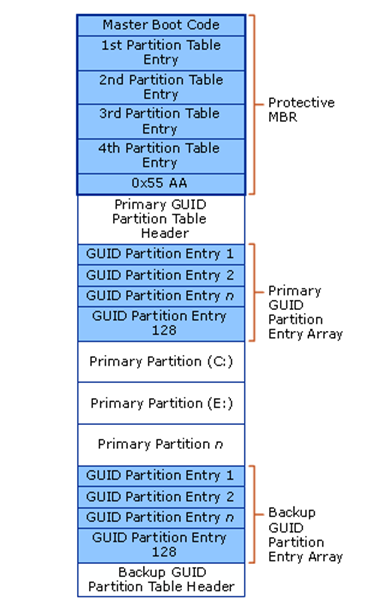
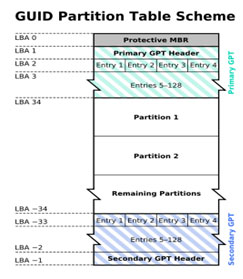
The GPT partitioning layout for a basic disk is illustrated in the following figure.
GPT layout
The protective MBR area exists on a GPT partition layout for backward compatibility with disk management utilities that operate on MBR. The GPT header defines the range of logical block addresses that are usable by partition entries. The GPT header also defines its location on the disk, its GUID, and a 32-bit cyclic redundancy check (CRC32) checksum that is used to verify the integrity of the GPT header. Each GUID partition entry begins with a partition type GUID. The 16-byte partition type GUID, which is similar to a System ID in the partition table of an MBR disk, identifies the type of data that the partition contains and identifies how the partition is used, for example if it is a basic disk or a dynamic disk. Note that each GUID partition entry has a backup copy.
Dynamic disk GPT partition layouts looks similar to this basic disk example, but as stated previously have only one LDM partition entry rather than 1-n primary partitions as allowed on basic disks. There is also a hidden LDM database partition with a corresponding GUID partition entry for it. For more information on the LDM, see the Dynamic Disks section.
Detecting the Type of Disk
There is no specific function to programmatically detect the type of disk a particular file or directory is located on. There is an indirect method.
First, call GetVolumePathName. Then, call CreateFile to open the volume using the path. Next, use IOCTL_VOLUME_GET_VOLUME_DISK_EXTENTS with the volume handle to obtain the disk number and use the disk number to construct the disk path, such as "\\?\PhysicalDriveX". Finally, use IOCTL_DISK_GET_DRIVE_LAYOUT_EX to obtain the partition list, and check the PartitionType for each entry in the partition list.
Related topics
About Volume Management
Basic Disks and Volumes Technical Reference
Dynamic Disks and Volumes Technical Reference
Basic Storage Versus Dynamic Storage in Windows XP

Thursday, May 9, 2013

MBR - GPT

http://blog.elhacker.net/2013/03/diferencias-entre-efi-vs-bios-mbr-vs-gpt-windows-linux-arranque-dual-grub.html
Pasar una partición GPT a MBR

Si queremos instalar Windows sobre MBR:

diskpart
list disk
select disk 0 (donde "0" es el disco donde se instalará Windows)
clean
convert mbr
create partition primary
select partition 1
format fs=ntfs quick

Explicación convertir de GPT a MBR 
- Arrancas desde el DVD de Windows hasta llegar a la opción donde te sale la lista de discos donde instalar Windows.
- Pulsa Shift+F10 y se te abrirá la ventana de comandos.
- En la ventana de comandos tecleas diskpart, que es el gestor de particiones de Windows en modo comando. ATENCIÓN haz esto solo con el HD del portatil conectado, sin discos externos ni memorias USB porque vas a borrar completamente el disco si te equivocas
- Una vez que te ponga DISKPART> tecleas: list disk te saldran todos las unidades de HD, si solo lo haces con el HD y el DVD tendras solo 2, el 0 y el 1, normalmente el 0 sera el HD.
- select disk 0 selecciona el disco 0.
- list partition, te muestra las particiones que tiene ese disco, comprueba que corresponden al disco correcto.
- clean, borra la tabla de particiones GPT tanto al principio como al final del disco.
Reinicias el equipo y vuelves a arrancar desde el DVD y ya deberías poder instalar Windows.       
Esquema MBR
Esquema GPT

GRUB2
Un gestor de arranque es un programa que te permite seleccionar que sistema operativo arrancar. Un cargador de arranque, por otro lado, se carga un núcleo del sistema operativo y transfiere el control al mismo. Muchos programas de realizar ambas funciones, pero otros manejar sólo una de ellas. Menos de (U) EFI, el firmware por lo general incluye un gestor de arranque simple, y cada sistema operativo proporciona su propio cargador de arranque. La mayoría de los gestores de arranque EFI y el gestor de arranque residir en sus propios subdirectorios del directorio EFI en el ESP.
GRUB2 es la nueva versión de GRand Unified Bootloader (GRUB). GRUB2 derivada de PUPA, un proyecto de investigación destinado a mejorar el GRUB: ha sido totalmente reescrito a fin de proporcionar una mayor modularidad y portabilidad
Está destinado a reemplazar el gestor de arranque GRUB anterior (referido como "GRUB Legacy"). GRUB2 tiene un código base completamente independiente de GRUB Legacy, y dispone de instalaciones como un nuevo shell como sintaxis que permiten funciones avanzadas de scripting. Usuarios de GRUB Legacy son animados a emigrar a GRUB2.
En resumen, el bootloader es el primer programa que se ejecuta cuando se inicia el equipo. Es responsable de cargar y transferir el control al kernel de Linux, que, a su vez, inicializa el resto del sistema operativo.
Grub2 permite:
  • arranque desde plataformas UEFI;
  • arrancar desde discos GPT con particiones sin siquiera tener un MBR híbrido extraño, a pesar de que uno puede usar una por razones de compatibilidad / portabilidad;
  • arranque desde la administración de volúmenes lógicos directamente como soporte LVM2;
  • arranque desde incursión DM-RAID soporte para RAID 1, 4, 5, 6, 9 y 10 [0?] [o 1x?];
  • y el arranque desde dispositivos cifrados, probablemente LUKS, a causa de la documentación inexistente a pesar de los módulos de cypher / hash estar allí: lo que no hay orientación sobre un howto por ahora.
Nota para los usuarios de GRUB Legacy
  • La actualización de GRUB Legacy a GRUB(2) es un proceso muy similar al de una instalación limpia de GRUB2
  • Hay diferencias en las órdenes de GRUB y GRUB2. Le recomendamos que se familiarice con los órdenes de GRUB2 antes de continuar.
  • GRUB2 es ahora modular, y ya no requiere «stage 1.5». En consecuencia, el gestor de arranque tiene una capacidad limitada y los módulos son cargados desde el disco duro en caso de necesidad (por ejemplo, si necesita soporte de LVM o RAID).
  • Las reglas de la nomenclatura de los dispositivos cambian de GRUB a GRUB2: Los discos duros están siendo ahora numerados a partir de 0, mientras que las particiones comienzan en 1 y son seguidos por el nombre del sistema de particionamiento usado. Por ejemplo, /dev/sda1 hace referencia a (hd0,msdos1) (para sistemas que usan MBR), o a (hd0,gpt1) (para los sistemas que usan GPT). 

Thursday, October 14, 2010

GPT support in Linux and Windows

en.wikipedia.org/wiki/Basic_data_partition
en.wikipedia.org/wiki/GUID_Partition_Table
Some distribution tools, such as fdisk, don't work with GPT.

New tools such as gdisk[10], Syslinux, grub .96 + patches and grub2 have been GPT-enabled.
OSVersion/ EditionPlat-
form
Boot
 from
GPT on
PC/BIOS
Boot
from
 GPT on
EFI
Notes

Windows
Server 2003
x64, SPack 1
 (2005-03-30)
x86-64NoNoData Disk only [8]
MBR takes precedence
in hybrid MBR configuration.
Windows XPProfessional x64
 (2005-04-25)
(Workstation
variant of
Windows Server
2003 x64)
x86-64NoNoData disk only [8]
MBR takes precedence
in hybrid configuration.
 Detachable disks: only
support for MBR partitioning.
Windows Vista(2005-07-22)x86-64NoYesMBR takes precedence
 in hybrid configuration.
Windows
Server 2008
(2008-02-27)x86-64,IA-64NoYesMBR takes precedence
 in hybrid configuration.
Windows 7(2009-10-22)x86-64NoYesMBR takes precedence
 in hybrid configuration.
[7]
Windows
Server 2008 R2
(2009-10-22)
(Server
variant of
Windows 7)
x86-64,IA-64NoYesMBR takes precedence
 in hybrid configuration.

Saturday, September 25, 2010

The selected disk is of the GPT partition style

Source

Formating the primary drive GPT from the get go or starting with a blank partition leaving Windows 7 Pro & Ultimate to do it via diskpart, setup will not proceed until you change the partition scheme to NTFS or MBR. Continue installation / setup remains greyed out even though you can clearly see the partition formated GPT and you receive the following message...

Windows cannot be installed to Disk 0 Partition 1
Click on "show details"
"Windows cannot be installed to this disk. The selected disk is of the GPT partition style."

Are you using an EFI supported Motherboard running the port controller in AHCI mode?
no, EFI has not entered the PC business laptop and desktop world yet. It is limited to mostly blade and enterprise servers.
Intel and MSI both offer EFI support desktop motherboards, I am running the Intel DP55KG motherboard, this is also the only system that I have been able to install OS on GPT

GPT RAID 1

Source
A new problem discovered running Solaris and Red Hat Linux development environments, these do not seem to like the wierd MBR partitioning scheme Windows 7 creates and will not install unless it is a MBR that XP, Vista, or Linux created. 
Linux does not require EFI to create GPT partitions and developers are not usually given Itanium blades, let alone server addition for application development.
=============
While Windows 7 diskpart allows you to format a GPT drive it is intended to format a secondary hard drive. If you format a GPT primary and return to installation, Windows 7 setup will prompt you to reformat the partition NTFS or MBR and Continue Setup remains greyed out until you do.
=============
No problems installing Windows 7 on GPT. You must convert the HDD to GPT during windows installation and you must move forward without creating a partition, i.e. unallocated partition.
Source
Trying to build a realy big software raid, the two devices are 2.7T, and I cannot use msdos like partiotions, so I tried GPT, the kernel is compiled with GPT partiotion support, I have /dev/sda1 that is /boot partiotion and an software raid1 /dev/md0 (/dev/sda2 and /dev/sdb2) that is 2.6T, I used parted, of cource to manage the disc, the the raid partitions are with flags RAID, the boot partition is with flag BOOT. Also the grub is compiled with a patch and now grub 0.97 recognizes the GPT partition like tables. So I boot, grub screen, I choose kernle, the kernel is booting, and then the errors:
Autodetecting raid arrays
invalid raid superlock magic on sdb2
sdb2 has invalid sb not importing
invalid raid superlock magic on sda2
sda2 has invalid sb not importing
autorun ....
...... autorun done
reiserfs: md0: warning: sh-2006: read_super_block: bread failed (dev md0. block2, size 4096)
kernel panic - not syncing: VFS: Unable to nount root fs ot unknown-block(9,0)
these are the errors, could someone help me with this error? the kernel is linux-2.6.20.1, 64bit compiled, the CPUs are model name: 2xIntel(R) Xeon(R) CPU 5140 @ 2.33GHz
(Core 2 duo)
Is the raid1 module is ready for the GPT partitions?

GPT "protected" hard disk

GUID Partition Table
 GUID: globally unique identifier

What is a GPT disk and GUID Partition Table? How to create a GPT disk?


What is a GPT disk and how to create a GPT disk?

GPT scheme
GPT is the abbreviation of GUID Partition Table. The widespread MBR partitioning scheme, dating from the early 1980s, imposed limitations which affected the use of newer hardware. Intel therefore developed a new partition-table format in the late 1990s as part of what eventually became UEFI. The GPT as of 2010 forms a subset of the UEFI specification.

GPT vs. MBR

Compared with MBR disk, A GPT disk can support larger than 2 TB volumes where MBR cannot. A GPT disk can be basic or dynamic, just like an MBR disk can be basic or dynamic. 
GPT disks also support up to 128 partitions rather than the 4 primary partitions limited to MBR. Also, GPT keeps a backup of the partition table at the end of the disk. Furthermore, GPT disk provides greater reliability due to replication and cyclical redundancy check (CRC) protection of the partition table. It can be used as a storage volume on all x64-based platforms, including platforms running Microsoft Windows XP Professional x64 Edition. Windows Server 2003 SP1 also enables support for GPT in x86 versions of the Windows Server 2003 family.


Disadvantages of MBR disk

MBR disks support only four partition table entries. That is to say, it only allows users to create four primary partitions at most. If more partitions are wanted, a secondary structure known as an extended partition is necessary. Extended partitions can then be subdivided into one or more successive logical disks. Another common practice is to use partitioned or "hidden" sectors to hold specific information. That practice is undocumented and results in severe system problems that are difficult to debug. Over the years, vendor-specific implementations and tools have been released to the public, making support difficult.

Why we need GPT disk?

Compared with MBR disk, GPT disks can grow to a very large size. The number of partitions on a GPT disk is not constrained by temporary schemes such as container partitions as defined by the MBR Extended Boot Record (EBR).
The GPT disk partition format is well defined and fully self-identifying. Data critical to platform operation is located in partitions and not in unpartitioned or "hidden" sectors. GPT disks use primary and backup partition tables for redundancy and CRC32 fields for improved partition data structure integrity. The GPT partition format uses version number and size fields for future expansion.

How to convert MBR disk to GPT disk


Solution 1: Convert MBR disk to GPT disk with EASEUS Partition Master

Solution 2: Convert MBR disk to GPT disk with Windows Disk Management


Solution 3: Convert MBR disk to GPT disk with Diskpart command

------------------------------------------------
Source
MBR is the standard partitioning scheme that's been used on hard disks since the PC first came out. It supports 4 primary partitions per hard drive, and a maximum partition size of 2TB. 

GPT disks are new, and are readable only by Windows Server 2003 SP1, Windows Vista (all versions), and Windows XP x64 Edition. The GPT disk itself can support a volume up to 2^64 blocks in length. (For 512-byte blocks, this is 9.44 ZB - zettabytes. 1 ZB is 1 billion terabytes). It can also support theoretically unlimited partitions. 

Windows restricts these limits further to 256 TB for a single partition (NTFS limit), and 128 partitions. 

Only Itanium systems running Windows Server 2003 and Windows Vista systems with an EFI BIOS can boot from a GPT disk. The other operating systems mentioned earlier can use GPT disks as data disks but not boot disks. 

For more information on GPT, see Problems with larger than 2TB arrays in the General Storage forum, and see Windows and GPT FAQ for additional information.
-------------------------------------------------
READ: ss64.com/nt/diskpart.html


How to delete GPT Protective Partition


In Windows XP Professional, if you cannot access or modify GPT disk, you can convert a GPT disk to MBR by using the clean command in DiskPart, which will remove all data and partition structures from the disk.
1. You might see S2VR HD 5 Drives in GPT status.
2. Go to DOS command line (click on “Start Menu”, then “Run”, type in “cmd” in textbox, and hit “OK”)
  • Type in “DiskPart” in command line.
  • Type in “list disk” in command line to show all disks in this machine.
  • Use “select” to set the focus to the specified partition, for example “select disk 1″.
  • Use “clean” command to remove GPT disk from the current in-focus disk by zeroing sectors.
3. Go back to Disk Management, you can see all S2VR HD disks are “unallocated” now. Right click on disk info, choose “Initialize Disk”.
4. Choose all drives in S2VR HD and initialize them.
Warning: This command will erase all data on the disk, so please backup your data first.

[...] is GPT which WinXP 32 cant read, so if you have sensible data on it copy it elsewhere and use Paul Gu|blog � Blog Archive � How to delete GPT Protective Partition to get the normal older MBR on it or get Vista or WinXP 64bit to be able to read a GPT disk. [...]
To get rid of the GPT Protective Partition without loosing data.