Bienvenido! - Willkommen! - Welcome!

Bitácora Técnica de Tux&Cía., Santa Cruz de la Sierra, BO
Bitácora Central: Tux&Cía.
Bitácora de Información Avanzada: Tux&Cía.-Información
May the source be with you!
Showing posts with label anti-spyware. Show all posts

Saturday, August 28, 2010

Update of Superantispyware in NT6.1 OS

When I try to install a SUPERAntiSpyware program update, I receive the error message
"The update must be done from an account with administrator priviledges"
This is caused by a Windows Vista permission anomaly. This procedure works in most cases to reset the permissions.
On some Windows NT6.1 systems, particularly with 64-bit Windows Vista and 7, it's necessary to temporarily run SUPERAntiSpyware as administrator each time a program update is available.
  1. Right-click the SUPERAntiSpyware icon (the yellow/brown bug) in the system tray (near the Windows system clock) and select "Exit."
  2. Right-click on the SUPERAntiSpyware icon on your desktop, and select "Run as administrator."
  3. Close the SUPERAntiSpyware main menu when it opens.
  4. Right-click the SUPERAntiSpyware icon in the system tray again, and select "Check for Updates."
  5. After the updates are installed, restart Windows.
Very rarely, it's necessary to reinstall SUPERAntiSpyware to reset the permissions when the steps above don't resolve this issue.
Exit SUPERAntiSpyware, and uninstall using the Uninstaller Assistant:
http://www.superantispyware.com/downloads/SASUNINST.EXE
Then restart Windows. Re-install the current version of SUPERAntiSpyware from our web site and register/activate and you should no longer have the problem.
You can re-download the software from:
http://www.superantispyware.com/download.html

Sunday, August 8, 2010

Productos Anti-spyware Engañifas o Sospechosos

Source
Rogue/Suspect Anti-Spyware Products

What follows is the main list of "rogue/suspect" anti-spyware applications, none of which can be recommended for anti-spyware protection. Be sure to consult the notes section at the bottom of the list for more information about the list and how it is constructed. Some applications with an entry below have been de-listed. Entries for those applications remain to point to explanatory notes below the main list If you don't find an application included on the main list of "rogue/suspect" anti-spyware products below, you might also consult the list of lesser known anti-spyware applications that are not considered "rogue/suspect." And for a short list of reputable, recommended anti-spyware, see the Trustworthy Anti-Spyware Products section.

Monday, October 26, 2009

Windows Defender: 0x800106ba

application failed to initialize 0x800106ba

Source

Go to http://support.microsoft.com/kb/290301/
This should load a description of Windows Cleanup Utility.
Scroll down the page and find 'Download the Windows Installer Cleanup", download it then run.

Then download a new version of Defender and install it, this should fix your problem
<hr />
Source
Windows Defender which was previously known as Microsoft AntiSpyware is an anti-spyware utility that built-in in Windwso Vista to detect, prevent, remove and quarantine spywares. Although it’s packaged with the operating system, and thus free of charge (or already been added into cost), not all users will need Windows Defender. Unfortunately there is no clear-cut way to remove or uninstall Windows Defender in Vista. Use the trick and hack below to disable Windows Defender in a way that as is Windows Defender is been uninstalled or removed.
The most easy way to to uninstall or remove Windows Defender in Vista (since you can’t actually uninstall it) is by disabling and turning off Windows Vista’s Windows Defender. Windows Defender provides an graphical user interface (GUI) to easily stop using Windows Defender in real-time protection checking, and disable and turn off Windows Defender service.
Note that a lot of guides have asked to disable Windows Defender service via Services in Control Panel and uncheck the startup item in System Configuration (MSConfig) in order to turn off Windows Defender and prevent it from starting up. This is uncessary, and it’s not a recommended way as any misstep will cause error message (explained below).


  1. Run Windows Defender from Start Menu.
  2. Click on Tools button.

    Tools of Vista Windows Defender

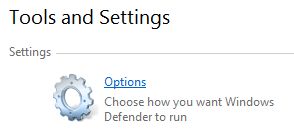
  3. Then click on Options link under “Tools and Settings” section.

    Options of Windows Defender in Vista

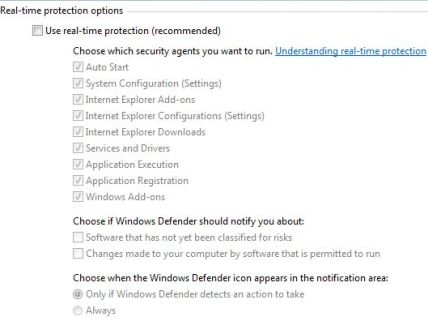
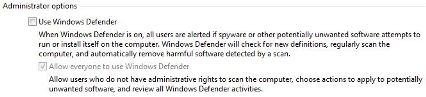
  4. Scroll down the “Options” page, and uncheck the check boxes of the following two settings:

    Use real-time protection (recommended) under “Real-time protection options”

    Disable Windows Defender in Vista

    Use Windows Defender under “Administrator options”

    Uninstall Windows Defender in Vista

    Note that both options MUST be unchecked for the Windows Defender service in Windows Vista to be completely stopped. Else, only real-time protection is disabled.

  5. Click on Save button.
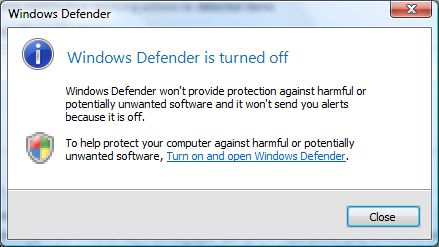
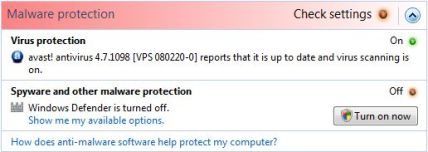
  6. A “Windows Defender is turned off” dialog message will appear, confirming that Windows Defender no longer runs. Once the Windows Defender is disabled, it’s sort of been uninstalled too, as any attempt to run the program will bring up “Windows Defender is turned off dialog window and unable to proceed to Windows Defender main window anymore.

    Windows Defender is turned off in Vista

    Beside, Windows Security Center will display a red alert icon in notification area (system tray) which warns users about stop functioning of spyware and other malware protection software.

    Vista Security Warning on Disabled Defender

    Install your favorite anti-spyware software to remove this alert, or follow this disable alert hack.

    Beside, in Services of Control Panel, the Windows Defender service is automatically stopped, although the Startup Type is still set to Automatic. Do not try to manually stop and disable the Windows Defender service from Services panel, as it will cause the error message of “Application failed to initialized: 0×800106ba. A problem caused this program’s service to stop. To start the service, restart your computer or search Help and Support for how to start a service manually.”

To re-enable (i.e. reinstall) Windows Defender in Vista, run Windows Defender from Start Menu and turn it on again when prompted.