Bienvenido! - Willkommen! - Welcome!

Bitácora Técnica de Tux&Cía., Santa Cruz de la Sierra, BO
Bitácora Central: Tux&Cía.
Bitácora de Información Avanzada: Tux&Cía.-Información
May the source be with you!
Showing posts with label admin. Show all posts

Wednesday, September 5, 2012

Administrator Account -Wndows 7

Source
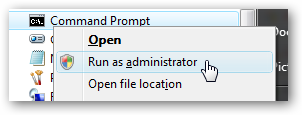
First you’ll need to open a command prompt in administrator mode by right-clicking and choosing “Run as administrator” (or use the Ctrl+Shift+Enter shortcut from the search box) image
Now type the following command:
net user administrator /active:yes


You should see a message that the command completed successfully. Log out, and you’ll now see the Administrator account as a choice. (Note that the screenshots are from Vista, but this works on Windows 7)


You’ll note that there’s no password for this account, so if you want to leave it enabled you should change the password.
Disable Built-in Administrator Account
sourceMake sure you are logged on as your regular user account, and then open an administrator mode command prompt as above. Type the following command:
net user administrator /active:no


The administrator account will now be disabled, and shouldn’t show up on the login screen anymore.
====================
Access the real Administrator account in Windows 7
 Source
====================
Windows 7 Safe Mode - Login With an Administrator
To start Windows 7 in Safe Mode, you must log on with an account that has administrator permissions.
Note: If you're not sure if any of your personal accounts have administrator privileges, logon using your own account and see if that works.
Important: If you're not sure what the password is to an account with administrator access, see How To Find the Administrator Password in Windows 7 for more information.
===================
Lost administrator account on Windows 7
 I wanted to create an administrator account so that I could have control over the content he views. However in creating the second account which was intended to be the one with admin rights somehow I've ended up with neither account having rights - ie both accounts are classed as stanbard user and neither with admin rights. I'm sure when I added the second account I specified that it should be the administrator - but maybe I made a mistake. Any how when I try and change this UAC comes up with a very unhelpful window that asked for an admin password - but no box to type it in. What can I do?
-------------------------
Like Vista, the Windows 7 built-in Administrator account is disabled by default. However, when there are no other administrative accounts on the system the built-in Administrator account may become enabled. Go into Safe Mode and see if Administrator appears on the Welcome Screen. If it does, log in and create an extra administrative account for elevation and emergencies (see below for suggested user account setup).
If Administrator doesn't appear on the Welcome Screen, enable it as follows:
Method 1 - If you have a Windows 7 installation DVD (not a recovery DVD) you can boot the system with it. Select the default language, then choose "Repair your computer". Then select "Command Prompt". At the command prompt type:
net user administrator /active:yes [enter]
Remove the DVD, reboot the computer, and log into the built-in Administrator account.

If you don't have a Windows 7 installation DVD (only have a recovery disc), the computer mftr. may have given you the Windows 7 System Repair option (not a System Recovery!) on the diagnostic menu. This diagnostic menu is the same one where you can choose Safe Mode. To get to this menu, repeatedly tap the F8 key as the computer is starting up. Or you can make a bootable Repair DVD from the file at this link:
http://neosmart.net/blog/2009/windows-7-system-repair-discs/
Note: All the Neosmart recovery disc downloads are torrent files. There is a good explanation of torrent files at the Neosmart website. You will need a torrent client such as muTorrent to get the files. The torrent client will download the .iso file with which to create the bootable DVD.
If you used Method 1, after you have created the extra administrative user account log into it and disable the built-in Administrator again for security purposes:
Start Orb -- Search box -- Type: cmd
When cmd appears in Results above, right-click it and choose "Run as administrator" [OK]. Now you will get the command prompt. At the command prompt type:
net user administrator /active:no [enter]

Exit the command prompt.
General Recommendations For Setting Up Users In Windows 7:
You absolutely do not want to have only one user account. Like XP, Vista and all other modern operating systems, Windows 7 is a multi-user operating system with built-in system accounts such as Administrator, Default, All Users, and Guest. These accounts should be left alone as they are part of the operating system structure.
You particularly don't want only one user account with administrative privileges on Windows 7 because the built-in Administrator account (normally only used in emergencies) is disabled by default. If you're running as Administrator for your daily work and that account gets corrupted, things will be Difficult. It isn't impossible to activate the built-in Administrator to rescue things, but it will require third-party tools and working outside the operating system.
The user account that is for your daily work should be a Standard user, with the extra administrative user (call it something like "CompAdmin" or "Tech" or the like) only there for elevation purposes. Running as a Standard user is best practice for security purposes and will help protect your computer from infection. After you create "CompAdmin", log into it and change your regular user account to Standard. Then log back into your regular account. 

Thursday, September 8, 2011

Enable or disable the Windows 7 administrator account.

Source
The easiest way to enable or disable the Windows 7 build in administrator account is from the command line. Open a command prompt with administrator rights. This is done by right-clicking on the command prompt icon in the Windows 7 start menu and selecting Run As Administrator from the available options.
To enable the Windows 7 administrator account:
net user administrator /active:yes
To disable the Windows 7 administrator account:
net user administrator /active:no
To change the password of the Windows 7 administrator account:
Net user administrator password
An alternative would be to enable or disable the Windows 7 administrator account using the Local Security Policy option. You can open the Local Security Policy by launching secpol.msc from the run box.
Please note that you have only access to the Local Security Policy on certain editions of the Windows operating system. The configuration tool is only available under Windows 7 Professional, Windows 7 Ultimate and Enterprise.
You find the option under Local Policies-> Security Options. Just change the setting Accounts: Administrator account by double-clicking the entry.
enable disable administrator account Enable Or Disable The Windows 7 Administrator Account
This security setting determines whether a different account name is associated with the security identifier (SID) for the account Administrator. Renaming the well-known Administrator account makes it slightly more difficult for unauthorized persons to guess this privileged user name and password combination.
Again, it is not really necessary to enable the administrator account, as it is possible to use a standard account with elevated rights for the same configuration options that an administrators account would offer. And it is better for security to not run an administrator account by default.
===========================
Source
An administrator password in Windows 7 is the password to any account that's setup to access administrator level functions in Windows 7.
There doesn't actually have to be an "Administrator" user account. What you need is the password to any account that can act as an administrator.
There are a few times when you will need this password. You may need an administrator password in Windows 7 if you're trying to run certain types of programs or access certain Windows 7 recovery tools.
Follow the steps to quickly Reset or Remove an administrator password in Windows 7!
Read more about this and other tutorials on my forum
http://www.briteccomputers.co.uk/forum
megaupload (dot) com/?d=3DFX2XLZ
kon bot

Wednesday, May 25, 2011

Resource for LAN Administrators

svrops.com 


Source
CookieWall (Win9x/NT/2000/XP)
Very useful cookie blocker program for Internet Explorer. v1.01
cookiei.exe 228 KB Go to web site
 Compass (Win9x/NT/2000/XP)
Organize your Internet bookmarks in an easy, very useful program v2.83
comps283.zip 741 KB Go to web site
  HP Web Jetadmin (NT/2000/XP/2003)
Manage HP print devices from your browser. v7.8
  26 MB Go to web site
  HP Jetadmin (Win9x/NT)
Last Windows based version of Jetadmin. v3.42
jetadmin.zip 5.5 MB  
       

Hyena (Win9x/NT/2000/XP/2003)
Excellent Windows NT/2000/2003 domain administration program. v6.6
hyena6.6.zip 3.0 MB Go to web site

IIS Export (NT/2000/2003)
Copy your IIS websites from one server to another, IIS 4/5/6. v4.2 iisexport.zip 3.5 MB Go to web site
  Passkeeper (Win9x/NT/2000/XP)
Freeware program to organize your passwords.  Very handy. psk3213.zip 86 KB  

Snagit Pro (Win9x/NT/2000/XP/2003)
Excellent screen capture program. v7.2 snagit72.exe 10 MB Go to web site

Startup Control Panel (Win9x/NT/2000/XP)
Handy little program to show you what programs start with your PC. v2.8 startup.zip 34 KB Go to web site
       
  TopDesk (Win9x/NT/2000/XP)
System tray utility for quick access to your desktop. v3.0b TopDesk.exe 270 KB  
  TrayIcon Explorer (Win9x/NT/2000/XP)
Handy folder alias that sits in your system tray. v1.4.131 tesetup.exe 521 KB Go to web site

TreeSize Pro (Win9x/NT/2000/XP/2003)
Graphical represention of hard drive useage.  Both local and network. v3.3 TreeSizePro33.exe 3.8MB Go to web site

Visual Route (Win9x/NT/2000/XP/2003)
Trace your TCP/IP packets with a graphical interface and maps. v10.x (2006) vr2006.exe 5.1 MB Go to web site
====================
  Testing Windows Server 2008 in VMware
Windows Server 2008, still in BETA, is the new Windows Server Operating System. If you want to test it, why not run it in a VMware virtual machine on a Windows 2003 server.

  Deploying Windows Vista with Sysprep and ImageX
Windows Vista new imaging software now makes it easy and affordable to deploy Windows using compressed images.  A reference PC is installed, configured, imaged and that image can be used to install hundreds more PCs.

  Windows Vista USB Automated Install
Why bother with DVDs... USB flash drives are much faster and easier to transport.  Find out how to run a fully automated installation of Windows Vista from a USB Flash Drive.

  Creating a WinPE 2.0 CD and UFD
Windows Preinstallation Environment (WinPE) version 2.0 is now freely available from Microsoft.  What once was only available to OEMs and Corporate customers, is now accessible by all.  This will show you how to create a bootable WinPE 2.0 CD and/or UFD (USB Flash Drive).
  Installing WinRE in Windows Vista
The Windows Recovery Environment (WinRE) in Windows Vista replaces the Recovery Console found in Windows XP.  And where installing the Recovery Console was a fairly simple process in XP, installing WinRE in Vista is not quite as simple.

Wednesday, October 6, 2010

Ten Essential Linux Admin Tools

Source by Kenneth Hess
System Administrators (SAs) need a set of tools with which to manage their often unmanageable systems and environments*. These ten essential Linux administration tools provide excellent support for the weary SA. Those listed aren’t your standard list of tools deemed essential by industry bystanders. These are tools that have proven track records and have stood the test of time in the data center.
  1. Webmin - Webmin is the ultimate web-based management platform for Linux and several other operating systems. Written in Perl, it simplifies and streamlines standard administrative tasks. Additionally, Webmin helps you configure very complex implementations of Apache, MySQL and SendMail. If you haven’t experienced Webmin, you should, it’s the essential administration tool.
  2. byobu - If you’re a screen user, byobu is the next step. If you haven’t used screen, you should try byobu. Byobu is a Japanese word for the decorative screens or room dividers that often adorn Japanese homes. Hence, the name for a more decorative form of the screen utility. Linux people are nothing if not clever in their naming of projects.
  3. tcpdump - It sounds crazy but you’d be surprised by how many times that System Administrators need to analyze network packets to help troubleshoot obscure problems that plague their systems. Tcpdump is the right tool for the job of analyzing network traffic. It isn’t beautiful or elaborate but it does exactly what its name advertises: It dumps IP-related traffic to the screen or to a file for analysis.
  4. Virtual Network Computing (VNC) - In its many incarnations (TightVNC, UltraVNC, RealVNC), VNC has become one of the most readily recognized and widely utilized remote access tools in the System Administrator’s toolbox. Its broad acceptance is due in part to its platform-independence. VNC is easy to install, simple to configure and available for almost every contemporary operating system.
  5. GNOME Partition Editor (GParted) - What’s better than fdisk? GParted. You have to love the power of this program, since you can boot to a Live CDROM and create, delete and resize your partitions without destroying any existing data. And, it works on almost every imaginable filesystem, even NTFS. For best results, download a Live CD/USB/PXE version and keep it handy.
  6. DenyHosts - DenyHosts is a Python script that allows you to actively monitor your systems for attempted unauthorized logins via SSH and subsequently deny access to the originating host system. Denyhosts records the denied entries in /etc/denyhosts.conf. No System Administrator should bring up a system without it.
  7. Nagios - Nagios is an extensive and somewhat complex network monitoring tool. It has the ability to monitor a variety of hosts, services and protocols. It is an enterprise class tool that is essential in every network regardless of size or complexity. With Nagios, you can monitor, alert, resolve and report on network problems. It also has trending and capacity planning capabilities. Nagios is an extrememly extensible tool through its plugins, addons, extensions and modules.
  8. Linux Rescue CD - Numerous rescue CDs exist for every task or imaginable situation. There are a three notable standouts in the crowd for those of you who don’t have one of these in your arsenal: The Ubuntu Rescue Remix, Parted Magic and GRML. Ubuntu Rescue Remix is a command line-based data recovery and forensics tools compilation (CD or USB). Parted Magic is a super diagnostic and rescue CD/USB/PXE that contains extensive documentation. GRML is a Debian-based live CD that contains a collection of System Administrator tools for system rescue, network analysis or as a working Linux distribution.
  9. Dropbox - Dropbox, as described in “Dropbox: Painless and Free Backup” is an essential backup and cross-platform file exchange tool. With Dropbox, you can leave home without your essential toolbox but still keep it with you where ever you go.
  10. Darik’s Boot and Nuke (DBAN) - Described by its developers as “a self-contained boot disk that securely wipes the hard disks of most computers”, DBAN is an essential decommissioning tool for those who have to dispose of systems that are no longer in service. DBAN also assures System Administrators that data from any previous operating system installations will be unrecoverable. DBAN isn’t the fastest tool on the planet but it is very thorough and wipes all detectable disks securely and completely.