Bienvenido! - Willkommen! - Welcome!

Bitácora Técnica de Tux&Cía., Santa Cruz de la Sierra, BO
Bitácora Central: Tux&Cía.
Bitácora de Información Avanzada: Tux&Cía.-Información
May the source be with you!

Saturday, September 4, 2010

Write Protection


Steps to make your drive Write Protected:
1.    Open Registry Editor by typing regedit in Run dialog.
2.    Navigate to the key HKEY_LOCAL_MACHINE\SYSTEM\CurrentControlSet\Control\
3.    Find a sub key inside it named “StorageDevicePolicies”. If it does not exist there then we need to make it. Right click on “Control” key -> New -> Key. Name it “StorageDevicePolicies” without quotes.
4.    Now right click on this newly created key and then click 
New - DWORD value and name it “WriteProtect” without quotes.
5.    Modify this key and give it a value 1.
6.    Click OK, and remember to restart the PC.
Now no more data can be transferred to the drive but to start using the drive again just give the “WriteProtect” key a value of 0 instead of 1 and restart the PC.
==========================================
Password Protect USB Ports with Free MyUSBOnly

Sometimes we want to password protect or lock our computer’s USB Ports to restrict certain users to use the USB port for their purposes. This is very helpful to the people who have secret information in their system and want to hide it from the others.
So if you also want to disable and password protect your USB drive for certain or all USB drives then here is the free software for you called MyUSBOnly.
MyUSBOnly is very good USB Password Protection software that not only adds security to your USB ports but also safeguard your system from the unauthorized access.
Features of MyUSBOnly:
•    Password protect USB ports.
•    Create a Device Whitelist which allows access to certain USB Drives specified by you to access the system without any software (like your own drive).
•    Block untrusted USB Drives.
•    Run it invisibly and easily.
Whenever you insert any USB drive it will ask for the correct password, if entered wrong you won’t be able to use the drive.

==================================
Block or Disable USB with PenyuUS


The prime reason for the virus spread are the USB drives, so if you also want to protect your system from this virus spread or document theft then locking your USB is a good way to do that. PenyuUSB is a tool that can enable or disable the USB mass storage to avoid such activities.
It doesn’t mean that the USB will be blocked for everyone, the only exception being the people having the password required to access. This software can also be used to prevent data from being stolen using pen-drive.
The tool is free and simple to use. It can be downloaded easily from the link below.
Download PenyuUSB
=============================
Free USB password protection software
Here is a list of some freeware software that can password protect your USB Drive.
1.    Folder Lock
Folder Lock can also be used to password protect the USB along with the folders and files on the disk. The only thing with this is that being a shareware it requires Folder Lock to be installed on another computer as well.
2.    True Crypt
Better software to encrypt files on the drive.
3.    Cryptainer LE
A complete freeware to password protect the pen drive. Read this on how to install and use it.
There are many other tools available but none of them are freeware and possess some or the other limitation with them. Well if you know any one else, then do mention it here.

Wednesday, September 1, 2010

Eee-PC Enabling Full Desktop Mode

Source
Brad Linder Nov 6th 2007
So you're an early adopter and you've run out to buy yourself Asus's $400 Eee PC because it seemed like a great price for a fully functional 2 pound computer that's about the size of a typical hardcover book
But the innovative easy to use interface might get old pretty quickly if you want to do more than surf the web and create letters, spreadsheets, and PowerPoint style presentations for your friends telling them how cool you are because you have an Eee PC while they don't.
Asus includes instructions for loading Windows XP onto the Eee PC, but it requires an external DVD drive, some drive compression, and you know, a copy of Windows XP. Curiously, Asus does not include any instructions for unlocking the built-in potential of Xandros Linux, the operating system that ships with the Eee PC. But as we mentioned in this week's Squadcast, it just takes a little bit of work to unlock this machine's potential.
If you've got a bit of Linux experience under your belt, it's pretty simple to add some programs, enable an advanced desktop, and tweak the Eee PC to your heart's content. But it turns out that even if you're a Linux noob, the learning curve isn't that steep. Here are some of the most useful Eee hacks/tweaks we've discovered in our first half week of playing with it. Thanks to the Eee User community for helping inspire our hacking. 
Enabling Full Desktop Mode

xPUD: Floating On The Cloud

Source
Some say that Linux will never come to the desktop, and maybe they are right. Everyday more and more applications are moving online.
There are numerous Cloud storage services, including some bundled with particular distributions.
So if everything is moving to the web, what use is there for a fully blown desktop? Perhaps what is needed is a super fast, lightweight distro to get us there.
These days, lightweight distros are becoming very popular. Previously Linux Magazine has looked at Tiny Core and this week we discover xPUD. It’s a relatively new distribution which aims to be the “shorted path to the cloud”.
The project website reads:
“xPUD is an unique Linux distribution, consisting mainly of a web browser and a media player, with a simple user interface on top. It can turn your computer into a kiosk-like station by leveraging web technologies, making surfing and watching movies as easy as pie.”
That’s right. xPUD is a 50MB distro that in just 10 seconds boots to an easy-to-use interface, ready to go. As you’ll discover however, it’s also much much more!
xpud-default-desktop.jpg
To get some more details, Linux Magazine talked with Ping-Hsun Chen, the lead developer of this amazing project.
Christopher Smart: Could you please tell me a little about yourself? Where do you live, what do you do and what is your relation to the project?
Ping-Hsun Chen: My original name is Ping-Hsun Chen. I’m a 23 year old student living in Taiwan, working on my masters degree (majoring in computer science). I started being a freelancer of web and FOSS development when I was 16.
I’m also the project leader of xPUD. We have a small team of active developers and also a small studio based in Taiwan.
CS: Could you tell us how xPUD started?
Penk: Back to June 2008, we were curious about how small a distro could be if the system contained only a fullscreen web browser.
At first we were trying to use the Ubuntu LiveCD system Casper, and we really pushed it to its limit. Soon after we found that by using ldd and strace utilities we could further strip down the system image size, which later on was extended to the fully featured build system “mkxpud”, and xPUD became a standalone project from the “eXperimental PUD” branch.
CS: What inspires xPUD and makes it unique?
Penk: xPUD is unique in many ways. It’s Linux built around a web browser, combined with an intuitive user interface, generated from the binary-level build system. The result is a small system that boots within 10 seconds, and is functional from the beginning.
We decided to leverage web technologies for the UI framework, because web has so many advantages, such as rapid development. We can quickly sketch a prototype with HTML and jQuery, run some usability tests then go back and keep improving it. We can easily mash-up with existing web services or public API, we also love its platform independent nature.
CS: What does the project hope to achieve?
Penk: We want to be the shortest path to “the Cloud”.

Solid State Storage technologies

Source
These Solid State Drives are an advanced NAND flash-based replacement for traditional rotative hard disk drives, This next-generation solution offers several advantages over rotating magnetic media such as significantly lower power consumption, remarkable ruggedness, high reliability, less weight and outstanding performance. Thus it eliminates spin-up time, seek time and rotational latency while delivering sustained high-speed data transfers This Technology provides distinct advantages:

Two Distinct Solutions to fit your needs


  • Consumer Product line, using MLC memory (multi-level chips) and
  • Industrial and Enterprise product line, using SLC memory (single level chips). 
SLC provides a longer life span than MLC. Overall performance of SLC can fulfill most industrial and enterprise application requirements at an optimal level, whereas MLC SSD is preferred for mobile consumer products such as laptops, where durability and speed advantages are of the greatest benefit.
A Consumer Applications
Great performance for Windows application
Great Performance, Low cost, durability for consumer use

  • Design to Replace traditional hard disk for Notebook


  • Lower cost Solid State Technology


  • Not recommended for intensive 24/7 application


  • Based on MLC Chip Technology
    See the product line  

  •  
    B Commercial or Industrial Applications
    Outstanding Performance, Higher cost, High durability

  • Designed for commercial or industrial application


  • Around 4 times the cost of a consumer SSD drive


  • Around 20 longer durability than a consumer SSD drive


  • Outstanding performance


  • Designed for constant read and write on the drive


  • Wide Temp available ( -40 celcius to +85 celcius)


  • Based on SLC chip technology
    See the product line

  • Magic Boot Disk v2.0

    Source
    Operating System: MS-DOS
    Magic Boot Disk v2.0 © HDDGURU, http://hddguru.com
    This MS-DOS boot disk contains the following:
    • Based on Windows 98 Second Edition boot disk
    • Drivers for IDE and SATA CDROM
    • Fixed FDISK.EXE:
      Support of hard disk drives bigger than 137 GB
    • Patched FORMAT.COM:
      • Option /Q (QuickFormat) now can be used to format floppies and hard disks quickly even if they're never been formatted before
      • MS-DOS version check has been removed
    • SmartDrive (SMARTDRV.EXE) and other basic MS-DOS stuff such as SYS, ATTRIB, DELTREE, LABEL, MEM, MOVE.
    • MHDD 4.6 with SCSI/ASPI and ATAPI support and Primary IDE enabled
    • USB Mass Storage support drivers for MHDD
    Self-extracting boot floppy image:  
    Magic Boot Disk — Floppy Creator v2.0
    ISO image to burn a CD: 

    Ubuntu remix with an OSX feeling

    Download

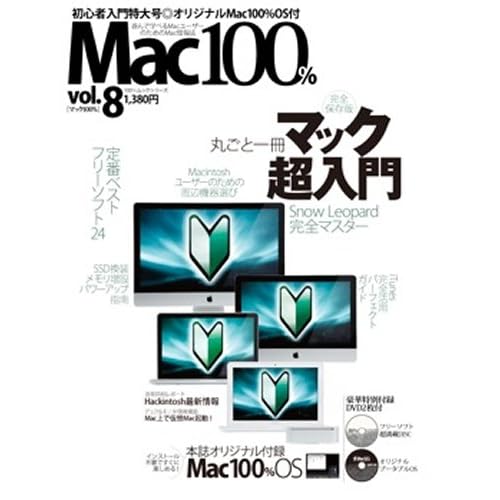
    Together with the magazine called Mac 100% Vol was the Mac 100% original OS dvd, an Ubuntu remix based on version 9.04 with an OSX feeling to it (well, at least the doc). 
    You get some useful software along with it.
    The menus are originally in Japanese, but can easily be changed in system settings like all other Linux distributions.
    Because this Ubuntu remix is a bit old I also don't know how it will turn out doing an upgrade from 9.04 to 10.04. But I will get back on this one if no one try it out before me. To upgrade you need to edit the software sources from "never releases" to "normal release" and first then you will be prompted to upgrade using the command sudo update-manager -d in the terminal.

    hdd capacity restore with hdparm

    by Gabriel Ramuglia (changed)
    For those who cannot run hdd capacity restore tool because they are running 64 bit windows,
    a copy of GNU/Linux (even a live cd like knoppix should work) is enough.
    hdparm version 8.0 or higher will work for this.
    Download the hdparm tar.gz file from sourceforge to your linux machine.
        tar –ungzip -xf hdparm(version).tar.gz
        cd hdparm(version)
        make
    If receive errors, you may need to
    #yum install gcc gcc-c++
    to get a compiler needed. If you still have errors, your linux kernel may be out of date for the program
    Now, from the same directory:
    # ./hdparm -N /dev/sdX
    (X as the hard drive device)
    This will show you if you’ve got that damn HPA going on. it will also show you the true maximum number of sectors. then you can run:
        ./hdparm -Np### /dev/sdX
    Where X is the related hard drive device and ### is the maximum number of sectors as we found out previously. This will set your drive back to normal size.
     (hard drive device) may be sda, sdb, sdc, hda, hdb, hdc, etc, depending whether the drive is sata or ide, and depending which disk it is on the system.